
Short answer: a Steam disk write error means Steam could not write the game files to your drive while installing or updating. The fastest fixes, from Valve’s own help for update and installation errors: restart Steam and your PC, then in Steam open Settings > Storage and use Repair Folder on your library, and run Verify Integrity of Game Files for the game (Steam Support). If the Steam disk write error comes back, clear the download cache, check your antivirus and test the drive for errors.
This guide explains what the Steam disk write error means, the official fixes in the order Valve lists them, the advanced checks for when nothing else works, and how to avoid the error next time. Everything comes from Steam Support, checked in October 2026.
- Meaning: Steam cannot write to the game folder or the drive
- First: restart Steam and the computer
- Then: Repair Folder (Settings > Storage) and Verify Integrity of Game Files
- Next: clear the download cache, change the download region, move the library
- Advanced: antivirus exceptions, drive error checking, RAM test, no overclocking
Table of Contents
What is a Steam disk write error?

You see a Steam disk write error when Steam stops an install or an update with a message like “An error occurred while updating [game] (disk write error)”. Steam downloaded the data, but it could not save it into the game’s folder on your drive. Some people call it a Steam “disc write error”, with a c: it is the same error, with the same fixes.
Valve’s support pages explain the usual reasons behind errors like this (Steam Support):
- Folder permissions: the Steam library folders need to be writable by all users, and sometimes these permissions break.
- Corrupted files: files on drives can get corrupted by bad hardware, software crashes or power surges.
- Other software: antivirus programs, system cleaners and other tools that monitor disk activity can block Steam.
- The drive itself: older drives or drives under heavy load can have errors.
- Unstable hardware: overclocking or faulty memory can corrupt files.
How to fix the Steam disk write error: 7 official steps
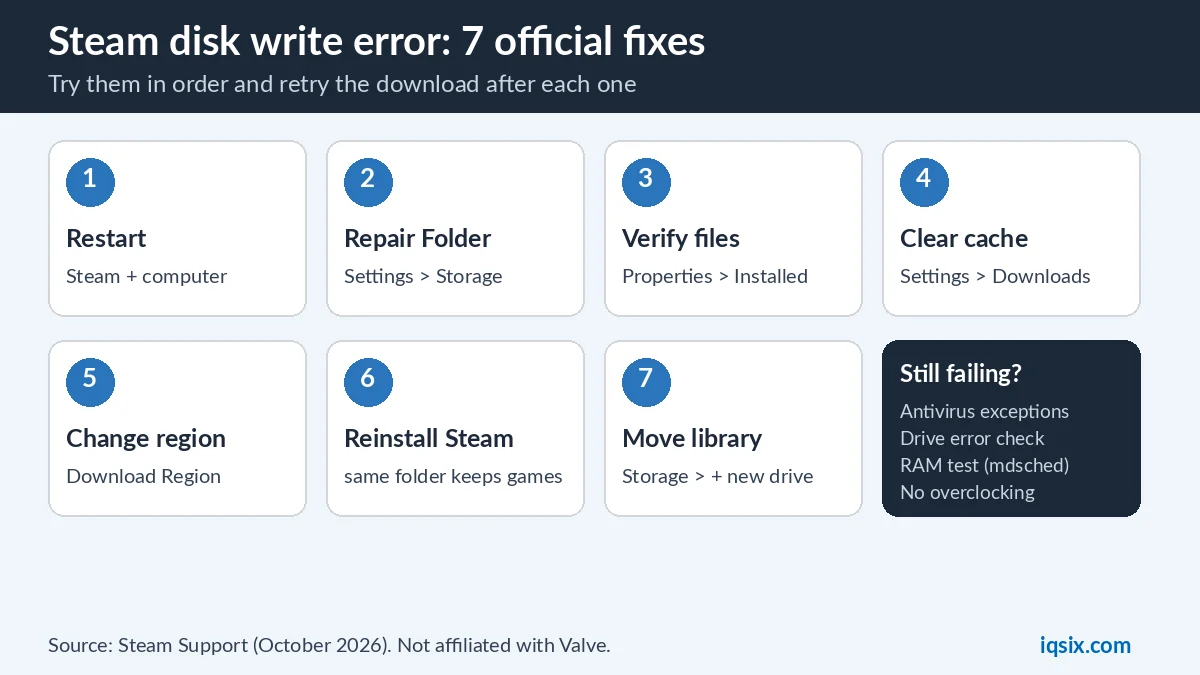
Valve lists these fixes for update and installation errors and says they can be done with a minimal amount of technical knowledge. Try them in order and retry the download after each one.
1. Restart Steam and your computer
Valve calls this a good first step: restarting flushes system states and caches, resets other programs and releases locks on files. That alone can clear a Steam disk write error if another program was holding a file.
2. Repair the library folder
In Steam, go to Steam > Settings > Storage, open the … menu of the drive with the game and select Repair Folder. Valve explains that the library folders need to be writable by all users to update properly, and that this refreshes broken permissions.
3. Verify the game files
In your Library, right-click the game, then select Properties > Installed Files > Verify Integrity of Game Files. Steam checks the installed files and fixes the ones that are damaged.
4. Clear the download cache
Go to Steam > Settings > Downloads > Clear Cache. Steam then flushes its locally cached configuration data and gets it again from the Steam servers.
5. Change the download region
Go to Steam > Settings > Downloads > Download Region and pick a different region for a while. Valve notes that servers in one region can be slow, overloaded or have a hardware failure. You may need to test several regions.
6. Reinstall Steam in the same folder
Download the Steam installer from the official Steam website and install it into the same location as before. Valve says installing into the same location keeps all installed games, and it warns that uninstalling Steam deletes all game content, so do not uninstall first.
7. Move the game to another drive
If you have a second drive, create a new Steam library folder there in Steam > Settings > Storage > +, then install the game there or move it. If the Steam disk write error disappears on the other drive, the first drive is the problem.
Which fix for which situation?
Where the Steam disk write error shows up tells you where to start. This table maps common situations to the matching fixes from Valve’s list:
| Situation | Start with |
|---|---|
| The error appears for every game you update | Repair Folder, then check your antivirus and other tools |
| Only one game shows the error | Verify Integrity of Game Files for that game |
| Only games on one drive fail | Move the game to another drive, then check the first drive for errors |
| It started after a crash or a power cut | Verify Integrity of Game Files, then check the drive for errors |
| You also see crashes or other strange errors | Test the memory (RAM) and turn off overclocking |
| Downloads are slow or keep stopping | Change the download region, restart your modem and router |
Steam disk write error on a Mac
The fixes inside Steam are the same on a Mac: Repair Folder in Settings > Storage and Verify Integrity of Game Files. To check the drive, Valve’s macOS step is Disk Utility > select the drive > First Aid (on older versions of OS X: Repair Disk Permissions). Note that on a Mac, drivers cannot be updated separately: keep macOS itself up to date.
Steam disk write error on an external drive
A library on a USB drive can fail to write if the drive disconnects or goes to sleep during a long update. Make sure the drive stays connected, avoid USB hubs while you update, and run the drive error check on it. If the Steam disk write error only happens on the external drive, Valve’s “move the game to another drive” test will confirm it.
Still getting the Steam disk write error? Advanced checks
If the error stays after the seven fixes, Valve says something outside Steam is probably responsible, and recommends getting help from a local IT specialist for these steps:
| Check | How |
|---|---|
| Antivirus | Make sure it does not block Steam; add exceptions, for example exclude the Steam library folders from live scanning |
| Other programs | System cleaners, recording software, “performance boosters” and similar tools can interfere |
| Drive errors (Windows) | This PC > right-click the drive > Properties > Tools > Error checking |
| Drive errors (Mac) | Disk Utility > select the drive > First Aid |
| Memory (RAM) | Windows: search for “mdsched” and run Windows Memory Diagnostic |
| Overclocking | Turn it off (usually in the BIOS): it can cause memory and file corruption |
| Windows and drivers | Start > search “update” > Check for updates |
| Network | Restart your modem and router; test another network, as some providers cache or compress data |
| Firewall | Check that it does not stop Steam from talking to its servers; add exceptions if needed |
Valve also notes that some games use copy protection that antivirus programs can flag by mistake, which is one more reason to check your antivirus when only one game shows the error.
Nothing worked? Use the Steam help wizard on Steam Support: Valve says it helps you narrow down your topic and get the help you need. Note the exact error message and the game name first, so you can describe the Steam disk write error precisely.
How to avoid disk write errors next time
- Keep free space on the drive with your Steam library: updates need room to download and unpack.
- Do not force the PC off during an update; let Steam finish or pause the download first.
- Keep Windows and drivers updated, as Valve recommends.
- Pause heavy disk tools while Steam updates: Valve lists system cleaners, recording software and similar programs among those that can interfere.
- Check older drives from time to time with the drive error check above, and back up important files.
Steam disk write error and other Steam guides
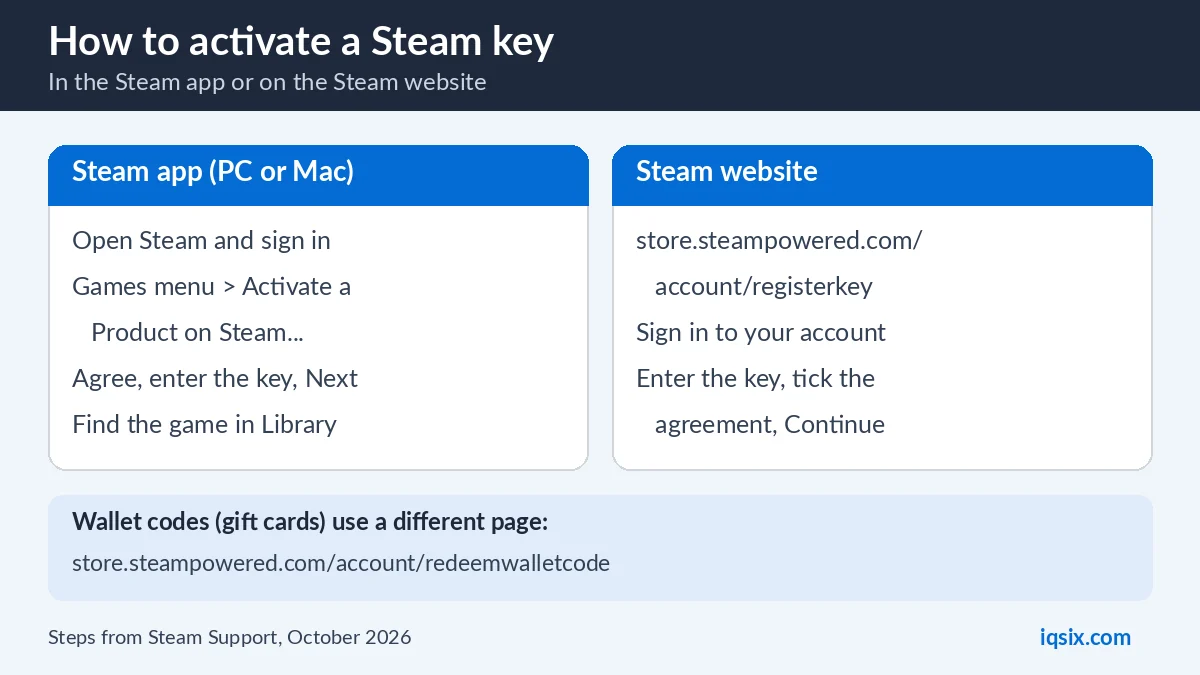
Activating a game on Steam with a key? See how to activate a Steam key – it also explains common key errors. For PC players on Game Pass, read how to play Xbox Game Pass on PC.
Steam and PC gaming codes from IQSIX

Once your games update again, browse our games category: gift cards and top-up codes for PC and console players, including a Steam Gift Card 10 USD (see the product page for the wallet currency it works with).
- Delivery: codes by email after your payment is confirmed.
- Payment: crypto, card, or a Remitly bank or mobile money transfer at checkout.
- Help: ask us on WhatsApp or through our contact page before you buy.
Steam disk write error FAQ
What does disk write error mean on Steam?
Steam downloaded the data but could not save it into the game folder on your drive, for example because of broken folder permissions, corrupted files, antivirus software or drive errors.
How do I fix a Steam disk write error?
Restart Steam and your PC, then use Repair Folder in Steam > Settings > Storage and Verify Integrity of Game Files. If it continues, clear the download cache, change the download region, check your antivirus and test the drive.
Will reinstalling Steam delete my games?
Reinstalling Steam into the same location keeps your installed games, according to Valve. Uninstalling Steam deletes all game content, so reinstall over the existing installation instead.
Can antivirus cause a Steam disk write error?
Yes. Valve says antivirus software can affect disk operations, and recommends adding exceptions for Steam, for example excluding the Steam library folders from live monitoring.
Does a disk write error mean my drive is broken?
Not necessarily: Valve also lists folder permissions and other software as causes. But if the error only happens on one drive, check that drive for errors and try installing the game on another drive.
Is the disk write error a problem with the game?
The error is about saving files to your drive. Verify Integrity of Game Files checks the game files and fixes damaged ones, so run it to rule the game out.
Sources, checked 28 October 2026: Steam Support: Update & Installation Issues. Steam is a trademark of Valve Corporation; IQSIX is not affiliated with Valve.