
Short answer: a display problem in Windows 10 can come from the display (graphics) driver, an incompatible app, the cable or monitor connection, or the display settings. Start with Microsoft’s quick fix: press Windows + Ctrl + Shift + B to reset the graphics driver. Then use the fix for your symptom below. Microsoft has separate pages for each of these display issues, and this guide puts their steps in one place: flickering, a black screen, a second monitor that stays dark, or a blurry or stretched picture.
Every step comes from Microsoft Support’s display pages for Windows 10 (the same steps mostly work on Windows 11), checked in October 2026.
- Quick fix for any display problem: Windows + Ctrl + Shift + B resets the graphics driver
- Flickering: check whether Task Manager flickers too (driver or app?)
- Black screen: check the cables, press Windows + P, restart Windows Explorer
- Second monitor: Windows + P > Extend, then Detect in Settings
- Blurry or stretched: pick the resolution marked (Recommended)
Table of Contents
Which display problem in Windows 10 do you have?
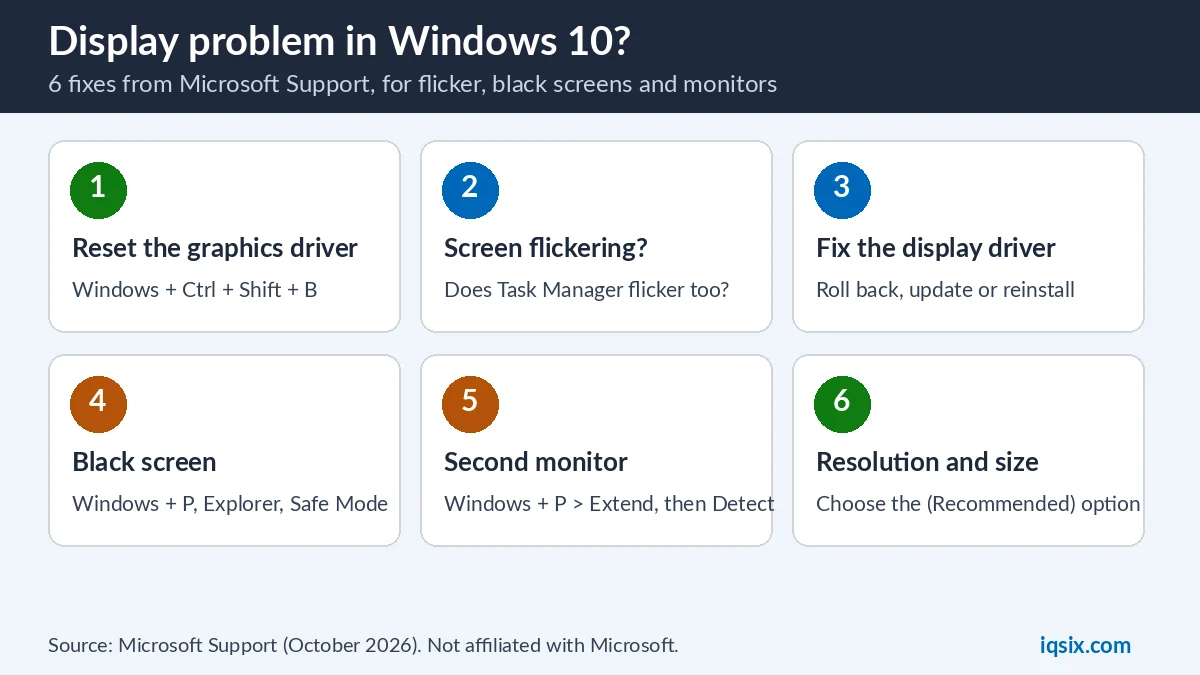
Find your symptom in this table of common display problems. The causes are the ones Microsoft names on its support pages (screen flickering, blank screens, external monitors).
| Display problem | Likely cause (Microsoft) | Go to |
|---|---|---|
| The screen flickers or looks scrambled | A display driver issue or an incompatible app | Fix 2, then Fix 3 |
| Black screen with a mouse cursor | A stalled Windows process or a driver issue | Fix 4: restart Windows Explorer |
| Black screen when you sign in | Display output settings, or a corrupted user profile | Fix 4: Windows + P |
| Black screen after an update | Incompatible drivers or an incomplete update | Fix 4: Safe Mode, then Fix 3 |
| External monitor shows nothing | Display mode, cable, port, dock or adapter | Fix 5 |
| Only one of two monitors works | The graphics card or the single video port supports one monitor | Fix 5 |
| Text is blurry, or the picture is small, stretched or has black edges | A resolution lower than the monitor’s native one | Fix 6 |
Fix 1: Reset the graphics driver
Press Windows + Ctrl + Shift + B. Microsoft says this resets your graphics driver and “may fix your issue”; on a black screen, “you should hear a beep or see a screen flicker if successful” (Microsoft Support). Microsoft lists it among the first steps on its flickering, black screen and monitor pages, so try it first for any display problem in Windows 10.
Display problem still there? Restart: select Start > Power > Restart. If that doesn’t help, select Start > Power > Shut down, then turn the PC back on.
Fix 2: Screen flickering? Check Task Manager first
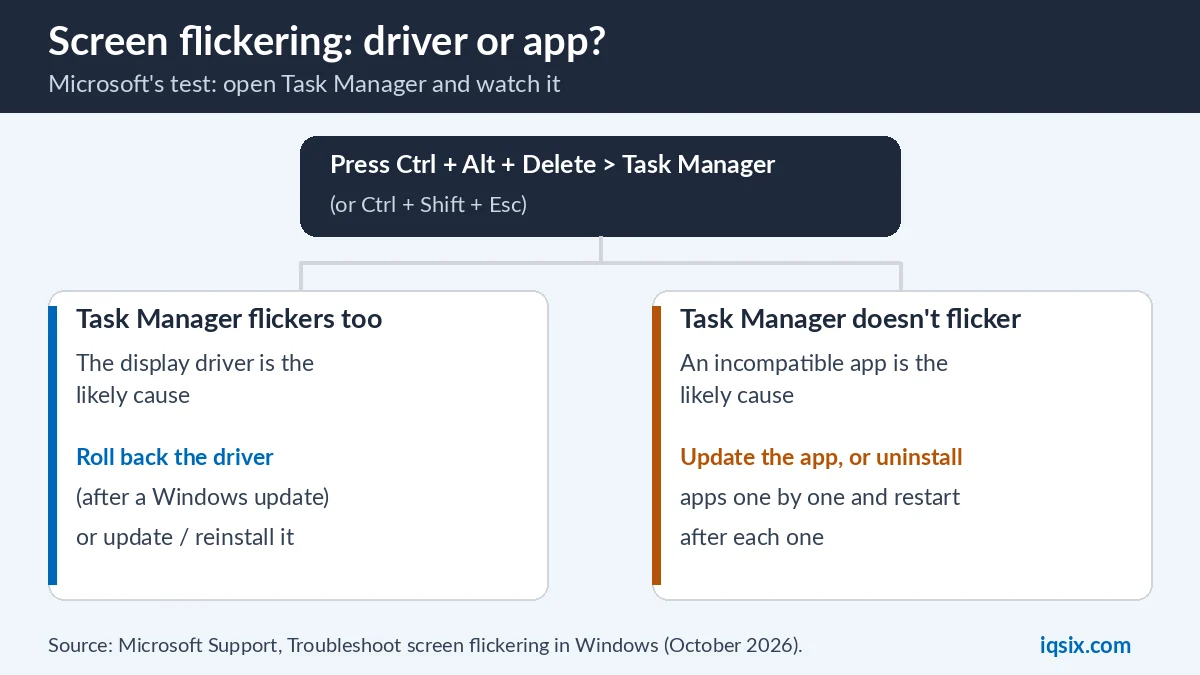
For this display problem, Microsoft has a simple test. It says screen flickering in Windows 10 “is usually caused by a display driver issue or incompatible app” (Microsoft Support). Its test tells you which one:
- Press Ctrl + Alt + Delete and open Task Manager (or press Ctrl + Shift + Esc).
- Task Manager flickers along with everything else: a display driver is probably the cause. Go to Fix 3.
- Task Manager doesn’t flicker, the rest of the screen does: an incompatible app is probably the cause.
For an app: update it (Microsoft Store apps through the Store, other apps on the maker’s website). Still flickering? Select Start > Settings > Apps > Apps & features, uninstall an app you suspect, restart and check. Microsoft’s advice is to uninstall apps one by one, restarting after each, until the flickering stops. You can reinstall apps later from Microsoft Store > Library or the maker’s site.
Fix 3: Roll back, update or reinstall the display driver
The display driver comes up on Microsoft’s pages about display problems of every kind: flickering, black screens, monitors that stop working and resolution changes. Microsoft’s rule: “If Windows Update recently made updates to your device, roll back your display driver. Otherwise, try updating or uninstalling your display driver” (Microsoft Support). You need an administrator account to roll back or uninstall a driver. Can’t see the screen well? Start in Safe Mode first (Fix 4).
Roll back the driver
- In the search box on the taskbar, type device manager and open it, then expand Display adapters.
- Right-click the adapter and select Properties.
- On the Driver tab, select Roll Back Driver > Yes, then restart.
Is Roll Back Driver greyed out? Then Windows has no previous driver to go back to: update or reinstall instead.
Update the driver
In Device Manager, right-click the display adapter and select Update driver > Search automatically for updated driver software. Microsoft notes that you may need the newest driver from your PC or graphics card maker. Device Manager shows the maker and the name of your adapter under Display adapters (Microsoft Support).
Reinstall the driver
- In Device Manager, right-click the display adapter and select Properties > Driver > Uninstall Device.
- Tick Delete the driver software for this device and select OK. No such box? Start your PC in Safe Mode and try again.
- Restart: Windows will try to reinstall the driver. If it doesn’t, open Device Manager and use Update driver.
After any driver change, restart and check whether the display problem is gone.
Fix 4: Black screen in Windows 10
A black screen is a display problem with several possible causes (see the table above). Microsoft lists these basic steps first (Microsoft Support):
- Check connections: the PC is charged or plugged in; an external monitor is connected, plugged in and turned on.
- Wake the screen: press Windows + Ctrl + Shift + B.
- Check the display mode: press Windows + P, then press P again and Enter to switch between modes such as PC screen only, Duplicate and Extend.
- Use Ctrl + Alt + Del: if the security screen appears, open Task Manager and restart Windows Explorer.
- Force a restart: press and hold the power button for 20 seconds.
See a cursor on a black screen? Restart Windows Explorer
- Press Ctrl + Shift + Esc to open Task Manager.
- Find Windows Explorer, right-click it and select Restart.
- Not in the list? Select File > Run new task, type explorer.exe and press Enter.
Black screen after an update? Use Safe Mode
- Hold the power button for 10 seconds to turn the PC off. Do this 2–3 times, until Windows opens the recovery screen.
- Select Troubleshoot > Advanced options > Startup Settings > Restart.
- Press F5 for Safe Mode with Networking.
- In Device Manager, expand Display adapters, right-click your graphics card and select Update driver, or roll back the driver if the problem started after an update (Fix 3).
Started recently? From the same recovery screen, Troubleshoot > Advanced options > System Restore takes Windows back to a restore point from before the problem. Windows doesn’t start at all? See our guide to the Preparing Automatic Repair loop. An update that keeps failing and rolling back? See undoing changes made to your computer.
Fix 5: Second monitor not working or not detected
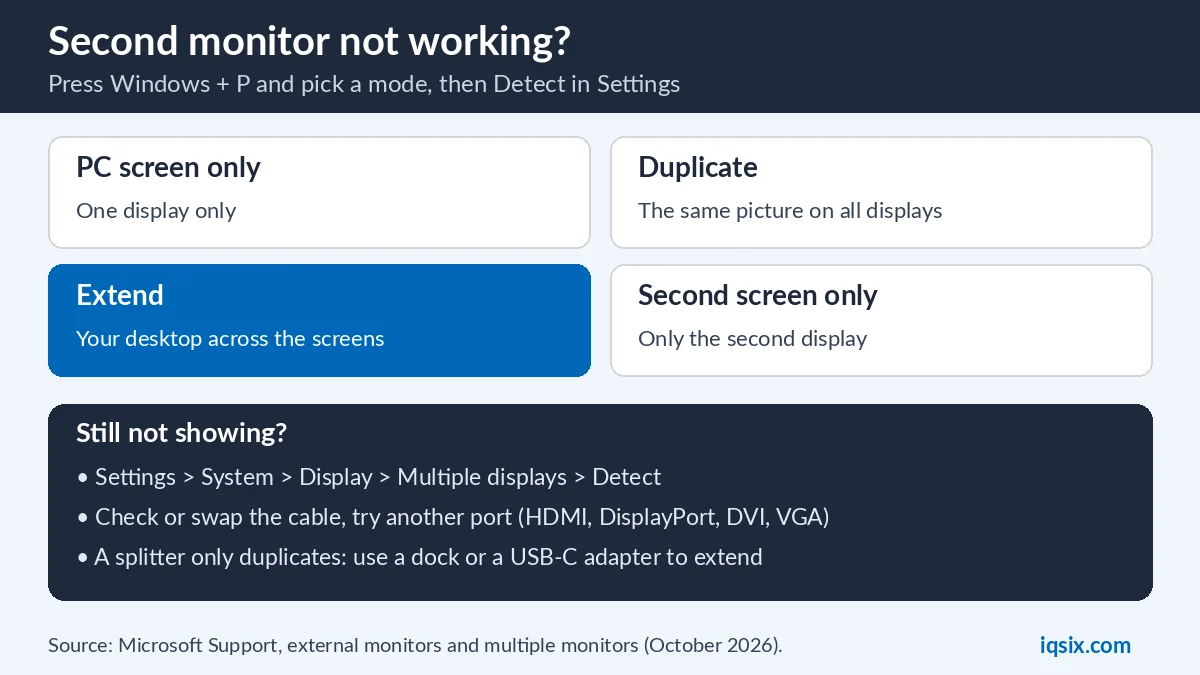
For external monitor display problems, first make sure Windows is up to date (Start > Settings > Update & Security > Windows Update > Check for updates). Then, says Microsoft, press Windows + P and make sure Extend is selected (Microsoft Support). The four modes:
| Windows + P option | What you see |
|---|---|
| PC screen only | Everything on one display only |
| Duplicate | The same thing on all your displays |
| Extend | Your desktop across the screens; you can move items between them |
| Second screen only | Everything on the second display only |
Monitor still missing in Settings? Select Start > Settings > System > Display > Multiple displays and select Detect. Identify shows which number belongs to which screen (Microsoft Support). Then check the hardware:
- Disconnect docks, dongles, adapters and other accessories: they can cause conflicts.
- Make sure the cable is firmly connected, and try another cable. If the new one works, the old cable was faulty.
- Try the monitor on another PC, to see whether the monitor or the PC is the problem.
- Try another video port on the PC: HDMI, VGA, DVI or DisplayPort.
- Two graphics cards? Switch the default display adapter in the graphics card maker’s software.
One monitor works but not two? Your graphics card may not support more than one; its maker can tell you how many it supports. Microsoft also warns that a display splitter can’t extend your desktop: it duplicates the same signal. With only one video port, you need a docking station or, with a USB-C port, a USB adapter that adds a video output.
A setup that worked and suddenly stopped? Try Fix 1, restart, then roll back or reinstall the display driver (Fix 3).
Fix 6: Wrong resolution, size or refresh rate
Blurry text, or a picture that is small, centred, stretched or edged with black: Microsoft links these display issues to a resolution below the monitor’s native one. Monitors can run at lower resolutions, it says, “but text won’t look as sharp” (Microsoft Support).
- Select Start > Settings > System > Display. With several screens, select the one to change at the top.
- Under Scale and layout, set Display resolution to the option marked (Recommended).
- Text and apps too small or too big? Under Change the size of text, apps, and other items, the (Recommended) option is usually best.
- Picture on its side? Choose the right Display orientation.
Resolution changing by itself? Microsoft says your graphics driver might need an update: check Settings > Update & Security > Windows Update.
Refresh rate: select Start > Settings > System > Display > Advanced display settings, choose the display, and pick a rate under Refresh rate. The rates you see depend on your monitor. A higher rate can make games and scrolling smoother; a lower one saves battery on a laptop. Windows 10 doesn’t support Dynamic Refresh Rate, which Windows 11 uses to switch automatically (Microsoft Support).
Still on Windows 10? What Microsoft says
Microsoft’s Windows 10 display pages now carry this note: “After October 14, 2025, Microsoft will no longer provide free software updates from Windows Update, technical assistance, or security fixes for Windows 10. Your PC will still work, but we recommend moving to Windows 11.” In short: Windows 10 PCs keep working, but they no longer get free updates or security fixes from Microsoft.
If display issues keep coming back on an older PC, check whether it can run Windows 11 in our Windows 11 requirements guide, read your options after Windows 10 end of support, and see how to upgrade Windows 10 to Windows 11 for free.
Need a Windows 11 Pro key?

Moving to Windows 11, building a new PC or upgrading from Windows 11 Home to Pro? IQSIX sells a Windows 11 Pro product key for one PC. Enter it in Settings > System > Activation > Change product key.
- Delivery: by email after your payment is confirmed (or on WhatsApp if you ask).
- Payment: crypto, card, or a Remitly bank or mobile money transfer at checkout.
- Questions first? Ask us on WhatsApp or through our contact page.
Need Office or antivirus too? See all our software keys.
Display problem in Windows 10: FAQ
Why is my screen flickering in Windows 10?
Microsoft says it is usually a display driver issue or an incompatible app. Open Task Manager: if it flickers too, fix the display driver; if it doesn’t, update or uninstall the app that causes it.
What does Windows + Ctrl + Shift + B do?
It resets the graphics driver. Microsoft says you should hear a beep or see the screen flicker when it works. If nothing changes, restart the PC.
Why is my second monitor not detected?
Press Windows + P and choose Extend, then select Detect in Settings > System > Display > Multiple displays. Check the cable and port, remove docks and adapters, and check that your graphics card supports more than one monitor.
How do I fix a black screen after a Windows update?
Start in Safe Mode with Networking (F5 in Startup Settings), then roll back or update the display driver in Device Manager. System Restore can also take Windows back to before the update.
Why does my screen look blurry or stretched?
The resolution is probably lower than the monitor’s native one. Select the resolution marked (Recommended) in Settings > System > Display.
Can a splitter extend my display to two monitors?
No. Microsoft says a splitter duplicates the same signal. Use a docking station or a USB-C video adapter, and check how many monitors your graphics card supports.
Sources, checked 31 October 2026: Microsoft Support – Troubleshoot screen flickering in Windows, Troubleshooting blank screens in Windows, Troubleshoot external monitor connections in Windows, How to use multiple monitors in Windows, Change your screen resolution and layout in Windows and Change the refresh rate on your monitor in Windows. IQSIX is not affiliated with Microsoft.