
Short answer: “Preparing Automatic Repair” means Windows failed to start several times in a row, so it opened the Windows Recovery Environment (Windows RE) and started Startup Repair by itself. When that repair fails, the screen says “Automatic Repair couldn’t repair your PC”. The message can also read “Startup Repair couldn’t repair your PC”: it is the same tool, and the same fixes apply. Don’t choose Shut down: select Advanced options and work through the 6 fixes below, from the safest to the last resort.
Every step comes from Microsoft Support and Microsoft Learn, checked in October 2026, and works on Windows 11 and Windows 10.
- Why it happens: Windows failed to start correctly several times
- What runs: Startup Repair, inside Windows RE
- What to press: Advanced options, not Shut down
- Try first: Startup Repair, Uninstall Updates, System Restore
- Last resort: Reset this PC with “Keep my files”
Table of Contents
What does Preparing Automatic Repair mean?

Microsoft explains it like this: “If Windows fails to start correctly multiple times, it will automatically enter Windows RE. This can happen if there are issues with the boot process or if the system detects a problem that prevents Windows from starting” (Microsoft Support). Windows RE is a set of built-in Windows tools to troubleshoot and fix common problems, and “Preparing Automatic Repair” is the screen you see while it loads.
Windows RE then runs Startup Repair. Microsoft says it scans your computer and tries to fix missing or damaged system files, corrupted boot configuration data (BCD), a damaged master boot record (MBR), incompatible drivers and registry errors (Microsoft Support). If it can’t fix the problem, you get “Automatic Repair couldn’t repair your PC” and a log file, C:\Windows\System32\LogFiles\Srt\SrtTrail.txt.
How to open Advanced options (Windows RE)
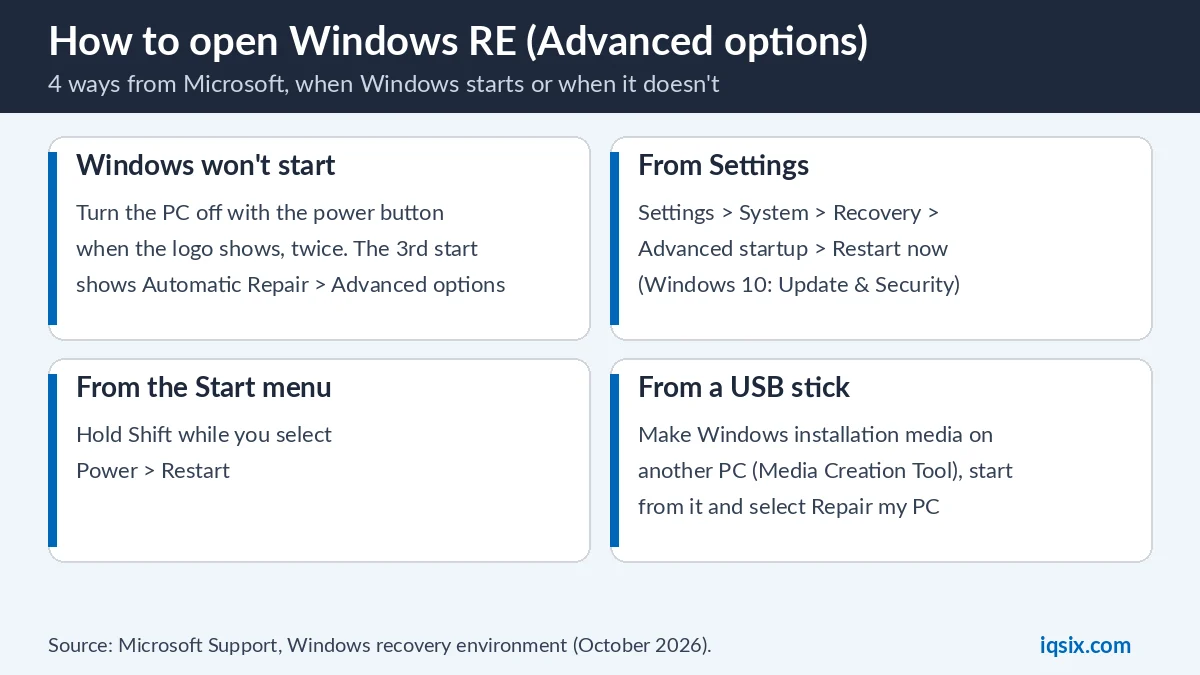
On the “Automatic Repair couldn’t repair your PC” screen, simply select Advanced options. No such screen? Microsoft gives these other ways in (Microsoft Support):
- Windows doesn’t start: turn the PC on and, as soon as the Windows logo appears, hold the power button until it shuts down. Do this twice. On the third start, Windows shows the Automatic Repair screen: select Advanced options.
- Windows still starts: open Settings > System > Recovery and select Restart now next to Advanced startup (Windows 10: Update & Security > Recovery). Or hold Shift while you select Power > Restart.
- Nothing works: on another PC, make Windows installation media with the Media Creation Tool (steps in our guide to download Windows 11 Pro). Start the broken PC from it, choose your language and select Repair my PC.
In Windows RE, select Troubleshoot > Advanced options to see the tools used below. Your PC is encrypted with BitLocker? Microsoft says you need the BitLocker recovery key for several of these tools, so have it ready (see BitLocker on Windows 11 Home).
Automatic Repair couldn’t repair your PC: 6 fixes
Try the fixes in this order, from the least to the most drastic: the last one reinstalls Windows. They also work when the screen says “Startup Repair couldn’t repair your PC”.
Fix 1: Run Startup Repair from Advanced options
- Select Troubleshoot > Advanced options > Startup Repair, then Restart.
- After the restart, Startup Repair scans your PC and tries to fix the problems it finds.
Started from installation media instead? Microsoft Learn’s steps: on the Install Windows screen, select Next > Repair your computer > Troubleshoot > Startup Repair. When it is done, select Shutdown, then turn the PC on to see if Windows starts (Microsoft Learn).
Fix 2: Uninstall the latest Windows update
Did the loop start right after an update? Windows RE has an Uninstall Updates tool that removes recently installed Windows updates. Select Troubleshoot > Advanced options > Uninstall Updates and follow the screens. Did the screen say “Undoing changes made to your computer” before? See how to fix undoing changes.
Fix 3: Go back with System Restore
- Select Troubleshoot > Advanced options > System Restore.
- Pick a restore point from before the problem. Not in the list? Tick Show more restore points.
- Optional: select Scan for affected programs to see what will be removed.
- Select Next, then Finish, and Restart when it is done.
Microsoft says System Restore puts system files, registry settings and installed programs back to how they were at the restore point, without affecting your personal files (Microsoft Support). Windows creates restore points automatically, for example when you install software or updates. Newer Windows 11 PCs can also show Point-in-time restore: careful, that one rolls back the whole PC, including apps, settings and personal files, to a recent automatic restore point.
Fix 4: Start Windows in Safe Mode
- Select Troubleshoot > Advanced options > Startup Settings > Restart.
- When the PC restarts, press 4 or F4 for Safe Mode, or 5 or F5 for Safe Mode with Networking.
Safe Mode starts Windows with a limited set of files and drivers (Microsoft Support). If Windows starts this way, Microsoft Learn suggests looking at Event Viewer (System log) to find the cause, and doing a clean start with msconfig (Selective startup) to test services one at a time: “in most cases, the problematic service is third-party” (Microsoft Learn). It is also a good moment to back up your files.
Stuck in a loop where Windows fails, restarts and fails again? In the same Startup Settings list, Disable automatic restart on system failure stops the restarts, so you can read the error on the screen. Microsoft says to choose it only in that situation.
Fix 5: Repair files, disk and boot from Command Prompt
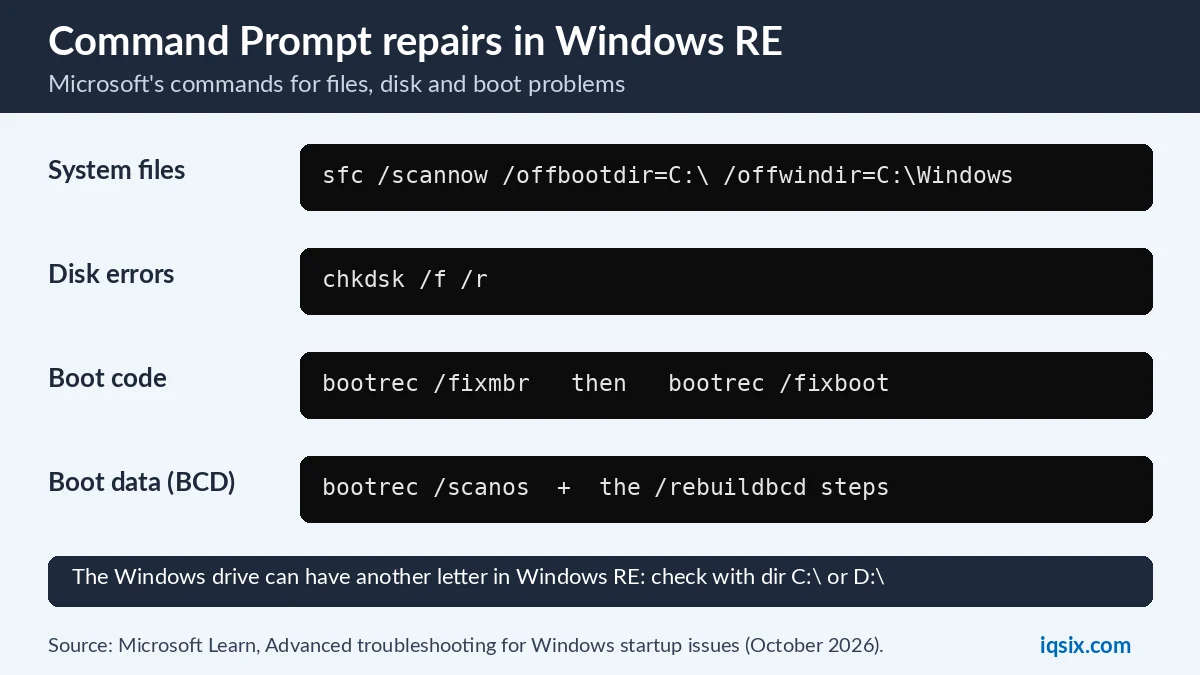
These commands come from Microsoft Learn’s page for startup problems, which Microsoft wrote for support agents and IT professionals (Microsoft Learn). Select Troubleshoot > Advanced options > Command Prompt (from installation media, press Shift+F10). Then:
- Check system files:
SFC /Scannow /OffBootDir=C:\ /OffWinDir=C:\Windows. More in our guide to DISM and SFC /scannow. - Check the disk:
chkdsk /f /r, which Microsoft gives for disk corruption. - Repair the boot code:
bootrec /fixmbr, thenbootrec /fixbootfor the boot sector. Microsoft notes that /fixmbr only rewrites the master boot code: if the partition table is damaged, it might not help. - Fix boot configuration (BCD) errors: run
bootrec /scanosand restart. Still broken? Run these four commands, then restart:
bcdedit /export c:\bcdbackup
attrib c:\boot\bcd -r -s -h
ren c:\boot\bcd bcd.old
bootrec /rebuildbcd
In Windows RE the Windows drive can have another letter, so check first with dir C:\ and dir D:\ and use the letter that holds the Windows folder.
Fix 6: Reset this PC and keep your files
If nothing else works, reinstall Windows with Troubleshoot > Reset this PC. Microsoft’s options (Microsoft Support):
- Keep my files: reinstalls Windows and removes apps and settings, but keeps your documents, photos and other personal data.
- Remove everything: reinstalls Windows and removes all personal files, apps and settings.
- Cloud download: downloads a fresh copy of Windows. Microsoft says it is useful if your local files are corrupted or missing.
- Local reinstall: uses the files already on the PC. Faster on a slow connection, but may not include the latest updates.
Back up first if you can (Safe Mode with Networking helps). Microsoft warns that the screen can stay black for a long time during a reset, sometimes more than 15 minutes, and the PC may restart by itself: don’t restart it yourself, or the reset can fail.
Read the SrtTrail.txt log
Startup Repair writes what it found to C:\Windows\System32\LogFiles\Srt\SrtTrail.txt (Microsoft Learn: %windir%\System32\LogFiles\Srt\Srttrail.txt). To read it, open Command Prompt in Windows RE and type notepad, then use File > Open, or run:
notepad C:\Windows\System32\LogFiles\Srt\SrtTrail.txtMicrosoft says Startup Repair gives a detailed report of the issues it found, so the log can tell you which fix above to try first. If Preparing Automatic Repair keeps coming back, it is your best clue to the cause.
Which fix for which boot error?
When Automatic Repair couldn’t repair your PC, check whether the screen or the SrtTrail.txt log names one of these problems. For boot errors, Microsoft Learn says to use any of its methods; this table puts the most relevant ones first (Microsoft Learn):
| Error or symptom | Methods to try (from Microsoft Learn) |
|---|---|
| Boot Configuration Data (BCD) missing or corrupted | Startup Repair, then bootrec /scanos and the /rebuildbcd steps (Fix 5) |
| Boot file, MBR or boot sector missing or corrupted | Startup Repair, then bootrec /fixmbr and bootrec /fixboot |
| Operating system missing, or Bootmgr missing or corrupted | Startup Repair, then the BCD steps; Microsoft Learn also describes replacing Bootmgr |
| System hive (registry) missing or corrupted | System Restore: Microsoft recommends a restore point, because Windows no longer backs up the registry to the RegBack folder |
| Black screen or spinning dots after the logo | Safe Mode, then a clean start with msconfig to find a faulty service (black screen once Windows runs: see display problem in Windows 10) |
| A Stop error that points to damaged system files or disk errors | Offline SFC, or chkdsk /f /r for disk corruption |
The same table applies when the message says “Startup Repair couldn’t repair your PC”. If none of it helps, Reset this PC (Fix 6) reinstalls Windows.
After the repair: check activation
When Windows starts again, open Settings > System > Activation. If it shows an error code, look it up in our list of Windows activation errors. Before a reset, write down your product key if you have one: see how to find your Windows product key. Microsoft says that if Windows came preinstalled and you replaced the motherboard, you may need a new license (Microsoft Support).
Need a Windows 11 Pro key?

Building a new PC, replacing the motherboard or moving from Windows 11 Home to Pro? IQSIX sells a Windows 11 Pro product key for one PC. Enter it in Settings > System > Activation > Change product key.
- Delivery: by email after your payment is confirmed (or on WhatsApp if you ask).
- Payment: crypto, card, or a Remitly bank or mobile money transfer at checkout.
- Questions first? Ask us on WhatsApp or through our contact page.
Need Office or antivirus too? See all our software keys.
Preparing Automatic Repair FAQ
What causes Preparing Automatic Repair?
Windows failed to start correctly several times, so it opened Windows RE and started Startup Repair. Microsoft lists what it tries to fix: damaged system files, corrupted boot configuration data, a damaged master boot record, incompatible drivers and registry errors.
How do I get out of the Automatic Repair loop?
Select Advanced options and try Startup Repair, Uninstall Updates and System Restore first. Then try Safe Mode and the Command Prompt repairs. Reset this PC with Keep my files is the last resort.
Will Reset this PC delete my files?
Not with Keep my files: Microsoft says it reinstalls Windows and removes apps and settings, but keeps your documents, photos and other personal data. Remove everything deletes them.
Where is the Automatic Repair log file?
In C:\Windows\System32\LogFiles\Srt\SrtTrail.txt. Open it from Command Prompt in Windows RE with notepad.
What if bootrec /fixboot says Access is denied?
Microsoft’s startup troubleshooting page doesn’t give a fix for that message. Use its other methods instead: bootrec /scanos and the /rebuildbcd steps, Startup Repair, System Restore, or Reset this PC.
Can I fix Automatic Repair without losing data?
Often yes. Microsoft says System Restore doesn’t affect personal files, and Reset this PC with Keep my files keeps them too. Back up from Safe Mode with Networking first if you can.
Sources, checked 30 October 2026: Microsoft Support – Windows recovery environment, Startup Repair, System Restore, Reset your PC and Windows startup settings, Reactivating Windows after a hardware change; Microsoft Learn – Advanced troubleshooting for Windows startup issues. IQSIX is not affiliated with Microsoft.