
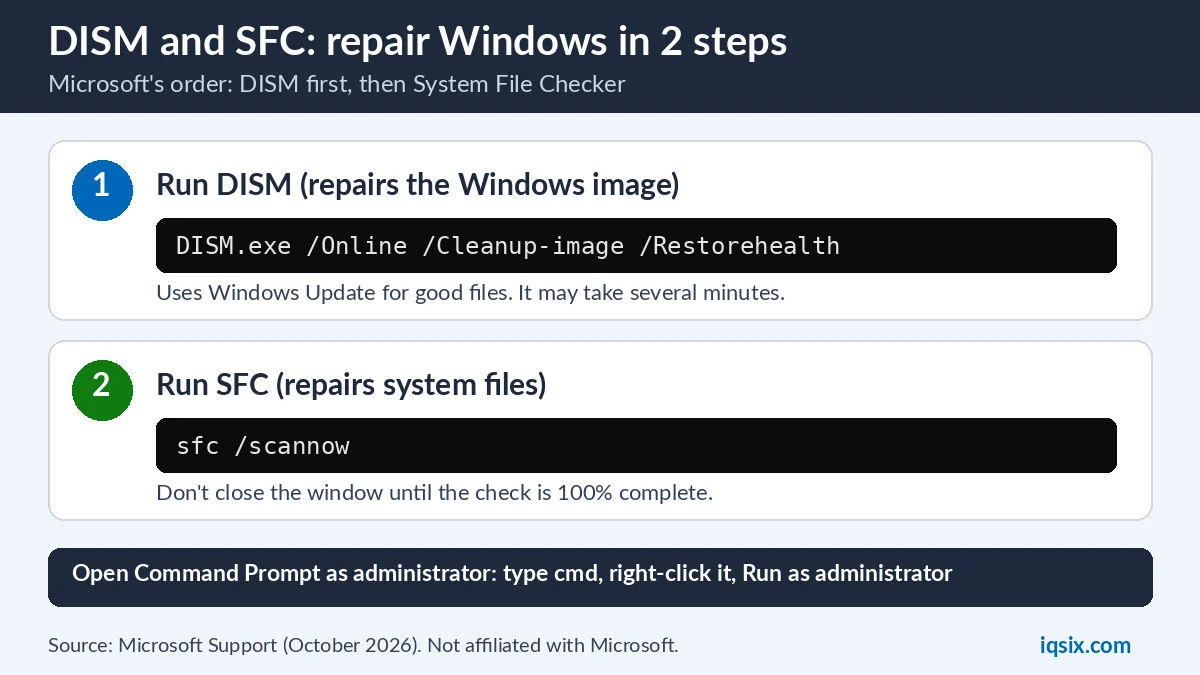
Short answer: DISM and the System File Checker (SFC) are two repair tools built into Windows 11 and Windows 10. Microsoft’s order is: first run DISM.exe /Online /Cleanup-image /Restorehealth, then sfc /scannow, both in Command Prompt as administrator. DISM repairs the Windows image that holds good copies of system files; the System File Checker then scans all protected system files and replaces the corrupted ones.
Below are Microsoft’s exact commands (checked in October 2026), what each SFC result message means, and what to do when SFC says “Windows Resource Protection could not perform the requested operation”.
- Step 1:
DISM.exe /Online /Cleanup-image /Restorehealth - Step 2:
sfc /scannow - Run both in Command Prompt as administrator, and let each one finish
- “Could not perform the requested operation”? Run SFC in safe mode
- Works on Windows 11 and Windows 10
Table of Contents
What are DISM and the System File Checker?
Microsoft says that when critical Windows system files are missing or corrupted, Windows may start to malfunction: features don’t work properly, you get system errors, or Windows stops responding or freezes. DISM and the System File Checker are the built-in tools to fix that (Microsoft Support).
- DISM (Deployment Image Servicing and Management) is a command-line tool to service and prepare Windows images. Microsoft says it is in the C:\Windows\System32 folder of all Windows 10 and Windows 11 installations, and you can run it from any folder (Microsoft Learn).
- SFC (System File Checker, sfc.exe) “scans and verifies the integrity of all protected system files and replaces incorrect versions with correct versions” (Microsoft Learn).
Why this order? Microsoft: “DISM provides the files required to repair your corrupted files. You should run DISM prior to running the System File Checker.” If the store of good copies is itself damaged, SFC has nothing good to copy from.
How to run DISM and SFC /scannow
1. Open Command Prompt as administrator
- Type cmd in the search box on the taskbar.
- Right-click Command Prompt and select Run as administrator.
- If Windows asks for confirmation or an administrator password, enter it or select Allow.
You must be signed in with an administrator account: Microsoft says the sfc command only runs for members of the Administrators group.
2. Run DISM RestoreHealth
DISM.exe /Online /Cleanup-image /RestorehealthType the command and press Enter. Microsoft says it may take several minutes. It gets the good files from Windows Update, so stay connected to the internet (no internet? see the repair source section below).
3. Run sfc /scannow
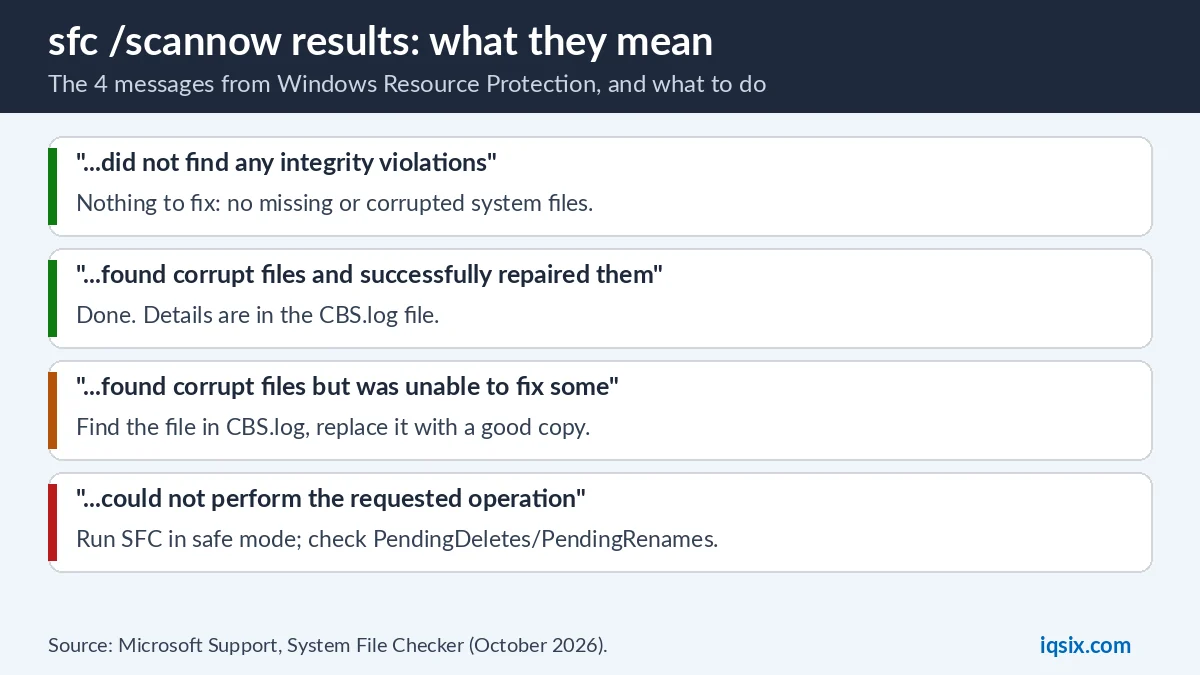
sfc /scannowMicrosoft’s warning: do not close the Command Prompt window until the verification is 100% complete. The System File Checker scans all protected system files and replaces corrupted files with a cached copy. When it is done, you see one of four messages (next section).
What the sfc /scannow results mean
| Message | What it means | What to do |
|---|---|---|
| Windows Resource Protection did not find any integrity violations. | No missing or corrupted system files. | Nothing. Your system files are fine. |
| Windows Resource Protection found corrupt files and successfully repaired them. | The repair worked. | Nothing more. To see what was fixed, read the CBS.log (below). |
| Windows Resource Protection found corrupt files but was unable to fix some of them. | Some files are still damaged. | Find them in the CBS.log and replace them with a good copy (below). |
| Windows Resource Protection could not perform the requested operation. | SFC couldn’t run its check. | Run the System File Checker in safe mode, and check two folders (next section). |
Fix “Windows Resource Protection could not perform the requested operation”
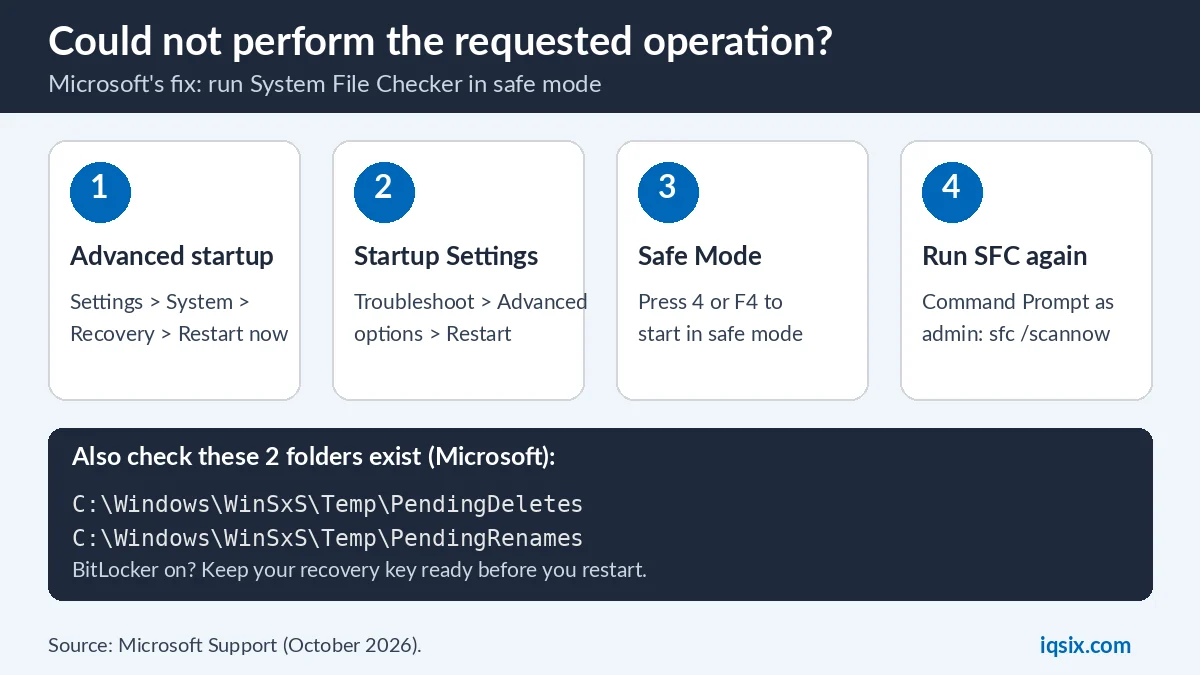
For this message Microsoft gives two fixes: run the System File Checker scan in safe mode, and make sure that the PendingDeletes and PendingRenames folders exist under %WinDir%\WinSxS\Temp, where %WinDir% is your Windows folder, usually C:\Windows (Microsoft Support).
- Check the folders: in Command Prompt as administrator, run
dir %WinDir%\WinSxS\Tempand look for PendingDeletes and PendingRenames in the list. - Open Advanced startup: Settings > System > Recovery, then Restart now next to Advanced startup (Windows 10: Update & Security > Recovery). Or hold Shift while you select Power > Restart.
- Open Startup Settings: select Troubleshoot > Advanced options > Startup Settings > Restart.
- Start in safe mode: when the PC restarts, press 4 or F4 for Enable Safe Mode.
- Run SFC again: open Command Prompt as administrator and run
sfc /scannow. - Leave safe mode: restart your PC. If it keeps starting in safe mode, press Windows key + R, type msconfig, open the Boot tab and clear Safe boot.
Your device is encrypted with BitLocker? Microsoft says you need your BitLocker recovery key for Startup Settings, so have it ready before you restart (Microsoft Support). Not sure about BitLocker on your PC? See Windows 11 Home and BitLocker.
CheckHealth, ScanHealth and RestoreHealth explained
| Command | What it does (Microsoft) |
|---|---|
DISM /Online /Cleanup-Image /CheckHealth | Checks whether the image has been flagged as corrupted by a failed process and whether the corruption can be repaired. It reports healthy, repairable or non-repairable. |
DISM /Online /Cleanup-Image /ScanHealth | Scans the image for component store corruption. Takes several minutes. |
DISM /Online /Cleanup-Image /RestoreHealth | Scans for component store corruption and then repairs it automatically. Takes several minutes. |
DISM /Online /Cleanup-Image /StartComponentCleanup | Cleans up superseded components and makes the component store smaller. |
Microsoft’s rule for /CheckHealth: if the image is repairable, use /RestoreHealth to repair it (Microsoft Learn). Microsoft also compares the two tools: for a quick check you may be able to use sfc /scannow, and for a more extensive check that can repair issues with the store, use DISM /Cleanup-Image.
One warning: Microsoft says installed Windows updates can’t be uninstalled after you run /StartComponentCleanup with the /ResetBase option (Microsoft Learn). You don’t need it for repairs, so leave it out.
RestoreHealth failing? Use a repair source
By default DISM uses Windows Update to get good files. If your Windows Update client is broken, Microsoft says you can use another source instead: a running Windows installation, or a Windows side-by-side folder from a network share or removable media, such as the Windows DVD. Run:
DISM.exe /Online /Cleanup-Image /RestoreHealth /Source:C:\RepairSource\Windows /LimitAccess- Replace C:\RepairSource\Windows with the location of your repair source.
- /LimitAccess stops it from contacting Windows Update.
- Other sources Microsoft lists: a mounted Windows image (for example c:\mount\Windows), the sources\SxS folder of Windows installation media, or a .wim file, written with the Wim: prefix and the image index at the end (Microsoft Learn).
- If you give more than one /Source, the first location where the files are found is used.
- Use a source that is at least as up to date as your PC: Microsoft says a repair can fail when your Windows has newer updates than the source.
How to see what SFC repaired (CBS.log)
SFC writes its details into the CBS.log file. Microsoft’s command copies them to a text file on your desktop. In Command Prompt as administrator, type this on one line:
findstr /c:"[SR]" %windir%\Logs\CBS\CBS.log >"%userprofile%\Desktop\sfcdetails.txt"Open sfcdetails.txt on your desktop. It holds the details of every SFC run on the PC, so check the date and time to find the last one. Files that couldn’t be repaired are listed there with “Cannot repair member file”.
SFC found corrupt files but couldn’t fix them?
Microsoft’s manual fix is to replace the damaged file with a known good copy, for example from another PC that runs the same version of Windows (run SFC there first to be sure the copy is good). In Command Prompt as administrator:
- Take ownership of the file:
takeown /f C:\windows\system32\jscript.dll - Give administrators full access:
icacls C:\windows\system32\jscript.dll /grant administrators:F - Copy the good file over it:
copy E:\temp\jscript.dll C:\windows\system32\jscript.dll
These are Microsoft’s examples: use the path and name of your own damaged file from the log. If this doesn’t work, Microsoft says you may need to reinstall Windows.
Run SFC when Windows won’t start
If Windows doesn’t start, open the Windows Recovery Environment: Microsoft says Windows opens it by itself after it fails to start several times, and you can force it by turning the PC off with the power button twice while the logo shows; the third start shows Automatic Repair (Microsoft Support). Then select Advanced options > Troubleshoot > Advanced options > Command Prompt. Stuck in a loop? See all the fixes for Preparing Automatic Repair.
There, SFC checks the offline copy of Windows with the /offbootdir and /offwindir options from Microsoft’s sfc reference:
sfc /scannow /offbootdir=C:\ /offwindir=C:\WindowsIn the recovery environment the Windows drive can have another letter (Microsoft’s own example uses D:), so check it first with dir C:\Windows or dir D:\Windows.
Still broken? What to try next
Windows Update failing with “Undoing changes made to your computer”? DISM and SFC are one of the fixes; see all 7 fixes for undoing changes. The Windows Recovery Environment has more tools, all from Microsoft:
- System Restore: rolls back system files and settings to a restore point, without touching personal files.
- Uninstall Updates: removes recently installed Windows updates.
- Startup Repair: automatically diagnoses and repairs common problems that stop Windows from starting.
- Reset this PC: resets Windows to factory settings, with the choice to keep or remove your personal files.
Before a reset or reinstall, write down your Windows product key: see how to find your Windows product key. If Windows shows an activation error afterwards, look up the code in our list of Windows activation errors. Office acting up too? Microsoft Office has its own repair: see how to repair Microsoft Office Click to Run.
Need a Windows 11 Pro key?

Building a new PC, or moving from Windows 11 Home to Pro? IQSIX sells a Windows 11 Pro product key for one PC. Enter it in Settings > System > Activation > Change product key.
- Delivery: by email after your payment is confirmed (or on WhatsApp if you ask).
- Payment: crypto, card, or a Remitly bank or mobile money transfer at checkout.
- Questions first? Ask us on WhatsApp or through our contact page.
Need Office or antivirus too? See all our software keys.
DISM and SFC FAQ
Should I run DISM or SFC first?
DISM first. Microsoft says DISM provides the files SFC needs, so run DISM.exe /Online /Cleanup-image /Restorehealth, then sfc /scannow, both in Command Prompt as administrator.
How long does DISM RestoreHealth take?
Microsoft says it may take several minutes. Let it finish, and keep the PC connected to the internet, because DISM gets the good files from Windows Update.
What does “Windows Resource Protection could not perform the requested operation” mean?
The System File Checker couldn’t run its check. Microsoft says to run SFC in safe mode and to make sure the PendingDeletes and PendingRenames folders exist under C:\Windows\WinSxS\Temp.
Does sfc /scannow delete my files?
No. It only scans protected Windows system files and replaces the corrupted ones. Your documents, photos and apps are not system files.
Can I run DISM without internet?
Yes. Point DISM to another source of good files with /Source, for example a Windows folder or installation media, and add /LimitAccess so it doesn’t contact Windows Update.
Is DISM StartComponentCleanup safe?
It cleans up superseded components and shrinks the component store. With /ResetBase, Microsoft says installed updates can no longer be uninstalled, so only use /ResetBase if you are sure.
Sources, checked 30 October 2026: Microsoft Support – Use the System File Checker tool to repair missing or corrupted system files, Windows startup settings and Windows recovery environment; Microsoft Learn – What is DISM?, Repair a Windows Image, DISM Operating System Package Servicing Command-Line Options, Configure a Windows Repair Source and sfc. IQSIX is not affiliated with Microsoft.