 Skip to content
Short answer: where you find your Windows product key depends on how you got Windows. If you bought it online, the key is in the confirmation email (or the shop’s digital locker). In a retail box it is on a label or card inside. A new PC usually has Windows preinstalled, with the key on the packaging or a Certificate of Authenticity sticker. And if you have a digital license, you do not need a key at all. Here is how to find Windows product key details in each case.
This guide follows Microsoft’s own page on finding your Windows product key, checked in October 2026, and explains what to do if your key is lost.
- Bought online: confirmation email or digital locker
- Bought from Microsoft online: confirmation email and your Microsoft order history
- Retail box: label or card inside the box
- New PC: preinstalled, packaging or COA sticker
- Digital license: no product key needed
Table of Contents
First: do you even need a Windows product key?
Many Windows 10 and Windows 11 PCs are activated with a digital license. Microsoft describes it as a method of activation that does not require you to enter a product key. If your PC was already activated, and especially if your Microsoft account is linked to the license, you can often reinstall Windows on the same PC without typing a key.
Microsoft also notes that if you are reinstalling Windows, you might not need a product key at all. Check your status first in Settings > System > Activation: if it says Windows is activated, you are fine. The same goes for the free upgrade from Windows 10 to Windows 11: it keeps your licence, so no new key is needed.
Where to find your Windows product key

- You bought a digital copy from a shop: look in the confirmation email from the shop, or in your account or “digital locker” on the shop’s website.
- You bought it from a Microsoft website: the key is in the confirmation email. Microsoft only keeps records of keys bought in the Microsoft online store, so also check your Microsoft account order history.
- You bought it in the Microsoft Store app: you get a digital license instead of a product key.
- You bought a boxed copy: the key is on a label or card inside the box.
- It came with a new PC: Windows is preinstalled; the key may also be on the packaging or on a Certificate of Authenticity (COA) sticker.
- Work or school: Volume Licensing and MSDN keys are in your program’s web portal, so ask your IT department.
Check if Windows is already activated
Before you search for a key, open Settings > System > Activation. Next to Activation status you see whether Windows is active. If it says Windows is activated with a digital license linked to your Microsoft account, your license is safe in your account and you can stop searching.
Find out which edition you have
Product keys are made for one edition. Open Settings > System > About and look under Windows specifications to see whether you have Windows 11 Home or Pro. A Home key does not activate Pro, and a Pro key turns Home into Pro, so knowing your edition tells you which key you are looking for.
What a Windows product key looks like
A Windows product key has 25 characters, written in five groups of five, like XXXXX-XXXXX-XXXXX-XXXXX-XXXXX. If what you found has a different format, it is probably an order number, a serial number of the PC or a code for another product.
Search your mailbox for words like “product key”, “Windows 11” or the name of the shop. Many keys are hidden in old emails or spam folders. Also look for PDF invoices in your downloads folder, which sometimes include the key, and keep those emails as proof of purchase.
How to enter the key once you find it
Open Settings > System > Activation, select Change next to Change product key, type the 25 characters and select Next. Our step-by-step guide on how to activate Windows 11 Pro covers every option and the common errors.
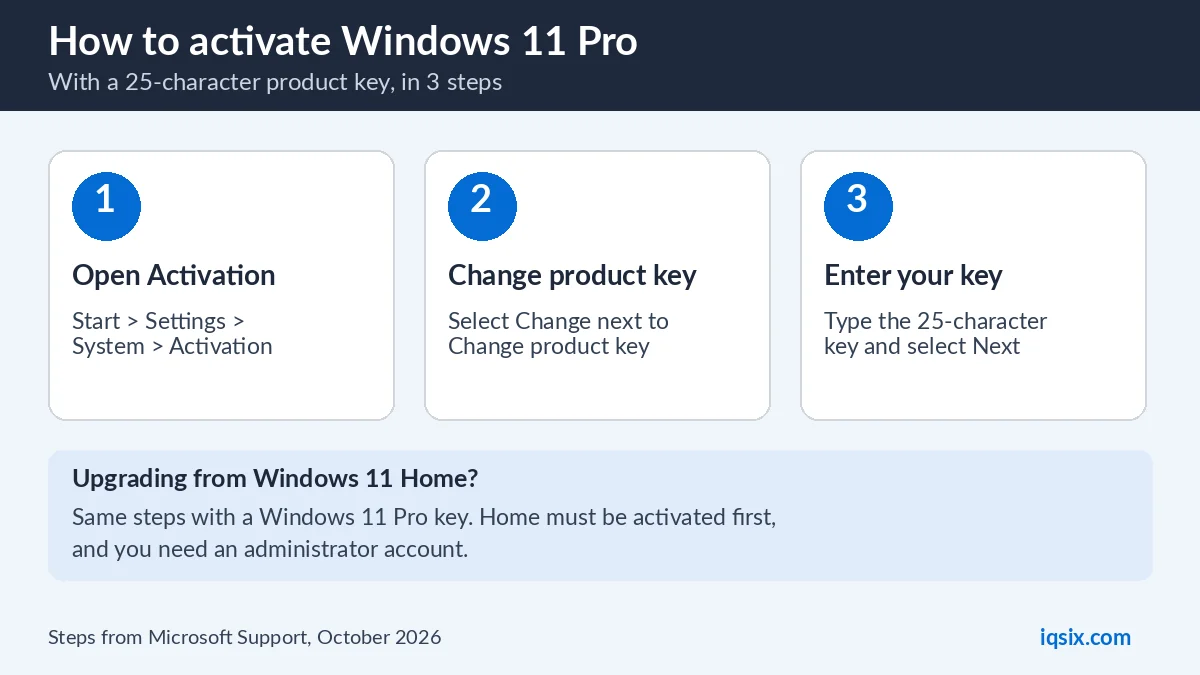 Entering a product key in Windows 11.
What if you lost your Windows product key?
- Your PC is already activated: nothing to do. Windows stays activated, and a digital license usually reactivates after a reinstall.
- It was preinstalled on your PC: contact the PC manufacturer; they can help with the license that came with your computer.
- You bought it from a shop: ask the shop to resend your order email.
- You changed major hardware: link your Microsoft account to the license before the change, then use the Activation troubleshooter afterwards.
- None of these work: you need a new license for that PC.
If activation fails with an error code, Microsoft lists what each one means in Get help with Windows activation errors.
Reinstalling Windows: what to choose during setup
When you reinstall Windows, setup asks for a product key. If the PC was activated before, you can select I don’t have a product key and continue. Choose the same edition you had (Home or Pro). After setup, Windows usually activates by itself with your digital license once you are online.
If activation does not happen after a day, open Settings > System > Activation and select Troubleshoot to run the Activation troubleshooter.
After a big hardware change
If you replace the motherboard, Windows may no longer recognise your license and may show error 0xC004F213 (“no product key found”). If you linked your Microsoft account to the license before the change, sign in with that account and run the Activation troubleshooter to reactivate. If not, you may need a new license for that PC.
Keep your key safe for next time
- Save the confirmation email in a folder you can find, or print it.
- Take a photo of a COA sticker before it wears off.
- Sign in to Windows with your Microsoft account so the license is linked to it (Microsoft explains why).
- Never share your key online: anyone can try to use it.
New PCs and laptops
On most new computers Windows is preinstalled and activates by itself during the first setup, so you never have to type a key. That license is usually tied to that computer. Keep the box and any sticker anyway, in case the manufacturer asks for them later.
Buying a used PC?
Before you pay for a second-hand computer, open Settings > System > Activation and check that Windows is activated. Ask the seller how Windows was licensed (came with the PC, digital license or a key) and whether you get any key or email with it. If Windows is not activated, plan to buy a license, so the price of the PC should reflect that.
Be careful with “key finder” tools
Some websites offer free programs that claim to show your Windows key. Programs from unknown sources can contain malware, and you rarely need them: your purchase email, the box or your Microsoft account are safer places to look, and an activated PC does not need the key at all.
Using one key on several PCs
A retail product key is meant for one device. Using the same key on a second PC usually fails with an activation error, because Microsoft sees that the key is already in use. If you have two PCs, you need a key for each one.
Windows product key vs Office or Microsoft 365 key
Windows keys and Office keys look the same (25 characters), but they are not interchangeable. An Office or Microsoft 365 key is redeemed in a different place; see our guide on how to redeem a Microsoft 365 product key.
Need a new key? Windows 11 Pro from IQSIX

If your old key is gone and your PC is not activated, IQSIX sells a Windows 11 Pro product key for one PC. You get the 25-character key by email after your payment is confirmed. Not sure whether you need Pro? Read Windows 11 Home vs Pro.
- Delivery: by email after your payment is confirmed (or on WhatsApp if you ask).
- Payment: crypto, card, or a Remitly bank or mobile money transfer at checkout.
- Help: we help you activate on WhatsApp or through our contact page.
See all our software keys.
Windows product key FAQ
Where is my Windows product key?
It depends on how you got Windows: in the confirmation email if you bought online, on a label or card inside a retail box, or preinstalled on a new PC with the key on the packaging or COA sticker. With a digital license you do not need a key.
Do I need a product key to reinstall Windows 11?
Often not. Microsoft says you might not need a product key when reinstalling, because many PCs are activated with a digital license that reactivates automatically on the same hardware.
How can I see my Windows product key on my PC?
Windows does not show the full key in Settings. Check your purchase email, the box or the COA sticker. If Windows is already activated, you usually do not need the key.
I bought Windows from Microsoft. Where is my key?
In the confirmation email, and Microsoft keeps a record of keys bought in its online store in your Microsoft account order history. In the Microsoft Store app you get a digital license instead.
What do I do if I lost my product key?
If Windows came with your PC, contact the manufacturer. If you bought it from a shop, ask them to resend the order email. Otherwise you need a new license.
Can I use my Windows key on two computers?
No. A retail product key is meant for one device, and using it on a second PC usually fails with an activation error.
Sources, checked 17 October 2026: Microsoft Support: find your Windows product key, Activate Windows and Windows activation errors.
