
Short answer: “Undoing changes made to your computer” means a Windows update didn’t install correctly, so Windows is undoing the changes it made. The same failure can read “We couldn’t complete the updates. Undoing changes. Don’t turn off your computer.” Microsoft calls these generic errors that can appear any time a Windows update fails. Let the screen finish, find the error code of the failed update, then work through the 7 fixes below.
Every step comes from Microsoft Support’s pages for Windows 11 and Windows 10, checked in October 2026.
- What it means: a Windows update failed, and Windows is removing it
- What to do now: nothing; the screen says “Don’t turn off your computer”
- Find the cause: the error code in Settings > Windows Update > Update history
- Try first: the Windows Update troubleshooter and enough free space
- Stuck in a loop: Windows RE > Uninstall Updates or System Restore
Table of Contents
What does “undoing changes made to your computer” mean?
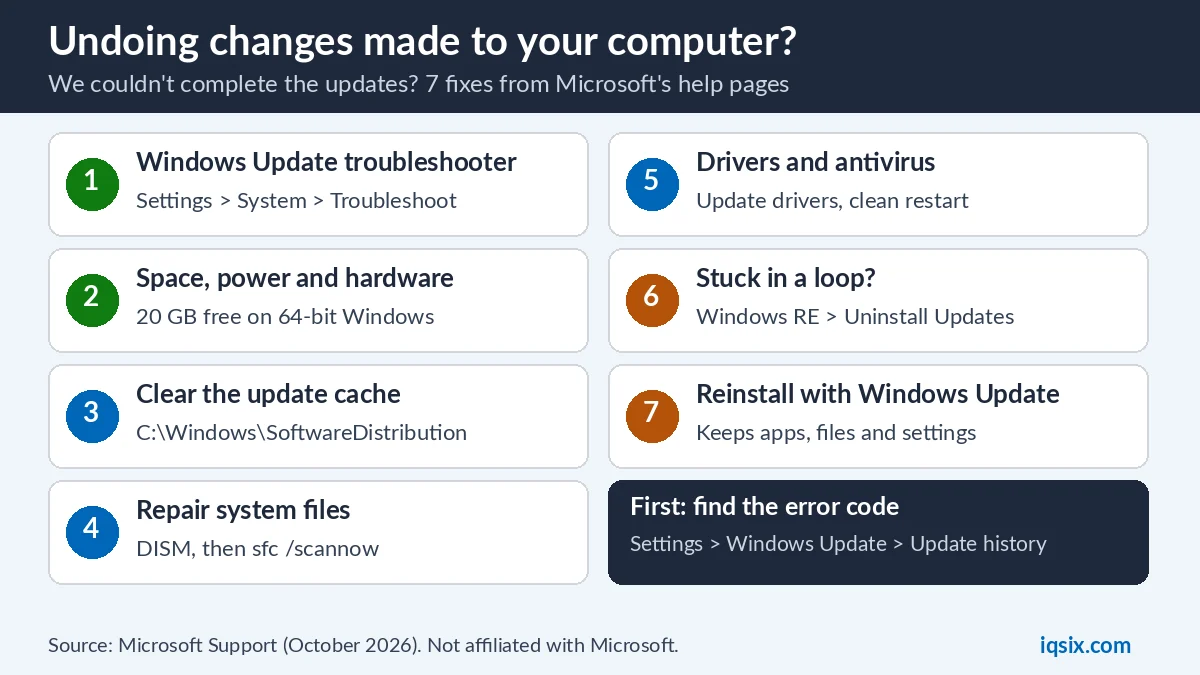
Microsoft says: “To finish installing an update, your device will need to restart” (Microsoft Support). If the update fails, you may see one of these messages instead of your desktop:
- “Undoing changes made to your computer”
- “We couldn’t complete the updates. Undoing changes. Don’t turn off your computer.”
- “Failure configuring Windows Updates. Reverting changes.”
Microsoft’s explanation: “These are generic errors that might appear any time a Windows update fails. You’ll need to determine the specific error code to investigate how to best resolve this problem” (Microsoft Support). In other words, the screen doesn’t tell you why the update failed. The error code does, and the steps below show where to find it.
Should you wait or turn off your PC?
Wait. The undoing changes screen itself says “Don’t turn off your computer”, and Microsoft gives no time limit for it. When Windows starts normally again, go to the next step and find the error code.
If the PC never gets past undoing changes, or shows the message again at every restart, Windows can’t finish starting. For a PC that doesn’t start, Microsoft’s way into the recovery tools is: turn it on and, when the Windows logo appears, hold the power button until it shuts down. Do this twice. On the third start, Windows shows the Automatic Repair screen: select Advanced options (Microsoft Support). Then use Fix 6 below.
Step 1: Find the error code of the failed update

- Windows 11: select Start > Settings > Windows Update > Update history.
- Windows 10: select Start > Settings > Update & Security > Windows Update > View update history.
- Look for the update that wasn’t installed and note the error code next to it.
The code tells you why Windows was undoing changes. Look it up in the table below. Microsoft’s page also suggests contacting Microsoft support with that code (Microsoft Support).
Windows Update error codes and what they mean
These are the most common codes on Microsoft’s two Windows Update help pages, Troubleshoot problems updating Windows and Get help with Windows upgrade and installation errors, with the first things Microsoft suggests:
| Error code | What it means (Microsoft) | What to try |
|---|---|---|
| 0x8007000d | A problem with the Windows Update files or a corrupted update cache | The troubleshooter (Fix 1), then clear the update cache (Fix 3) |
| 0x800705b4 | The update took too long to install or was interrupted | Check your internet connection, pause your antivirus or firewall for a short time, restart |
| 0x80240034 | The update is stuck: an incomplete update or a connection issue | Check that the Windows Update service is running, run the troubleshooter |
| 0x800f0922 | Not enough disk space, or a problem with the .NET Framework or other components | Free up space (Fix 2), turn off your VPN |
| 0x80070057 or 0x80080005 | Corrupted files, permission issues or wrong system settings | Run sfc /scannow, then the troubleshooter |
| 0xC1900101 | An incompatible driver | Update or reinstall the network and display drivers (Fix 5) |
| 0x80248014 | A Windows Update database problem, or the update service isn’t running | Run the troubleshooter, start the Windows Update service |
| 0x80070005 | Access denied: not enough permissions | Use an administrator account, pause your antivirus or firewall for a short time |
| 0x80070002 | The update failed to install | Restart, run the troubleshooter, free up space |
| 0x80070070 – 0x50011, 0x50012 or 0x60000 | Not enough space to install the upgrade | Free up some space and try again |
| 0x80004005 | “Unspecified error” | Restart and try again, run the troubleshooter, try the upgrade in Safe Mode |
| 0xC1900200 – 0x20008 or 0xC1900202 – 0x20008 | The PC may not meet the minimum requirements for Windows 11 | Check the Windows 11 requirements |
Error 0x80004005 is the vaguest one: Microsoft only calls it an “Unspecified error”. For 0x800F0922 during an upgrade, Microsoft adds two more causes: the PC can’t reach the Windows Update servers (for example over a work VPN), or the System Reserved partition is too full.
How to fix undoing changes made to your computer: 7 fixes
The fixes are the same whether the screen said “we couldn’t complete the updates” or “undoing changes made to your computer”: Microsoft lists both together, as generic errors that can appear any time a Windows update fails.
Back up your personal files first, as Microsoft recommends: with Windows Backup, by copying them to a USB drive, or with OneDrive. Then try the fixes in this order and run Windows Update again after each one (Settings > Windows Update > Check for updates).
Fix 1: Run the Windows Update troubleshooter
- Select Start > Settings > System > Troubleshoot > Other troubleshooters.
- Next to Windows Update, select Run and follow the instructions.
It is Microsoft’s first step for update problems like undoing changes. On Windows 11 the automated troubleshooter runs in the Get Help app; Microsoft says it “will automatically run diagnostics and attempt to fix most of the problems” (Microsoft Support). On Windows 10, it is in Settings > Update & Security > Troubleshoot > Additional troubleshooters.
Fix 2: Check power, internet, space and extra hardware
- Power and internet: keep the PC plugged in and connected to Wi-Fi or Ethernet.
- Free space: Microsoft says your device needs at least 16 GB free to upgrade a 32-bit system, or 20 GB for a 64-bit system. Small drive? A USB drive can help.
- Extra hardware: unplug external drives, docks and anything else you don’t need, then try again.
- Date and time: in Settings > Time & language > Date & time, turn on Set time automatically and Set time zone automatically.
- Administrator: some updates need an administrator account.
Fix 3: Clear the Windows Update cache
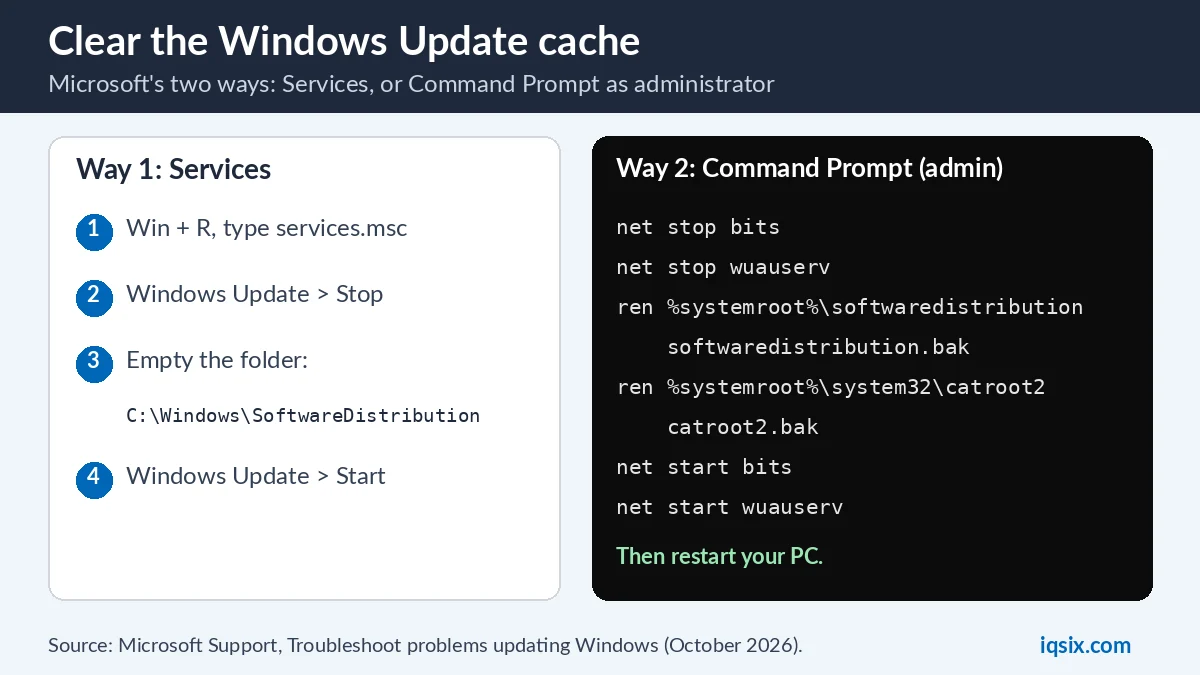
“Corrupt update files in the cache can cause errors,” says Microsoft. To clear the cache:
- Press Win + R, type
services.mscand press Enter. - Right-click Windows Update and select Stop.
- Open
C:\Windows\SoftwareDistributionand delete all files and folders inside it. - Back in Services, right-click Windows Update and select Start.
Comfortable with the command line? Microsoft’s advanced version renames the update folders instead. Open Command Prompt as administrator, run these commands one at a time, then restart your PC:
net stop bits
net stop wuauserv
ren %systemroot%\softwaredistribution softwaredistribution.bak
ren %systemroot%\system32\catroot2 catroot2.bak
net start bits
net start wuauserv
Fix 4: Repair system files and disk errors
Open Command Prompt as administrator and run DISM.exe /Online /Cleanup-image /Restorehealth. When it says “The restore operation completed successfully” or “The operation completed successfully”, run sfc /scannow and wait until it reaches 100%. Then try Windows Update again. Our guide to DISM and SFC /scannow explains every result.
For hard drive errors, Microsoft gives chkdsk /f C:: the repair starts, and you are asked to restart your device (Microsoft Support).
Fix 5: Update drivers, pause your antivirus, clean restart
- Drivers: error 0xC1900101 means an incompatible driver. In Device Manager, expand Network adapters or Display adapters, right-click the adapter and select Update driver > Search automatically for drivers. Microsoft also suggests Uninstall device and a restart. For hardware you added yourself, get drivers from the manufacturer’s website. Screen flickering or going black after an update? See display problem in Windows 10.
- Antivirus: third-party antivirus or security software can cause update errors. Microsoft suggests uninstalling it for a while, updating, then reinstalling it. Make sure you can reinstall it and have its product key.
- Clean restart: starts Windows with a minimal set of drivers and startup programs, to rule out software conflicts.
Fix 6: Stuck in an undoing changes loop? Use Windows RE
If Windows can’t start, or shows “undoing changes made to your computer” again at every restart, open Windows RE as explained above, then select Troubleshoot > Advanced options:
- Uninstall Updates: select Uninstall latest quality update. Microsoft: this tool “allows you to uninstall recently installed updates from Windows” (Microsoft Support).
- System Restore: takes system files and settings back to an earlier restore point, without touching your personal files (Microsoft Support).
- Still no Windows? Our guide to the Preparing Automatic Repair loop covers Startup Repair, Safe Mode and the Command Prompt repairs.
Windows starts again but a recent update causes trouble? On Windows 11, select Start > Settings > Windows Update > Update history > Uninstall updates, pick the update and select Uninstall. Microsoft warns: before uninstalling a security update, make sure you understand the risks, and some updates can’t be uninstalled (Microsoft Support).
To stop the same update from trying again while you fix the cause, pause updates: Windows 11, Windows Update > Pause updates; Windows 10, Pause updates for 7 days. Pausing is temporary: Microsoft says that once you reach the pause limit, you must install the latest updates before you can pause again (Microsoft Support).
Fix 7: Reinstall Windows with Windows Update (keeps your files)
On Windows 11, Fix problems using Windows Update reinstalls the same version of Windows and repairs system files and components. Microsoft says it “preserves your apps, files, and settings” (Microsoft Support).
- Select Start > Settings > System > Recovery.
- Under Fix problems using Windows Update, select Reinstall now.
- Choose whether the PC restarts by itself 15 minutes after the installation, then select OK.
Windows Update then downloads a repair version of the last update that installed successfully. Keep the PC plugged in and online until the end. The option needs Windows 11 with the 2022 update and the February 2024 optional update (or later), and it may be missing on work or school PCs. When an update fails because of damaged system files, Windows Update can even suggest it: “Reinstall your current version of Windows to repair system files and components.”
Last resort: Microsoft’s troubleshooting page ends with a clean installation of Windows 11, using the tool from its software download page. See how to download Windows 11 Pro for the Media Creation Tool, and back up your files first.
Still on Windows 10?
Microsoft’s update pages now carry this note: “Support for Windows 10 has ended on October 14, 2025” (Microsoft Support). If you keep seeing undoing changes on an older PC, check whether it can run Windows 11 in our Windows 11 requirements guide, then read your options after Windows 10 end of support and how to upgrade Windows 10 to Windows 11 for free.
After the fix: check activation
When the update finally installs without undoing changes, open Settings > System > Activation and make sure Windows is still activated. An error code there? Look it up in our list of Windows activation errors. Before a reinstall, write down your product key if you have one: see how to find your Windows product key.
Need a Windows 11 Pro key?

Reinstalling Windows, building a new PC or moving from Windows 11 Home to Pro? IQSIX sells a Windows 11 Pro product key for one PC. Enter it in Settings > System > Activation > Change product key.
- Delivery: by email after your payment is confirmed (or on WhatsApp if you ask).
- Payment: crypto, card, or a Remitly bank or mobile money transfer at checkout.
- Questions first? Ask us on WhatsApp or through our contact page.
Need Office or antivirus too? See all our software keys.
Undoing changes FAQ
What does undoing changes made to your computer mean?
A Windows update failed, so Windows is undoing the changes it made. Microsoft calls “We couldn’t complete the updates. Undoing changes” a generic error: the error code in Settings > Windows Update > Update history shows the real cause.
How long does undoing changes take?
Microsoft gives no time for this screen. Leave the PC on, as the message asks. If it never ends, or comes back at every restart, open Windows RE and use Uninstall Updates or System Restore.
How do I stop the undoing changes loop?
Open Windows RE: when the Windows logo appears, hold the power button until the PC shuts down, twice. On the third start, select Advanced options, then Troubleshoot > Advanced options > Uninstall Updates or System Restore. When Windows starts, pause updates and fix the cause.
What is error 0x80004005?
Microsoft calls 0x80004005 an “Unspecified error”. Its steps: restart the PC and try again, run the Windows Update troubleshooter, and try upgrading in Safe Mode.
What if the screen says Getting Windows ready?
Microsoft has no separate help page for that screen. If your PC never gets past it and won’t start, use the same Windows RE tools: Uninstall Updates, System Restore and Startup Repair.
Will these fixes delete my files?
Microsoft says System Restore doesn’t affect personal files, and Fix problems using Windows Update keeps your apps, files and settings. A clean installation is different, so back up first, as Microsoft recommends.
Sources, checked 31 October 2026: Microsoft Support – Troubleshoot problems updating Windows, Get help with Windows upgrade and installation errors, Windows Update: FAQ, How to uninstall a Windows Update, Fix issues by reinstalling the current version of Windows, Windows recovery environment and System Restore. IQSIX is not affiliated with Microsoft.