
Short answer: there is no separate Windows 11 Pro file. To download Windows 11 Pro, go to Microsoft’s Windows 11 download page and get the ISO or the media creation tool. Microsoft says the ISO is a multi-edition ISO which uses your product key to unlock the correct edition. So everyone downloads the same Windows 11, and your Windows 11 Pro product key turns it into Pro during setup or later in Settings.
This guide shows the three official ways to download Windows 11 Pro, what you need first, how to make a bootable USB, how to install Windows 11 Pro step by step and how to activate it. Everything comes from Microsoft’s download page and Microsoft Support, checked in October 2026.
- Where: only from microsoft.com (free download)
- One file: the multi-edition ISO includes Home and Pro
- Your key decides: a Pro key unlocks Windows 11 Pro
- USB: blank, at least 8 GB (everything on it is deleted)
- PC: 64-bit (x64) processor that meets the Windows 11 requirements
Table of Contents
Is there a separate Windows 11 Pro ISO?
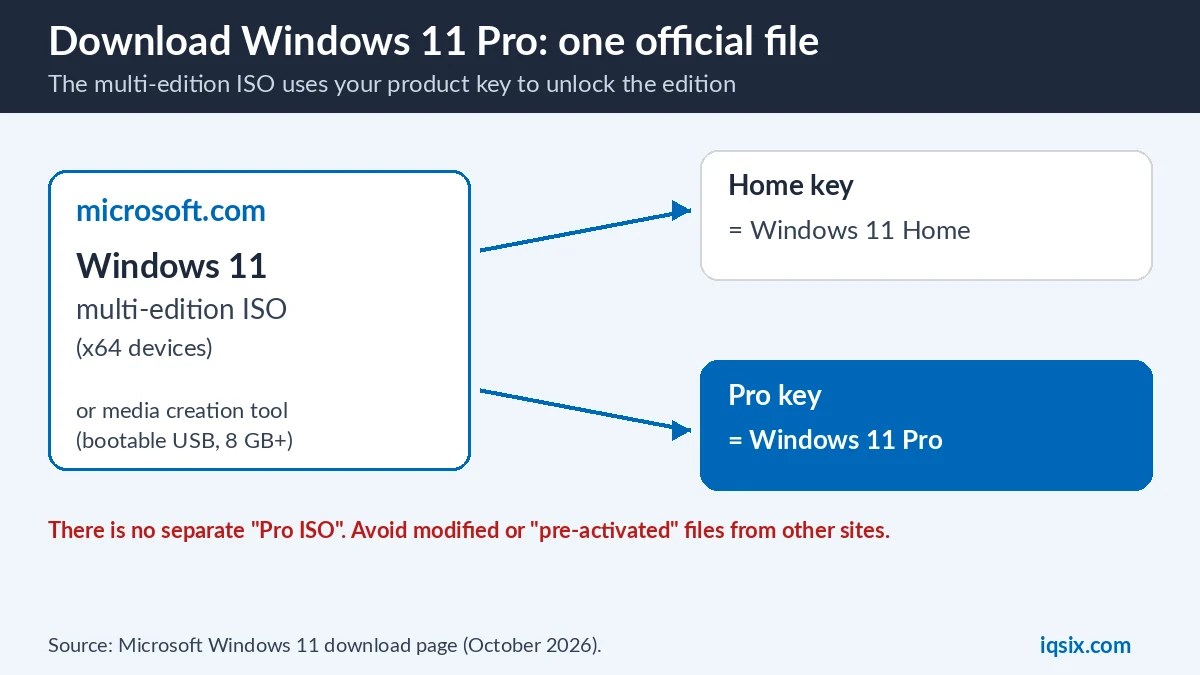
No. Microsoft offers one Windows 11 download for Home and Pro. On the download page, the ISO is called “Windows 11 (multi-edition ISO for x64 devices)”, and Microsoft explains that this download uses your product key to unlock the correct edition (Microsoft). When you download Windows 11 Pro, you are really downloading this multi-edition Windows 11 file.
That is good news: you never need a “Pro ISO” from another website. Files that claim to be special Pro or “pre-activated” versions are not from Microsoft and can contain malware. Download Windows 11 Pro only from microsoft.com.
What you need before you download Windows 11 Pro
- A license: Microsoft says you first need a license to install Windows 11. For Pro, that is a Windows 11 Pro product key or a digital license. See how to find your Windows product key.
- A 64-bit PC: Windows 11 only runs on 64-bit CPUs. Check Settings > System > About and look at System type.
- Windows 11 requirements: Microsoft warns that installing Windows 11 on a PC that does not meet the minimum requirements is not recommended: that PC is no longer supported and isn’t entitled to updates. Check our Windows 11 requirements guide.
- A blank USB flash drive (8 GB or more) or a blank DVD: Microsoft says any content on it will be deleted.
- Free space and internet: the download is large, so use a fast connection and keep enough space for the file.
- A backup: back up your files to an external drive, a USB drive or OneDrive before a clean install.
3 official ways to download Windows 11 Pro
Microsoft’s Windows 11 download page has three options. Pick the one that fits what you want to do:
| Option | Best for | Good to know |
|---|---|---|
| Installation Assistant | Upgrading the PC you are using from Windows 10 | Needs Windows 10 version 2004 or later and 9 GB of free space; x64 PCs only |
| Media creation tool | A bootable USB or DVD to install on a new or used PC | Needs a blank USB of at least 8 GB; creates x64 media only |
| Disk image (ISO) | A USB, a DVD or a virtual machine | Multi-edition ISO; download links are valid for 24 hours |
Option 1: Windows 11 Installation Assistant
Microsoft calls this the best option for installing Windows 11 on the device you are using now. It upgrades your current Windows, so your edition normally stays the same: Windows 10 Home becomes Windows 11 Home and Windows 10 Pro becomes Windows 11 Pro. Full steps: how to upgrade Windows 10 to Windows 11. If you end up on Home, you can upgrade to Pro afterwards with a Pro key (see below).
Option 2: Make a Windows 11 Pro USB (media creation tool)
Use this to make a bootable Windows 11 Pro USB for a clean install. Microsoft’s steps:
- On the download page, under Create Windows 11 Installation Media, select Download Now.
- Run the media creation tool (you need to be an administrator) and select Accept to agree to the license terms.
- On the What do you want to do? page, select Create installation media for another PC, then Next.
- Select the language, edition and architecture (64-bit).
- Choose USB flash drive and attach a blank USB of at least 8 GB, or choose ISO file to save the file to your PC.
Option 3: Download the Windows 11 Pro ISO
Choose the ISO if you want the file itself, for example to make a USB with another tool, burn a DVD or create a virtual machine. On the download page, under Download Windows 11 Disk Image (ISO) for x64 devices, select Windows 11 (multi-edition ISO for x64 devices), select Download Now, choose your language and confirm, then download the file. Microsoft says the download links are valid for 24 hours, so start the download right away. Windows 11 ISOs for Arm64 devices are offered separately.
How to install Windows 11 Pro from the USB
Reinstalling only because Windows is acting up? First try the repair tools built into Windows: DISM and SFC /scannow fix corrupted system files without a reinstall.
A clean install removes your personal files, apps, the device manufacturer’s customizations and changes made in Settings, so back up first. Microsoft recommends a clean install only if you are confident making these changes. The steps from Microsoft Support:
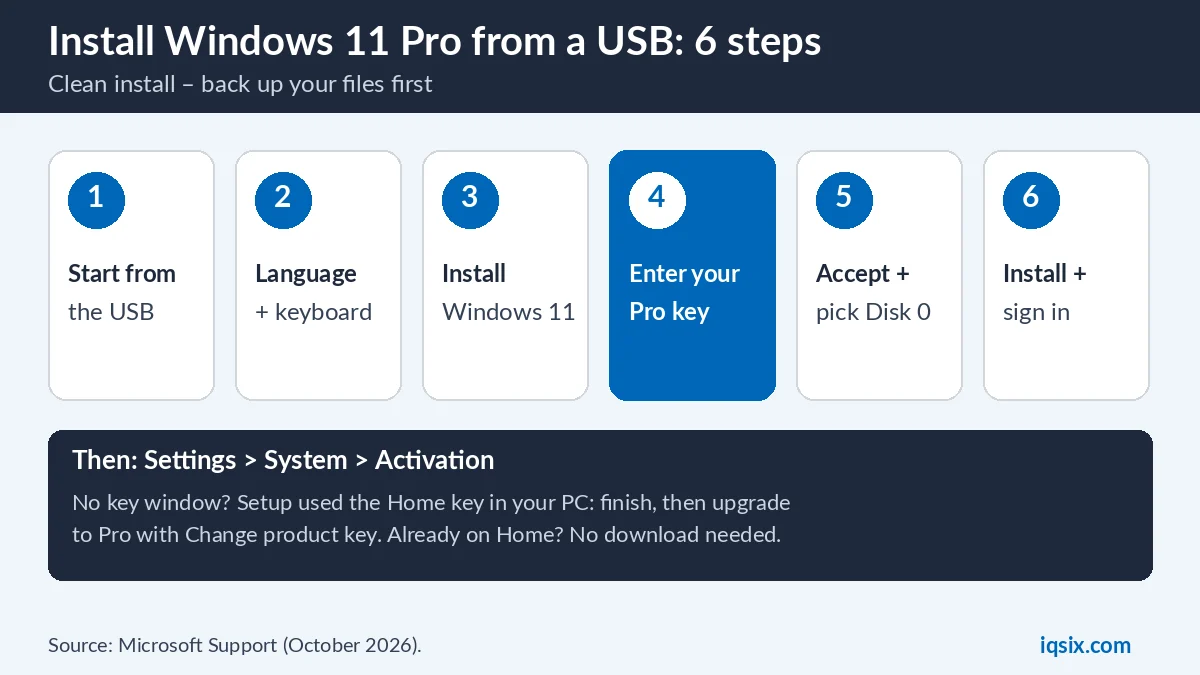
- Plug in the USB and start the PC from it. If you do not see the setup screen, your PC may not be set up to boot from a drive: check your PC manufacturer’s website for how to change the boot order.
- In Select language settings, choose your language and select Next; then choose your keyboard and select Next.
- In Select setup option, select Install Windows 11, tick I agree everything will be deleted including files, apps, and settings and select Next.
- In the Product key window, enter your 25-character Windows 11 Pro key. The multi-edition setup then installs Windows 11 Pro.
- In Applicable notices and license terms, select Accept.
- In Select location to install Windows 11, Microsoft’s clean-install steps delete the partitions on Disk 0 until only Disk 0 Unallocated Space is left; select it, then Next and Install. Do not change partitions on any other disk.
- The PC restarts several times. Then follow the setup screens and sign in with your Microsoft account.
If you select I don’t have a product key instead, Setup asks you to pick an edition in the Select Image window: choose Windows 11 Pro and activate later in Settings. Microsoft says the edition you install must match your license, otherwise Windows will not activate.
The Product key window did not appear?
Microsoft notes that the Product key window might not appear: if Windows Setup finds a product key stored in the firmware of the device, it applies that key automatically. Many laptops come with a Windows 11 Home key in the firmware, so Setup installs Windows 11 Home. That is fine: finish the installation, let Home activate, then upgrade to Pro with your Pro key in Settings > System > Activation > Change product key. Microsoft recommends exactly this order: activate Home first, then upgrade to Pro.
Activate Windows 11 Pro after you install it
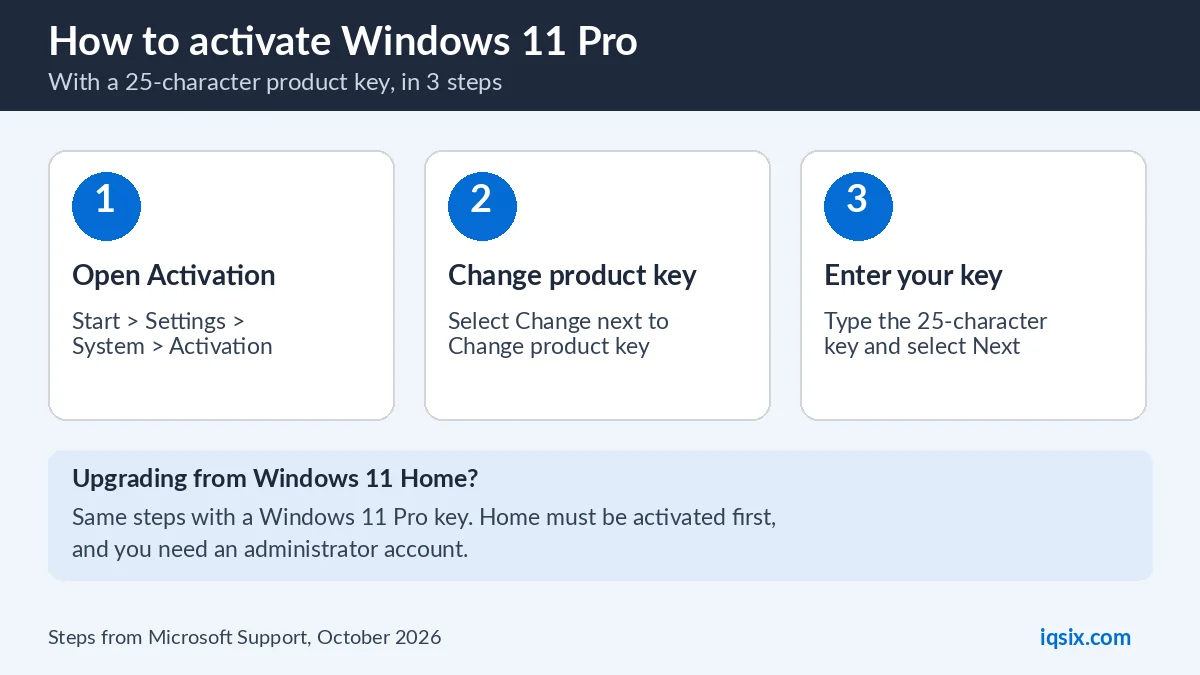
Open Start > Settings > System > Activation. Microsoft says your status is listed next to Activation status (Microsoft Support). If you skipped the key during setup, select Change next to Change product key, enter your Windows 11 Pro key and select Next. Our Windows 11 Pro activation guide covers every step and the common error codes.
Sign in with your Microsoft account too, so your license is linked to it. Microsoft says that a linked license can be reactivated after a reinstall or a hardware change. If you see an “Activate Windows” message on the screen, our guide on how to remove the Activate Windows watermark explains each cause.
Already on Windows 11 Home? No download needed
If your PC runs an activated copy of Windows 11 Home, you do not need to download Windows 11 Pro at all. Open Settings > System > Activation, select Change next to Change product key, and enter your Windows 11 Pro key: Windows upgrades to Pro and keeps your files and apps (Microsoft: upgrade Home to Pro). Back up your files first, as before any big change. Not sure you need Pro? See Windows 11 Home vs Pro.
Download Windows 11 Pro safely: 4 rules
- Only microsoft.com: the download is free there, so there is no reason to use other sites.
- No “pre-activated” ISOs: modified Windows files from unknown sites are a common way to get malware.
- No activator tools: activate with a real product key or a digital license in Settings.
- Keep your key private: one Windows 11 Pro key is for one PC.
Get a Windows 11 Pro key from IQSIX

Downloaded Windows 11 and need the license? IQSIX sells a Windows 11 Pro product key for one PC. Enter it during setup or in Settings to activate Windows 11 Pro.
- Delivery: by email after your payment is confirmed (or on WhatsApp if you ask).
- Activation: during setup, or Settings > System > Activation > Change product key.
- Payment: crypto, card, or a Remitly bank or mobile money transfer at checkout.
- Help: stuck during installation? Ask us on WhatsApp or through our contact page.
Need Office or antivirus for your new installation? See all our software keys.
Download Windows 11 Pro FAQ
Can I download Windows 11 Pro for free?
Yes. The download from Microsoft is free. To activate Windows 11 Pro you need a license: a Windows 11 Pro product key or a digital license.
Is there a Windows 11 Pro ISO?
Microsoft offers one multi-edition ISO for Home and Pro. It uses your product key to unlock the correct edition, so a Pro key installs Windows 11 Pro.
How big must the USB flash drive be?
At least 8 GB, and blank: Microsoft says any content on the flash drive will be deleted.
Do I need a product key to install Windows 11 Pro?
You can select I don’t have a product key, choose Windows 11 Pro and activate later. But Windows must be activated, and the edition must match your license.
Why did Setup install Windows 11 Home instead of Pro?
If Setup finds a Home key stored in the PC’s firmware, it applies it automatically. Finish the installation, then upgrade to Pro with your Pro key in Settings > System > Activation > Change product key.
Can I use the Windows 11 ISO on an Arm PC?
The standard ISO is for x64 devices, and the media creation tool only creates x64 media. Microsoft offers Windows 11 ISOs for Arm64 devices separately.
Sources, checked 26 October 2026: Microsoft: Download Windows 11, Microsoft Support: Reinstall Windows with the installation media, Upgrade Windows Home to Windows Pro and Activate Windows. Microsoft can change the download page at any time.