
Short answer: in the Windows 11 Pro vs Pro N comparison, the only real difference is media. Windows 11 Pro N is Windows 11 Pro without Windows Media Player and related media technologies: Microsoft says the N editions include the same functionality as other editions, except for Windows Media Player and related technologies (Microsoft Support). The Pro features, such as BitLocker, Remote Desktop and Hyper-V, are the same. For almost everyone, Windows 11 Pro is the better choice, because Pro N needs the free Media Feature Pack before things like the webcam, Windows Hello or some video playback work.
This guide compares Windows 11 Pro vs Pro N point by point, lists what does not work on Pro N, shows how to add the Media Feature Pack, and explains why a Windows 11 Pro key does not activate Pro N. Everything comes from Microsoft Support and Microsoft Learn, checked in October 2026.
- Same Pro features: BitLocker, Remote Desktop, Hyper-V, Group Policy
- Missing in Pro N: Windows Media Player, media codecs and some media apps
- Side effects: webcam, Windows Hello, voice typing and video calls can fail
- Fix for Pro N: the free Media Feature Pack (Settings > Apps > Optional features)
- Keys: Pro and Pro N are separate editions with separate product keys
- Our pick: Windows 11 Pro for almost everyone
Table of Contents
What is Windows 11 Pro N?
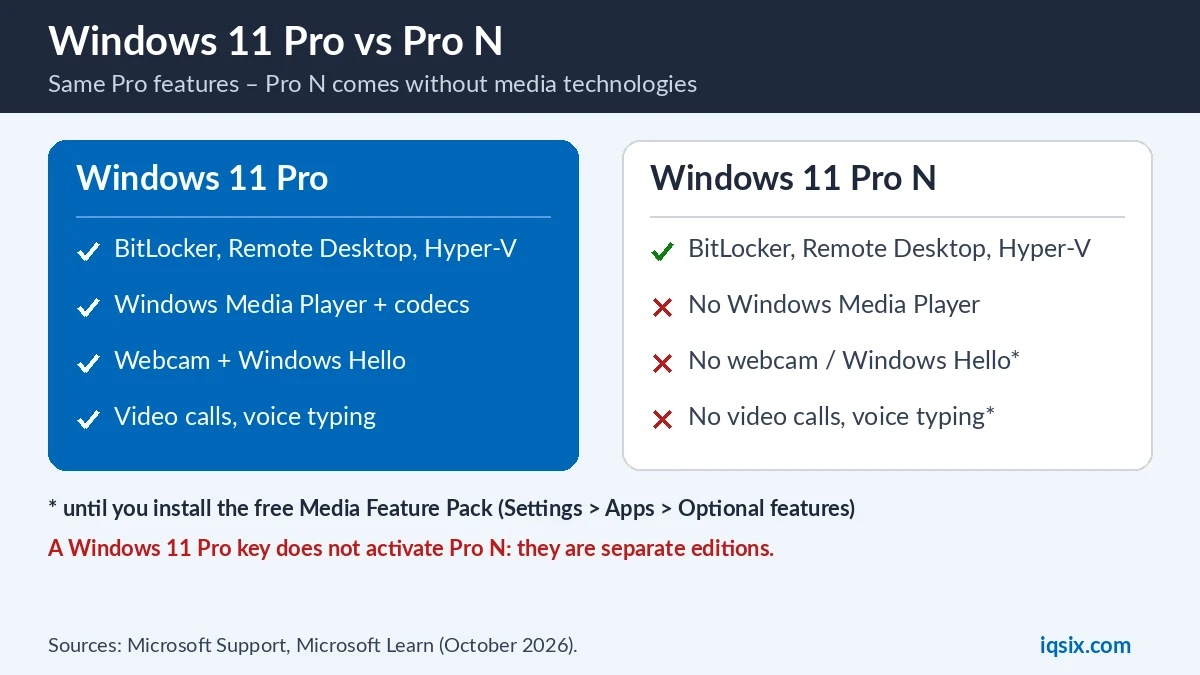
Windows 11 Pro N is an edition of Windows 11 Pro without the built-in media technologies. Microsoft describes it like this: Windows 10/11 N includes the same functionality as other Windows 10/11 editions, except for Windows Media Player and related technologies. You can restore these technologies by installing the Media Feature Pack (Microsoft).
So Windows 11 Pro N is not a “lite” or cheaper Pro. It has the same Pro tools for security and work, but it starts without the media parts that many other Windows features depend on. Microsoft also lists N versions of other editions, such as Education N and Pro for Workstations N.
Windows 11 Pro vs Pro N: comparison table
| Windows 11 Pro | Windows 11 Pro N | |
|---|---|---|
| Pro features (BitLocker, Remote Desktop, Hyper-V, Group Policy) | Yes | Yes |
| Windows Media Player | Included | Not included |
| Audio codecs (MP3/MPEG, AAC, FLAC, WMA, Dolby Digital) | Included | Not until you add the Media Feature Pack |
| Video codecs (H.264, H.265, MPEG-4, VC-1) | Included | Not until you add the Media Feature Pack |
| Webcam, Windows Hello, voice typing, Live captions | Work | Do not work without the Media Feature Pack |
| Microsoft Teams audio and video calls | Work | Do not work without the Media Feature Pack |
| Product key | Windows 11 Pro key | Windows 11 Pro N key (separate edition) |
For the Pro features themselves, see our guide Windows 11 Home vs Pro: everything Pro adds over Home is in Pro N as well.
What does not work on Windows 11 Pro N?
Microsoft lists features that are not removed from the N editions but still do not work properly without the Media Feature Pack. On a Windows 11 Pro N PC without it:
- Webcam: does not work, and neither does Windows Hello sign-in.
- Voice typing, Live captions and Narrator voice navigation do not work.
- Microsoft Teams: some functionality, such as audio or video calling, does not work.
- OneDrive and Photos cannot play videos, and audio or video content from the Microsoft Store cannot be played.
- Alarms and clock: alarm and timer sounds do not play; Sound Recorder is limited to WAV.
- Xbox: some functionality, such as Game DVR, does not work; Wireless Display does not work either.
- Microsoft Edge: certain video streaming websites may not work completely.
Microsoft adds that some of these may still not work properly after installing the Media Feature Pack (Microsoft Support). That is the main reason we recommend Windows 11 Pro instead of Windows 11 Pro N for home and office PCs.
How to add the Media Feature Pack to Windows 11 Pro N
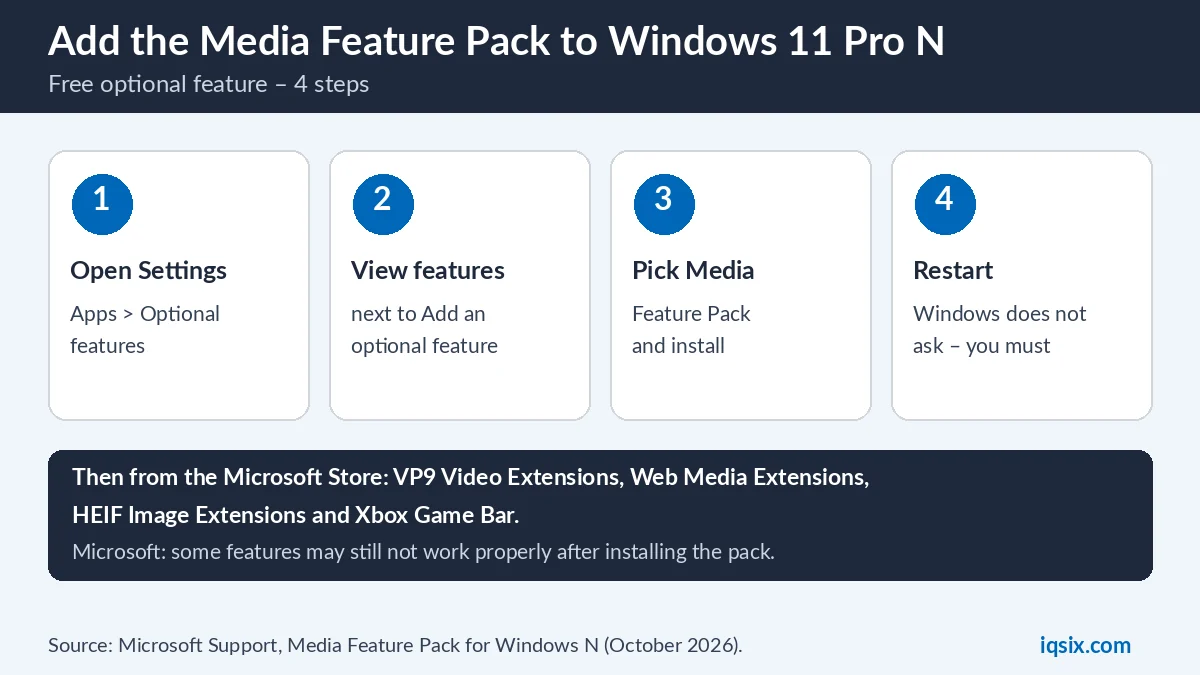
If you already have Windows 11 Pro N, you can add the missing media technologies for free. Microsoft’s steps:
- Select Start > Settings > Apps > Optional features.
- Next to Add an optional feature, select View features.
- Select Media Feature Pack in the list and install it.
- Restart your PC. Microsoft notes that you are not prompted to restart, but you must restart to finish the installation.
After the Media Feature Pack, Microsoft suggests installing extra apps from the Microsoft Store to get more functionality back, for example the VP9 Video Extensions, Web Media Extensions and HEIF Image Extensions codecs, and the Xbox Game Bar.
On Windows 10 N, the path is Settings > Apps > Apps and Features > Optional features > Add a feature. Windows 10 support ended on 14 October 2025, though, so it is better to move to Windows 11.
How to check if you have Windows 11 Pro or Pro N
Open Start > Settings > System > About. Under Windows specifications, your edition is shown next to Edition (Microsoft). It says “Windows 11 Pro” or “Windows 11 Pro N”. Check this before you buy a key or reinstall Windows, because the edition decides which key works.
Does a Windows 11 Pro key work on Pro N?
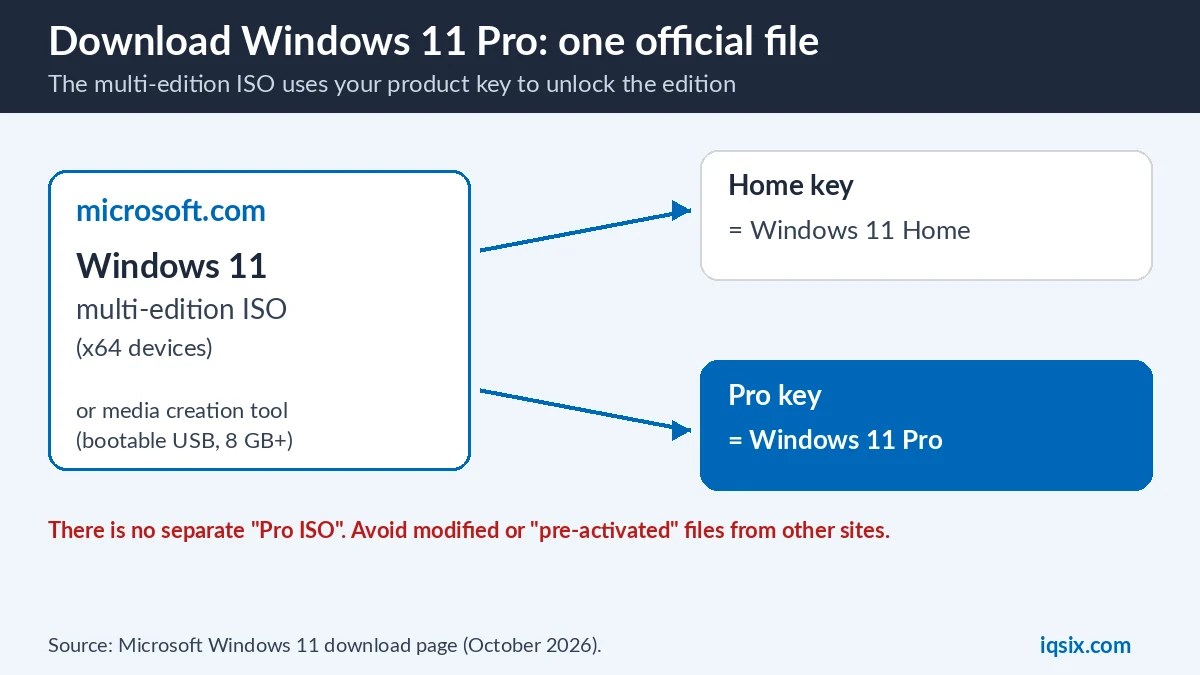
No. Windows 11 Pro and Windows 11 Pro N are separate editions, and Microsoft lists them separately, each with its own product key (Microsoft Learn). Activation needs a key that matches the edition installed on your PC. If you enter a key for a different edition, Microsoft says you might see error 0xC004F210 (Microsoft Support).
- You have a Windows 11 Pro key and Pro N installed: install Windows 11 Pro, then activate it with your key. See how to download Windows 11 Pro.
- You have a Pro N key: install Windows 11 Pro N to match it, then add the Media Feature Pack.
- Reinstalling a PC that had Pro N with a digital license: Microsoft says the edition you reinstall must match your license, so choose Pro N again.
Activation steps and error codes are in our Windows 11 Pro activation guide. Seeing an “Activate Windows” message after a mix-up? Read how to remove the Activate Windows watermark.
Windows 11 Pro vs Pro N: which should you buy?
For almost everyone, buy Windows 11 Pro. It has the same Pro features, and the webcam, Windows Hello, video calls and media playback work right away. Windows 11 Pro N only makes sense if you have a specific reason, for example a company or school that asks for an N edition. If you end up with Pro N, the Media Feature Pack fixes most things, but Microsoft warns that some features may still not work properly.
| You are… | Pick |
|---|---|
| A home user, student or gamer | Windows 11 Pro |
| A small business or freelancer | Windows 11 Pro |
| Told by your company or school to use an N edition | Windows 11 Pro N |
| Not sure | Windows 11 Pro |
Windows 11 Pro N for gaming and streaming
If you play games or watch videos on your PC, Windows 11 Pro N is the wrong pick. Microsoft lists Xbox functionality such as Game DVR among the features that do not work without the Media Feature Pack, together with video playback in apps, audio and video bought in the Microsoft Store, and Wireless Display, which you use to show your screen on a TV. The Media Feature Pack and the Xbox Game Bar from the Microsoft Store bring most of this back, but Windows 11 Pro has it all from the first start. Playing PC Game Pass? See how to play Xbox Game Pass on PC.
Get a Windows 11 Pro key from IQSIX

IQSIX sells a Windows 11 Pro product key for one PC: the standard Pro edition, with Windows Media Player and all media features included. Use it on Windows 11 Pro, or to upgrade an activated Windows 11 Home to Pro.
- Delivery: by email after your payment is confirmed (or on WhatsApp if you ask).
- Activation: Settings > System > Activation > Change product key.
- Payment: crypto, card, or a Remitly bank or mobile money transfer at checkout.
- Help: not sure if your PC runs Pro or Pro N? Send us a screenshot of Settings > System > About on WhatsApp or through our contact page.
More software for your PC: all our software keys.
Windows 11 Pro vs Pro N FAQ
What is the difference between Windows 11 Pro and Pro N?
Windows 11 Pro N is Windows 11 Pro without Windows Media Player and related media technologies. Everything else, including the Pro features, is the same.
What does N mean in Windows 11 Pro N?
The N editions are the versions of Windows without media technologies. You can add them back with the free Media Feature Pack.
Can I use a Windows 11 Pro key on Windows 11 Pro N?
No. Pro and Pro N are separate editions with separate product keys, and the key must match the edition installed on your PC. Install Windows 11 Pro to use a Pro key.
How do I install the Media Feature Pack on Windows 11 Pro N?
Go to Start > Settings > Apps > Optional features, select View features next to Add an optional feature, choose Media Feature Pack, install it and restart your PC.
Does the webcam work on Windows 11 Pro N?
Not without the Media Feature Pack: Microsoft lists the webcam and Windows Hello among the features that do not work on N editions until you install it.
Should I buy Windows 11 Pro or Pro N?
Windows 11 Pro, unless your company or school asks for an N edition. Pro has the same features and media works right away.
Sources, checked 26 October 2026: Microsoft Support: Media Feature Pack for Windows N, Microsoft Learn: KMS client activation and product keys, Get help with Windows activation errors and Reinstall Windows with the installation media. Features can change with Windows updates.