
Short answer: to recover an unsaved Word document, open Word and go to File > Info > Manage Document > Recover Unsaved Documents. Select the file, select Open, then Save As straight away. This works when AutoRecover was on, as Microsoft recommends. Not in the list? Search your PC for AutoRecover files (.asd), Word backup files (.wbk) and temporary files (.tmp), and check the Recycle Bin. On a Mac, look in Word’s hidden AutoRecovery folder.
Every step comes from Microsoft Support and Microsoft Learn, checked in October 2026, for Word for Microsoft 365, Word 2024, 2021, 2019 and 2016.
- Word crashed: restart Word; Document Recovery opens by itself
- Never saved: File > Info > Manage Document > Recover Unsaved Documents
- Closed without saving: File > Info > Manage Document > “(when I closed without saving)”
- Still missing: search for .asd, .wbk, .tmp and ~ files
- Next time: AutoSave with OneDrive, or AutoRecover every 5 minutes or less
Table of Contents
How Word protects an unsaved Word document
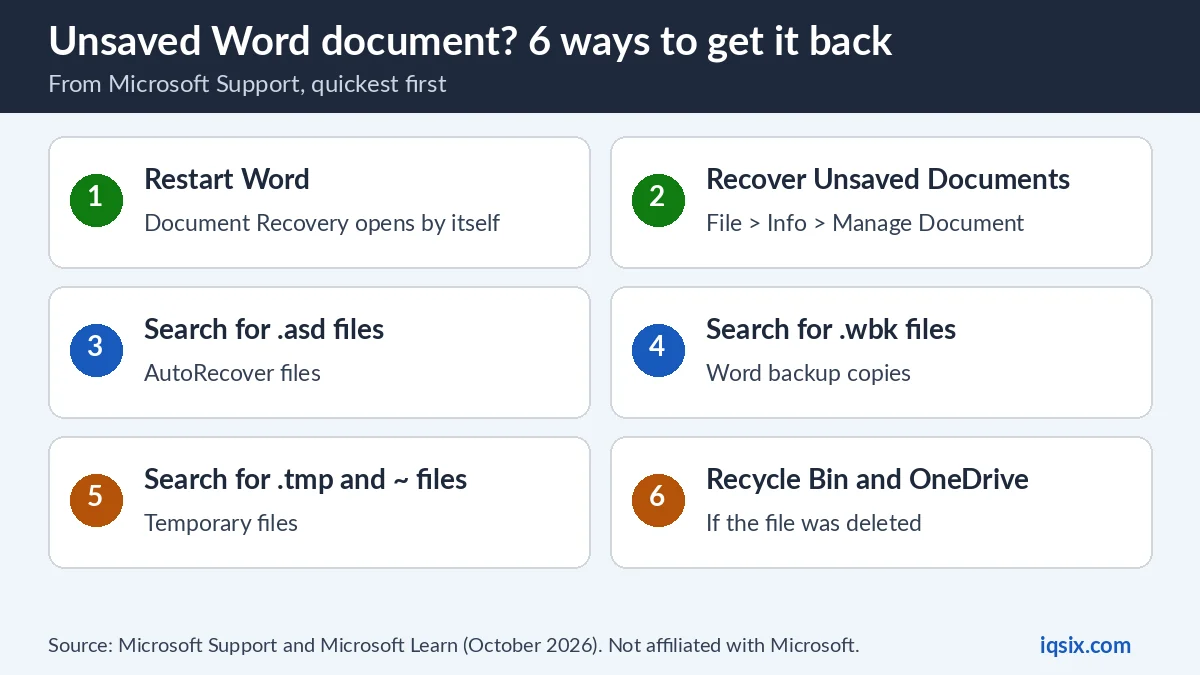
Word has two safety nets, explains Microsoft (Microsoft Learn):
- AutoSave: when the document is stored on OneDrive or SharePoint, Word saves your changes to the cloud copy as you work. Microsoft recommends leaving AutoSave on.
- AutoRecover: when the document is on your own disk or a network folder, Word saves your changes to an AutoRecover file every few minutes. Microsoft recommends leaving it on, with a save interval of five minutes or less.
So whether you can recover an unsaved Word document depends on these settings. Microsoft’s example: if the recovery file is saved only every 15 minutes, the recovered file won’t contain your last 14 minutes of work (Microsoft Support). Try the ways below in order.
Which way to recover an unsaved Word document?
| What happened | Try first |
|---|---|
| Word crashed, froze or the power went out | Way 1: restart Word and use Document Recovery |
| You closed a new document without ever saving it | Way 2: Recover Unsaved Documents |
| You saved it once, then closed without saving the latest changes | Way 2: the “(when I closed without saving)” version |
| Nothing in Word’s lists | Ways 3–5: search for .asd, .wbk, .tmp and ~ files |
| You deleted the file | Way 6: Recycle Bin, Windows File Recovery, OneDrive |
| You use Word on a Mac | The hidden AutoRecovery folder |
| The recovered file won’t open | Open and Repair |
Way 1: Restart Word and use Document Recovery
“Word searches for AutoRecover files every time it starts,” says Microsoft. After a crash or a power cut, simply open Word again. If Word finds a recovered file, the Document Recovery pane opens, with your document listed as “document name [Original]” or “document name [Recovered]” (Microsoft Learn).
- Several versions of the same file? Open the one with the most recent time under its name: it has the latest changes.
- Open it and select Save As to keep it. In Microsoft 365, Word may open the recovered file directly with a message bar: select Save.
- When you close the pane, choose Yes, I want to view these files later if you are not sure. Microsoft calls it the safest option.
More on the pane in Microsoft’s guide to recovering your Microsoft 365 files.
Way 2: Recover Unsaved Documents
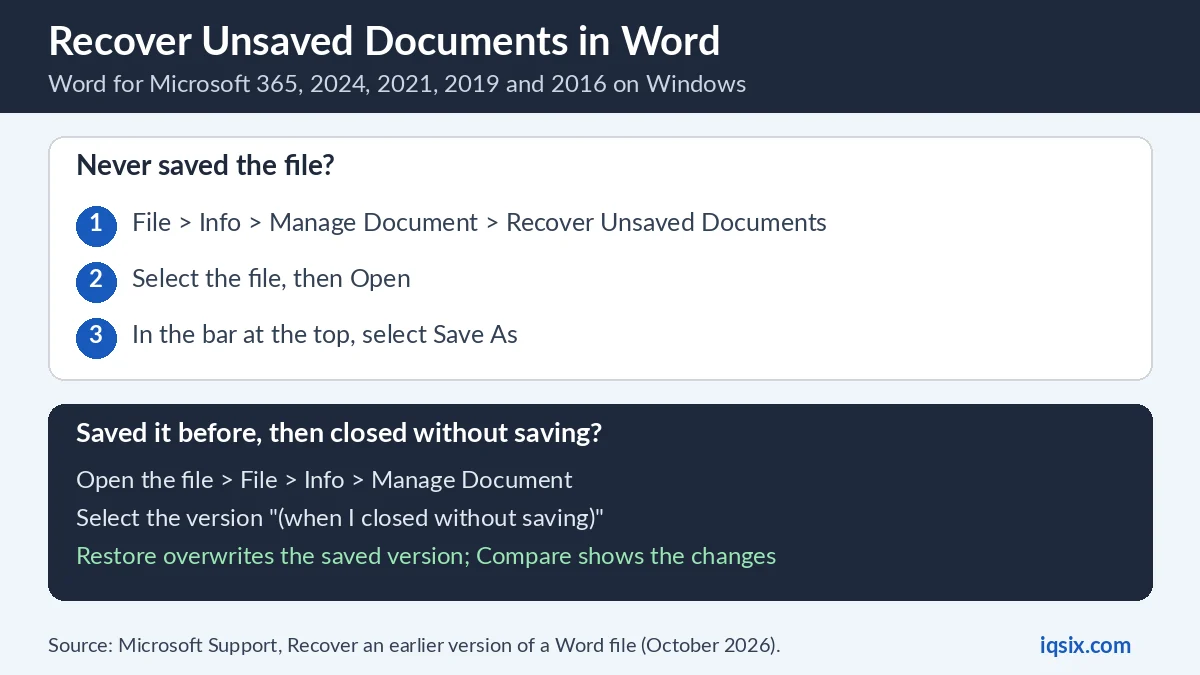
Closed a document you never saved? This is Microsoft’s fix for an unsaved Word document (Microsoft Support):
- Open Word and go to File > Info > Manage Document > Recover Unsaved Documents.
- Select the file, then select Open.
- In the bar at the top of the file, select Save As to save it.
Did you save the file once and then close it without saving your latest changes? Open the file, select File > Info, and under Manage Document select the version labelled (when I closed without saving). In the bar at the top, Restore overwrites the saved version, while Compare shows you the differences first.
Way 3: Search for AutoRecover files (.asd)
Word’s lists empty? Look for the AutoRecover file behind your unsaved Word document. With a Microsoft 365 subscription, Microsoft says to check these two folders first (replace <UserName> with your Windows user name) (Microsoft Learn):
C:\Users\<UserName>\AppData\Roaming\Microsoft\Word
C:\Users\<UserName>\AppData\Local\Microsoft\Office\UnsavedFiles
Nothing there? Search the whole PC: select Start, type .asd and press Enter. To open an .asd file you find:
- In Word, go to File > Open > Browse.
- In the file type list next to File name, select All Files.
- Right-click the AutoRecover file and select Open, then save it as a normal Word document.
Also try a plain search: select Start, type the document’s name and press Enter. If it is in the list, double-click it to open it in Word.
Way 4: Look for a Word backup copy (.wbk)
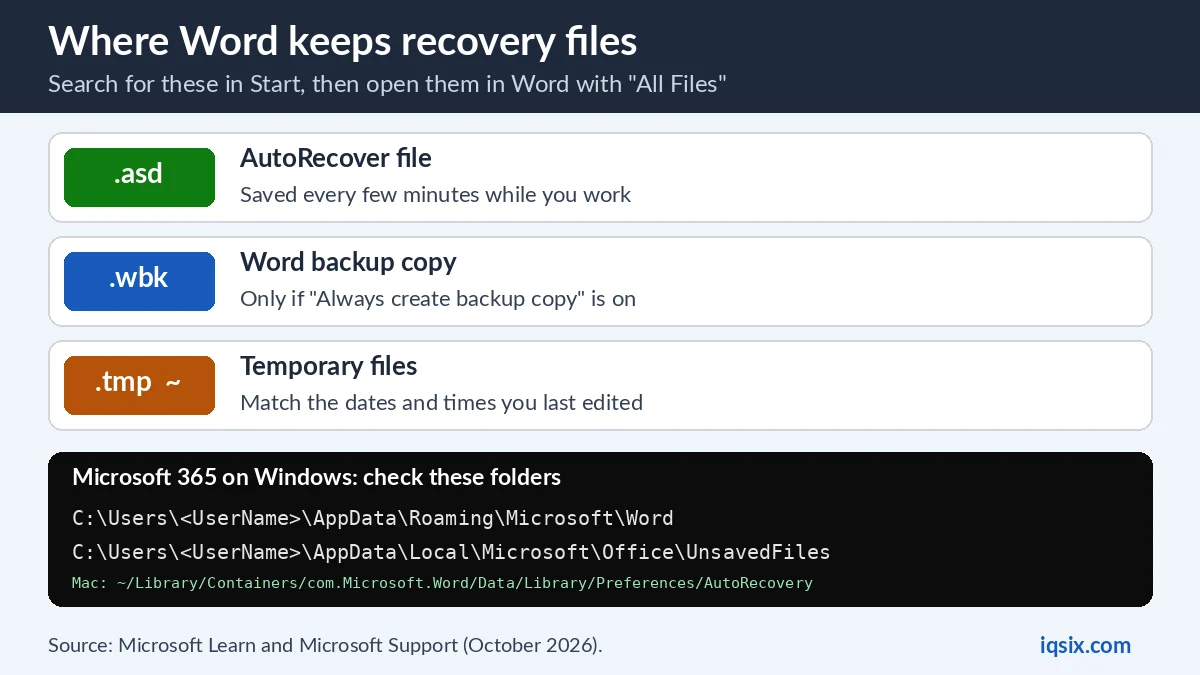
Word backup files end in .wbk. They exist only if the backup option was on: File > Options > Advanced, Save section, Always create backup copy. To find one, select Start, type .wbk and press Enter. A file named “Backup of” followed by your document’s name is the one to open (Microsoft Learn). Microsoft 365 users can also look in the two folders from Way 3.
Way 5: Check temporary files (.tmp and ~)
Last chance for an unsaved Word document: temporary files. They end in .tmp, and their names start with a tilde (~). Microsoft’s steps:
- Select Start, type .tmp and press Enter, then select the Documents tab.
- Look for files whose dates and times match the last times you edited the document. Nothing? Search for ~ instead.
- In Word, go to File > Open, select the Folders tab and open the folder where you found the file. Select the folder name at the top to open File Explorer.
- Change the file type next to the file name to All files, then open the .tmp file.
Way 6: Deleted, not unsaved? Recycle Bin and OneDrive
- Recycle Bin: double-click it on the desktop, look for your document (or for .doc, .docx and .dot files), right-click it and select Restore.
- Windows File Recovery: on Windows 10 version 2004 or later, this tool from the Microsoft Store can recover permanently deleted files.
- OneDrive and SharePoint: files you saved or synced there can be restored from their own recycle bin.
Recover an unsaved Word document on a Mac
Word for Mac keeps AutoRecover files in a hidden folder (Microsoft Support). In Finder, select Go > Go to Folder (Shift + ⌘ + G) and enter this path, with your user name:
/Users/<username>/Library/Containers/com.Microsoft.Word/Data/Library/Preferences/AutoRecoveryBecause the folder is hidden, you won’t see it by browsing in Finder: type the full path. Word normally reopens a recovered file by itself the next time you start it; save it right away. Careful: Microsoft says that if you close a file and select Don’t Save, the AutoRecover file is deleted.
Recovered file won’t open? Use Open and Repair
Microsoft says a file “can be damaged in such a way that Word, Excel, or PowerPoint can’t open it normally. But all is not lost. The Open and Repair command might be able to recover your file” (Microsoft Support).
- In Word, select File > Open > Browse and go to the folder where the document is. Don’t open it from the Recent list: that doesn’t take you to the Open dialog box.
- Select the file, select the arrow next to Open, then select Open and Repair.
Microsoft adds that file damage typically happens when a file is stored on a USB device that is disconnected while the file is open. Use the Safely Remove Hardware icon in the taskbar before you unplug it.
On a Mac, go to Word > Preferences > General and make sure Confirm file format conversion at Open is ticked. Then select File > Open, choose Recover Text in the Open menu, and open the document (Microsoft Support).
Never lose an unsaved Word document again
Microsoft’s advice (Microsoft Support):
- Store files on OneDrive or SharePoint and use AutoSave: your changes are saved continuously.
- Press Ctrl + S often: “the Save button is still your best friend.”
- Set up AutoRecover: go to File > Options > Save and tick Save AutoRecover information every x minutes and Keep the last autorecovered version if I close without saving. Set the minutes to 5 or less, as Microsoft Learn recommends.
Word not starting or acting up after a crash? See how to repair Microsoft Office Click to Run. Working in Excel too? See how to remove duplicates in Excel.
Get Microsoft 365 from IQSIX

AutoSave works with files stored on OneDrive or SharePoint, the setup Microsoft calls the safest way to work for Microsoft 365 subscribers. IQSIX sells a Microsoft 365 Personal 1-year key with Word, Excel, PowerPoint and Outlook.
- Redeem: enter the key at microsoft365.com/setup with your Microsoft account (see how to redeem a Microsoft 365 product key).
- Delivery: by email after your payment is confirmed (or on WhatsApp if you ask).
- Payment: crypto, card, or a Remitly bank or mobile money transfer at checkout.
- Questions first? Ask us on WhatsApp or through our contact page.
Not sure which Office to choose? Compare Microsoft 365 vs Office 2024 and Microsoft 365 Personal vs Family, or see all our software keys.
Got your document back and need to format a reference list? See how to do a hanging indent in Word.
Unsaved Word document FAQ
Can you recover a Word document that was never saved?
Often, yes, if AutoRecover was on. In Word, go to File > Info > Manage Document > Recover Unsaved Documents, open the file and select Save As. If it is not there, search your PC for .asd AutoRecover files.
Where are unsaved Word documents stored?
With Microsoft 365 on Windows, Microsoft says to check C:\Users\\AppData\Roaming\Microsoft\Word and C:\Users\\AppData\Local\Microsoft\Office\UnsavedFiles. On a Mac, AutoRecover files are in Library/Containers/com.Microsoft.Word/Data/Library/Preferences/AutoRecovery.
What is an .asd file?
It is a Word AutoRecover file. Open it in Word with File > Open > Browse, set the file type to All Files, right-click the file and select Open, then save it as a normal document.
How do I recover a Word document after a crash?
Open Word again. Word searches for AutoRecover files every time it starts and shows them in the Document Recovery pane. Open the most recent version and save it.
I clicked Don’t Save. Can I get the document back?
On Windows, open the file and look under File > Info > Manage Document for the version labelled (when I closed without saving), or use Recover Unsaved Documents for a file you never saved. On a Mac, Microsoft says Don’t Save deletes the AutoRecover file.
How often should AutoRecover save?
Microsoft Learn recommends every five minutes or less. Set it in File > Options > Save, and also tick Keep the last autorecovered version if I close without saving.
Sources, checked 31 October 2026: Microsoft Support – Recover an earlier version of a Word file, Recover your Word files and documents, Recover your Microsoft 365 files, Recover files in Office for Mac, Help protect your files in case of a crash, Open a document after a file corruption error; Microsoft Learn – How to recover unsaved Word documents. IQSIX is not affiliated with Microsoft.