
Short answer: to remove duplicates in Excel, select your data, then go to Data > Data Tools > Remove Duplicates, tick the columns to compare and select OK. Excel keeps the first copy of each row and deletes the others. Microsoft’s advice: copy your data to another sheet first, or highlight the duplicates before you delete anything. Want to keep the original list? Use the Advanced filter or the UNIQUE function instead.
Every step comes from Microsoft Support, checked in October 2026, for Excel for Microsoft 365, Excel 2024, 2021, 2019 and 2016 on Windows, plus Excel for the web.
- Delete duplicates for good: Data > Data Tools > Remove Duplicates
- See them first: Home > Conditional Formatting > Highlight Cells Rules > Duplicate Values
- Hide them, delete nothing: Data > Sort & Filter > Advanced > Unique records only
- New list by formula:
=UNIQUE(A2:A100)(Microsoft 365, 2024, 2021) - Made a mistake? Ctrl + Z undoes the removal
Table of Contents
Which way to remove duplicates in Excel?
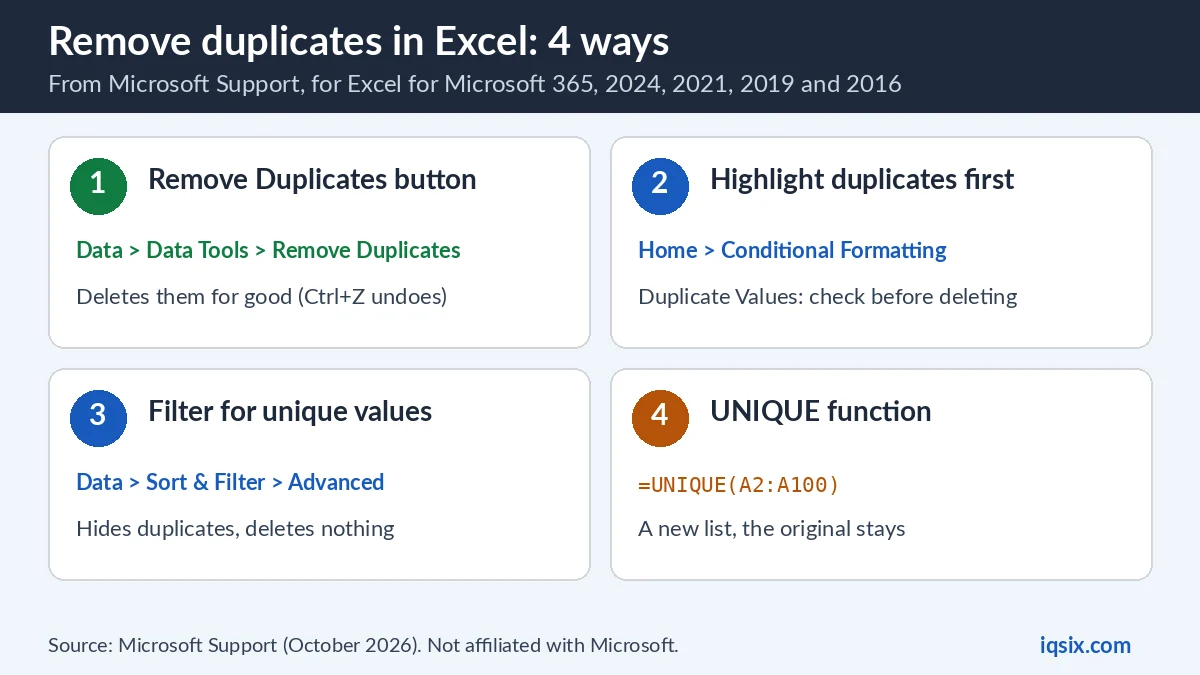
Microsoft points out the key difference: “When you filter for unique values, the duplicate values are only hidden temporarily”, while to remove duplicates “means that you are permanently deleting duplicate values” (Microsoft Support). Pick the way that fits what you need:
| You want to… | Use | Your data |
|---|---|---|
| Delete duplicates in Excel for good | Way 1: Remove Duplicates button | Changed (Ctrl + Z undoes it) |
| See which rows are duplicates first | Way 2: Conditional Formatting | Not changed |
| Hide duplicates or copy a clean list elsewhere | Way 3: Advanced filter | Not changed |
| A clean list that updates by itself | Way 4: UNIQUE function | Not changed |
What counts as a duplicate? Microsoft’s definition: “A duplicate value is one in which all values in at least one row are identical to all of the values in another row.” Excel compares what you see in the cell, not the value stored behind it. The same date shown as “3/8/2006” in one cell and “Mar 8, 2006” in another counts as two different values.
Way 1: The Remove Duplicates button

Because this deletes data, Microsoft suggests copying the original range or table to another worksheet or workbook first. Then:
- Select the range of cells, or click any cell in your table.
- On the Data tab, select Remove Duplicates (in the Data Tools group).
- Under Columns, tick the columns to compare. Select All ticks every column; with many columns, it is easier to select Unselect All and tick just the ones you need.
- Select OK. A message tells you how many duplicate values were removed and how many unique values remain. Select OK again.
How the columns work: they are the “key” Excel uses to find duplicates. If you tick Column1 and Column2 but not Column3, a row is a duplicate when both Column1 and Column2 match, and then the entire row is removed, including the other columns. Excel keeps the first occurrence and deletes the identical rows after it; values outside your range don’t move.
Example from Microsoft: a list where the January column has prices you need to keep. Untick January in the Remove Duplicates box, so it isn’t part of the comparison (Microsoft Support). Microsoft also notes that the counts it shows can include empty cells and spaces.
Changed your mind? Select Undo or press Ctrl + Z.
Example: how your column choice changes the result
Our own small example, following Microsoft’s rules above. The list has four rows:
| Row | Name | City | Price |
|---|---|---|---|
| 1 | Ana | Rome | 10 |
| 2 | Ben | Oslo | 12 |
| 3 | Ana | Rome | 15 |
| 4 | Ben | Lima | 12 |
- Tick Name, City and Price: nothing is removed. Rows 1 and 3 have different prices, so no row is identical to another in all three columns.
- Tick Name and City: row 3 is removed, because Ana + Rome already appears in row 1. Its price of 15 goes with it, since the whole row is deleted.
- Tick Name only: rows 3 and 4 are removed. Ana and Ben each stay once, with the city and price from their first row.
So before you select OK, ask: which columns together make a row a real duplicate? Tick exactly those. If you are not sure, run Way 2 or Way 3 first and look at the result.
Way 2: Highlight duplicates before you delete them
“Use conditional formatting to find and highlight duplicate data. That way you can review the duplicates and decide if you want to remove them,” says Microsoft (Microsoft Support).
- Select the cells you want to check.
- Select Home > Conditional Formatting > Highlight Cells Rules > Duplicate Values.
- In the box next to values with, pick a format, such as a red fill, and select OK.
Need more control? In Conditional Formatting > Manage Rules > New Rule, choose Format only unique or duplicate values and pick unique or duplicate. Note: Excel can’t highlight duplicates in the Values area of a PivotTable report.
Way 3: Filter for unique values (delete nothing)
This hides duplicates instead of deleting them, or copies a clean list somewhere else:
- Select the range, or click a cell in your table.
- Select Data > Advanced (in the Sort & Filter group).
- Choose Filter the list, in-place, or Copy to another location and enter a cell in the Copy to box.
- Tick Unique records only and select OK.
Microsoft recommends this check before you remove duplicates: filter (or highlight) the unique values first, “to confirm that you achieve the results you expect” (Microsoft Support).
Way 4: The UNIQUE function

“The UNIQUE function returns a list of unique values in a list or range,” says Microsoft (Microsoft Support). Your original data stays as it is. The syntax:
=UNIQUE(array,[by_col],[exactly_once])- array: the range to read, for example
=UNIQUE(A2:A100). - by_col (optional): TRUE compares columns instead of rows. Leave it out to compare rows.
- exactly_once (optional): TRUE returns only the values that appear exactly once, for example
=UNIQUE(A2:A100,,TRUE).
The result “spills” into as many cells as it needs. Want it sorted? Microsoft’s example wraps it in SORT: =SORT(UNIQUE(A2:A100)). If your data is an Excel table and the formula uses structured references, the list grows and shrinks as you add or remove rows. One limit: between two workbooks, the formula only works while both are open; close the source workbook and it returns a #REF! error when it refreshes.
Another example from Microsoft: to get a unique list of full names from a last-name column (A) and a first-name column (B), join them with an ampersand and sort the result: =SORT(UNIQUE(B2:B12&" "&A2:A12)).
Microsoft lists UNIQUE for Excel for Microsoft 365, Excel 2024, Excel 2021 and Excel for the web and mobile. Excel 2019 and 2016 aren’t on the list, so use the Remove Duplicates button there. Comparing versions? See Microsoft 365 vs Office 2024.
Remove duplicates in Excel for the web
Excel for the web has the same button (Microsoft Support):
- Select the range of cells, or click a cell in your table.
- On the Data tab, select Remove Duplicates.
- In the Remove Duplicates dialog box, untick any columns you don’t want to compare.
- Select OK. A message tells you how many duplicate values were removed. Select OK to close it.
“You can always select Undo to get back your data after you have removed the duplicates,” Microsoft says, but it still recommends copying the original range or table to another worksheet or workbook first.
Can’t remove duplicates? Common problems
- Outlined or subtotaled data: you can’t remove duplicates from it. Remove the outline and the subtotals first, then try again.
- Rows you expected to go are still there: Excel compares what each cell shows. Two different formats, like two date styles, make the same value count as different.
- Too many rows disappeared: you compared too few columns. Press Ctrl + Z and tick more columns in the Remove Duplicates box.
Excel freezing or crashing while you work? Repair Office: see how to repair Microsoft Office Click to Run. Lost a Word file in the crash? See how to recover an unsaved Word document.
Get Microsoft 365 from IQSIX

The UNIQUE function is listed for Excel for Microsoft 365. IQSIX sells a Microsoft 365 Personal 1-year key with Excel, Word, PowerPoint and Outlook.
- Redeem: enter the key at microsoft365.com/setup with your Microsoft account (see how to redeem a Microsoft 365 product key).
- Delivery: by email after your payment is confirmed (or on WhatsApp if you ask).
- Payment: crypto, card, or a Remitly bank or mobile money transfer at checkout.
- Questions first? Ask us on WhatsApp or through our contact page.
Want to cross items out instead of deleting them? See how to strikethrough in Excel. Duplicates gone and ready to analyse? See how to calculate standard deviation in Excel. Writing in Word too? See how to do a hanging indent in Word. Need Windows or antivirus? See all our software keys.
Remove duplicates in Excel: FAQ
How do I remove duplicates in Excel?
Select your data, go to Data > Data Tools > Remove Duplicates, tick the columns to compare and select OK. Excel keeps the first copy of each row and deletes the rest. Copy your data first, or press Ctrl + Z to undo.
How do I find duplicates in Excel without deleting them?
Select the cells, then Home > Conditional Formatting > Highlight Cells Rules > Duplicate Values. Or use Data > Advanced with Unique records only to hide duplicates without deleting them.
Does Remove Duplicates delete the whole row?
Yes. Microsoft says that if a duplicate is found in the columns you ticked, the entire row is removed, including the other columns in the table or range.
Which duplicate does Excel keep?
The first occurrence. Later identical rows are deleted, and values outside your range don’t change or move.
Can I undo Remove Duplicates?
Yes, with Undo or Ctrl + Z. Microsoft still recommends copying the original data to another worksheet or workbook first.
What is the UNIQUE function?
A formula that returns a list of unique values from a range, for example =UNIQUE(A2:A100). Your original data stays as it is. Microsoft lists it for Excel for Microsoft 365, 2024, 2021 and the web.
Sources, checked 31 October 2026: Microsoft Support – Filter for unique values or remove duplicate values, Find and remove duplicates and UNIQUE function. IQSIX is not affiliated with Microsoft.