
Short answer: the Excel strikethrough shortcut is Ctrl + 5 on Windows. Select the cells and press it once to cross the text out, and again to remove the line. On a Mac, press Shift + Command + X. Prefer the menus? Use the small arrow in the Font group on the Home tab (or press Ctrl + 1) to open Format Cells, and on the Font tab tick Strikethrough under Effects.
Every step comes from Microsoft Support, checked in November 2026, for Excel for Microsoft 365, Excel 2024, 2021, 2019 and 2016 on Windows and Mac, plus Excel for the web.
- Windows shortcut: Ctrl + 5 (press it again to remove the line)
- Mac shortcut: Shift + Command + X
- Format Cells: Ctrl + 1 > Font > Effects > Strikethrough > OK
- Part of a cell: press F2, select the characters, then Ctrl + 1
- Excel for the web: Home > Font Settings > Strikethrough > OK
- Automatic: a conditional formatting rule crosses out finished tasks
Table of Contents
Excel strikethrough shortcut: Ctrl + 5
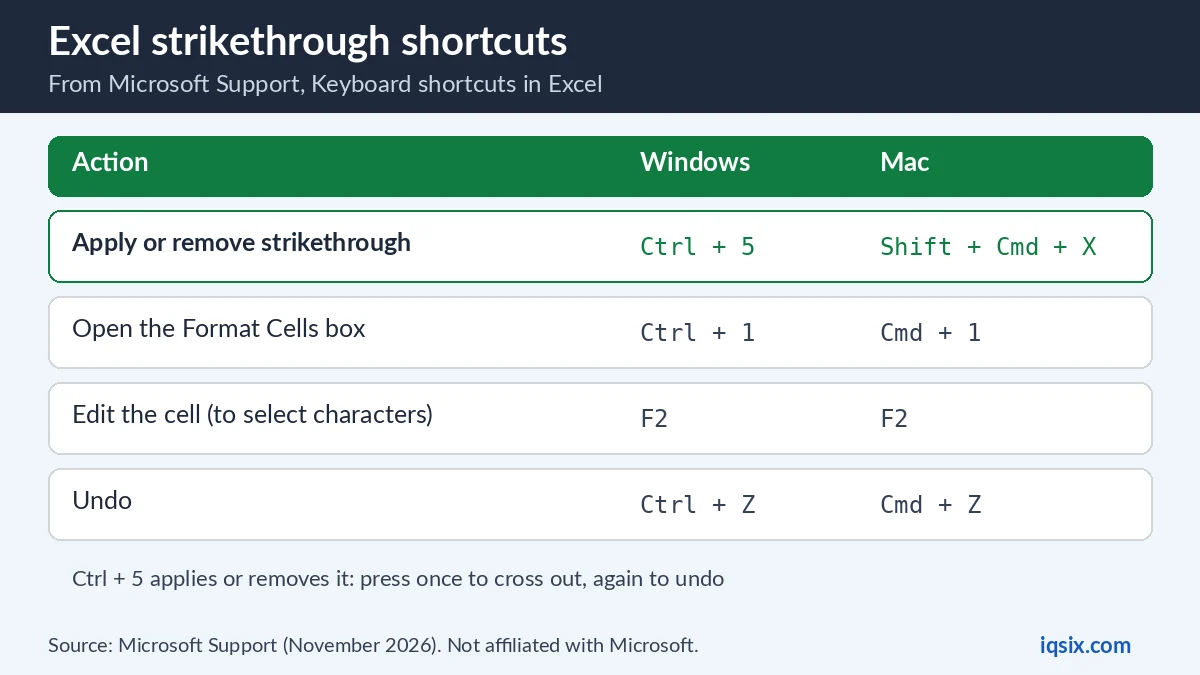
Microsoft lists one shortcut that both adds and removes the line: “Apply or remove strikethrough formatting” (Keyboard shortcuts in Excel). The keys that help with it:
| Action | Windows | Mac |
|---|---|---|
| Apply or remove strikethrough | Ctrl + 5 | Shift + Command + X |
| Open the Format Cells box | Ctrl + 1 | Command + 1 |
| Edit the cell, to select characters | F2 | F2 |
| Undo | Ctrl + Z | Command + Z |
To use the strikethrough shortcut in Excel, select one cell, a range, or whole rows or columns, and press Ctrl + 5. Press Ctrl + 5 again on the same cells to remove the line. On a Mac, Microsoft’s list for Excel for Mac gives Shift + Command + X instead.
Which way should you use?
| Way | Best for | Works in |
|---|---|---|
| Ctrl + 5 (Shift + Command + X) | The fastest way, for cells, ranges, rows or columns | Excel for Windows and Mac |
| Format Cells | Seeing a preview first, or setting other font effects at the same time | Excel for Windows, Mac and the web |
| Part of a cell | Crossing out one word or an old price inside a cell | Excel for Windows (edit the cell first) |
| Conditional formatting | To-do lists that cross out finished tasks by themselves | Excel for Windows and Mac |
Strikethrough in Excel is only formatting. The value in the cell doesn’t change, so you can still sort and filter the list, and formulas that use the cell still see the same number or text. Use it to show edits or completed tasks, as Microsoft suggests; if you want the data gone, delete it instead.
How to strikethrough in Excel with Format Cells
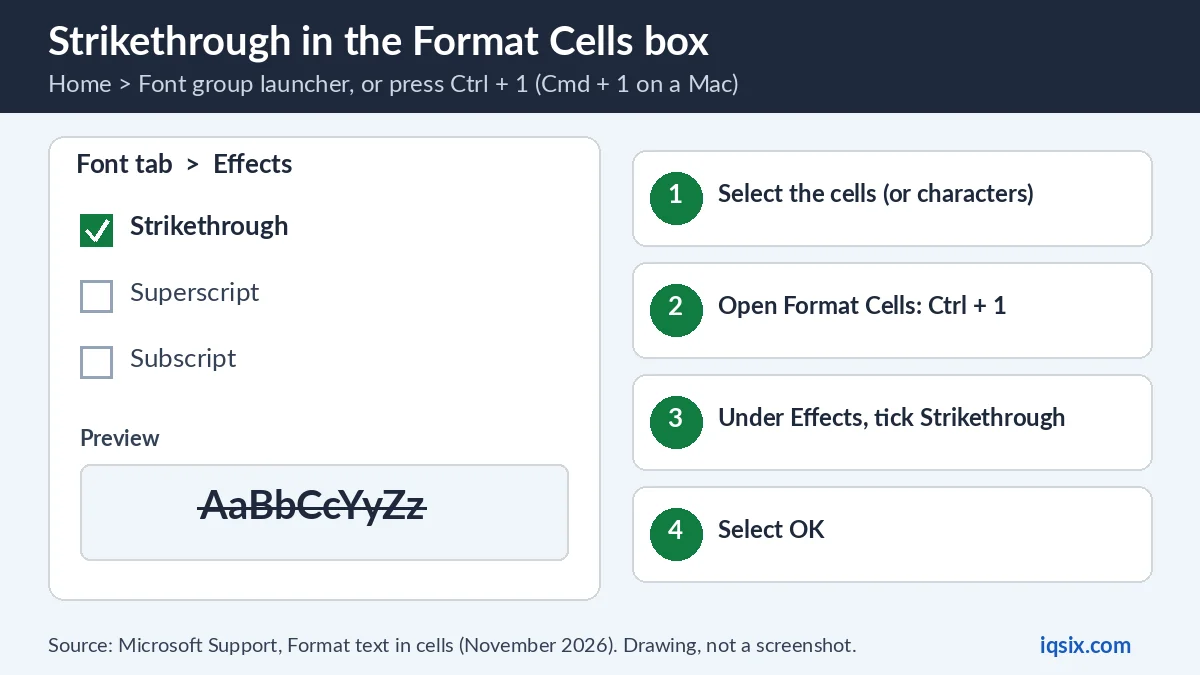
Prefer the menus? In the desktop app, Microsoft’s route to strikethrough in Excel goes through the font settings: “To apply strikethrough, superscript, or subscript formatting, click the Dialog Box Launcher, and select an option under Effects” (Microsoft Support).
- Select the cells you want to cross out.
- On the Home tab, in the Font group, select the Font Settings dialog box launcher (the small arrow in the corner), or press Ctrl + 1.
- On the Font tab, under Effects, tick Strikethrough.
- Select OK.
Microsoft also lists Ctrl + Shift + F, which opens Format Cells straight on the Font tab. The same Effects box holds Superscript and Subscript, and the Preview shows the result before you select OK.
Strikethrough part of the text in a cell
Want to cross out one word, not the whole cell? Microsoft’s steps for the other Effects options start with “Select characters in a cell or cell range” and then open the font settings or press Ctrl + 1 (Microsoft Support). Strikethrough sits in the same Effects box, so:
- Select the cell and press F2. Microsoft: F2 edits the active cell and puts the insertion point at the end of its contents.
- Select the characters you want to cross out.
- Press Ctrl + 1, tick Strikethrough under Effects and select OK.
- Press Enter to leave the cell.
Only the characters you selected get the line; the rest of the cell keeps its look. This is handy for a price list where you cross out the old price and type the new one next to it in the same cell.
Strikethrough in Excel for the web
Microsoft says you can “draw a line through data in a cell to show edits or completed tasks” with the font strikethrough option (Microsoft Support). In Excel for the web:
- Select the cells containing the data you want to format.
- Go to Home, and in the Font group select Font Settings to open the Format Cells dialog.
- Select Strikethrough, then select OK.
To remove it, select the cells again, clear Strikethrough and select OK. Microsoft’s “Format text in cells” page also lists strikethrough among the options under Font on the Home tab of Excel for the web (Microsoft Support).
Cross out finished tasks automatically
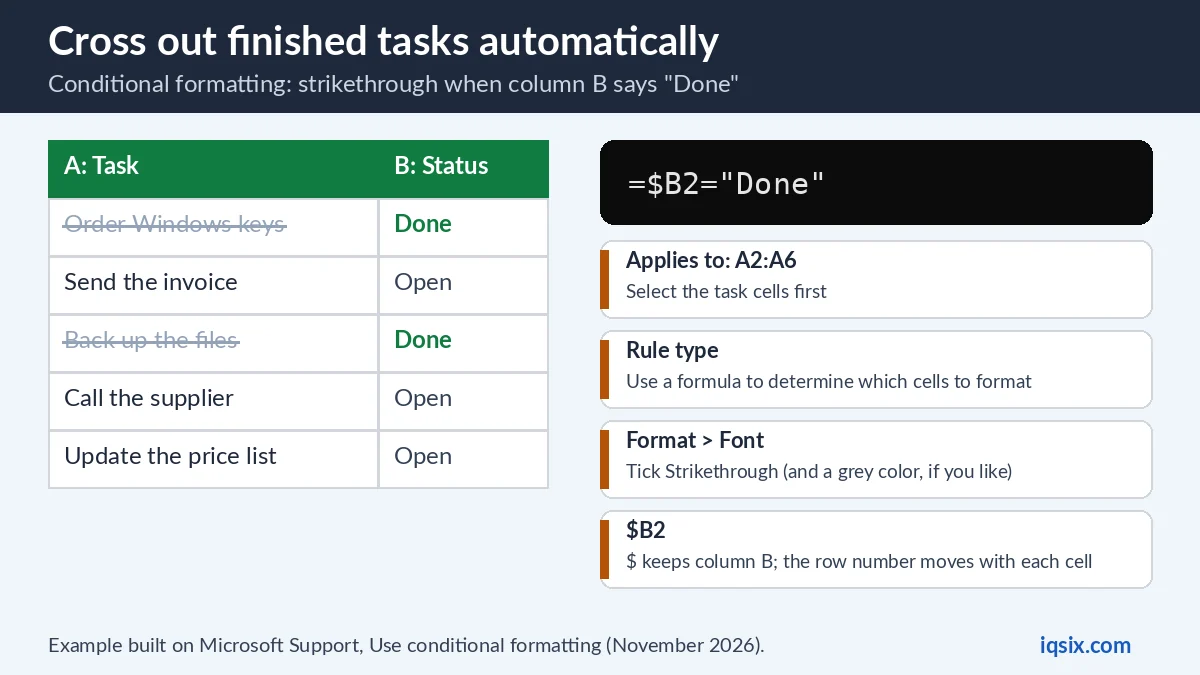
A to-do list where tasks cross themselves out when you mark them done is a classic use of Excel strikethrough. Conditional formatting does it with a formula. Microsoft’s rules: the formula must start with an equal sign and return TRUE or FALSE, and relative references let Excel adjust the formula for each cell in the range (Microsoft Support). In our example, the tasks are in A2:A6 and the status is in B2:B6:
- Select the task cells, here A2:A6.
- On the Home tab, select Conditional Formatting > Manage Rules, then New Rule.
- Under Select a Rule Type, choose Use a formula to determine which cells to format.
- Enter the formula
=$B2="Done". - Select Format, open the Font tab and tick Strikethrough. A grey font color makes finished tasks fade too. Select OK until all the boxes are closed.
Now type Done in column B and the task next to it gets a line through it. Why $B2? The dollar sign fixes the column, so every cell checks column B, while the row number moves with each cell: A3 checks B3, A4 checks B4 and so on. Want the whole row crossed out? Select A2:B6 in step 1 instead; the same formula works.
Add a strikethrough button to the Quick Access Toolbar
Use strikethrough in Excel a lot and don’t like shortcuts? Put it one click away. Microsoft’s steps for a command that isn’t on the ribbon (Customize the Quick Access Toolbar):
- Select Customize Quick Access Toolbar and choose More Commands.
- In the Choose commands from list, select Commands Not in the Ribbon.
- Find Strikethrough, select Add, then OK.
Can’t find it in that list? Microsoft’s tip: set Choose commands from to All commands.
How to remove strikethrough in Excel
- Shortcut: select the cells and press Ctrl + 5 again (Shift + Command + X on a Mac).
- Format Cells: press Ctrl + 1 and clear the Strikethrough box.
- All formatting at once: Home > Editing > Clear > Clear Formats. This removes all the formatting of the selected cells, not just the line.
- The line keeps coming back: a conditional formatting rule adds it. Select the cells and go to Home > Conditional Formatting > Clear Rules > Clear Rules from Selected Cells.
Excel strikethrough not working? Quick fixes
- Ctrl + 5 does nothing on a Mac: Excel for Mac uses Shift + Command + X.
- Only part of the text has the line: you selected characters inside the cell. Press Enter to leave the cell, select the whole cell, then press Ctrl + 5.
- The line won’t go away: a conditional formatting rule adds it; clear the rule (see above).
- Can’t find the option in Excel for the web: go to Home and select Font Settings in the Font group.
- Pressed it by mistake? Undo with Ctrl + Z.
Excel freezing or closing while you work? Repair Office: see how to repair Microsoft Office Click to Run. Cleaning up a list? See how to remove duplicates in Excel. Working with numbers? See how to calculate standard deviation in Excel.
Get Microsoft 365 from IQSIX

Excel comes with Microsoft 365. IQSIX sells a Microsoft 365 Personal 1-year key with Excel, Word, PowerPoint and Outlook: the Excel for Microsoft 365 version this guide covers, on Windows and Mac.
- Redeem: enter the key at microsoft365.com/setup with your Microsoft account (see how to redeem a Microsoft 365 product key).
- Delivery: by email after your payment is confirmed (or on WhatsApp if you ask).
- Payment: crypto, card, or a Remitly bank or mobile money transfer at checkout.
- Questions first? Ask us on WhatsApp or through our contact page.
Writing in Word too? See how to do a hanging indent in Word and how to clear formatting in Word. Not sure which Office to pick? Read Microsoft 365 vs Office 2024, or see all our software keys.
Excel strikethrough: FAQ
What is the shortcut for strikethrough in Excel?
Ctrl + 5 on Windows; press it again to remove the line. Microsoft lists Shift + Command + X for Excel for Mac.
How do I strikethrough in Excel without the shortcut?
Select the cells, press Ctrl + 1 or use the Font Settings launcher on the Home tab, tick Strikethrough under Effects on the Font tab and select OK.
Can I strikethrough only part of a cell?
Yes. Press F2 to edit the cell, select the characters, press Ctrl + 1, tick Strikethrough and select OK. Only the selected characters get the line.
How do I strikethrough in Excel for the web?
Select the cells, go to Home and select Font Settings in the Font group, select Strikethrough and select OK.
How do I cross out a task when it is done?
Use conditional formatting: select the task cells, add a new rule of the type Use a formula to determine which cells to format, enter a formula such as =$B2=”Done”, then select Format > Font > Strikethrough.
How do I remove strikethrough in Excel?
Select the cells and press Ctrl + 5 again, or clear the Strikethrough box in Format Cells. If a conditional formatting rule adds the line, clear that rule.
Sources, checked 1 November 2026: Microsoft Support – Keyboard shortcuts in Excel, Format text in cells, Where is the font Strikethrough option in Excel for the web?, Format text or numbers as superscript or subscript, Use conditional formatting to highlight information and Customize the Quick Access Toolbar. IQSIX is not affiliated with Microsoft.