
Short answer: to clear formatting in Word, select the text (press Ctrl + A for the whole document), then on the Home tab select Clear All Formatting in the Font group. Word removes bold, underline, italics, color, superscript, subscript and more, and returns the text to its default formatting styles. To remove only part of the formatting, press Ctrl + Spacebar (character formatting) or Ctrl + Q (paragraph formatting). Copying from a website? Paste with Keep Text Only.
Every step comes from Microsoft Support, checked in November 2026, for Word for Microsoft 365, Word 2024, 2021, 2019 and 2016 on Windows and Mac, plus Word for the web.
- Button: Home > Font group > Clear All Formatting
- Whole document: Ctrl + A, then Clear All Formatting
- Character formatting only: Ctrl + Spacebar
- Paragraph formatting only: Ctrl + Q
- Pasting: Ctrl + V, then Ctrl, then T (Keep Text Only)
Table of Contents
What does clear formatting in Word remove?
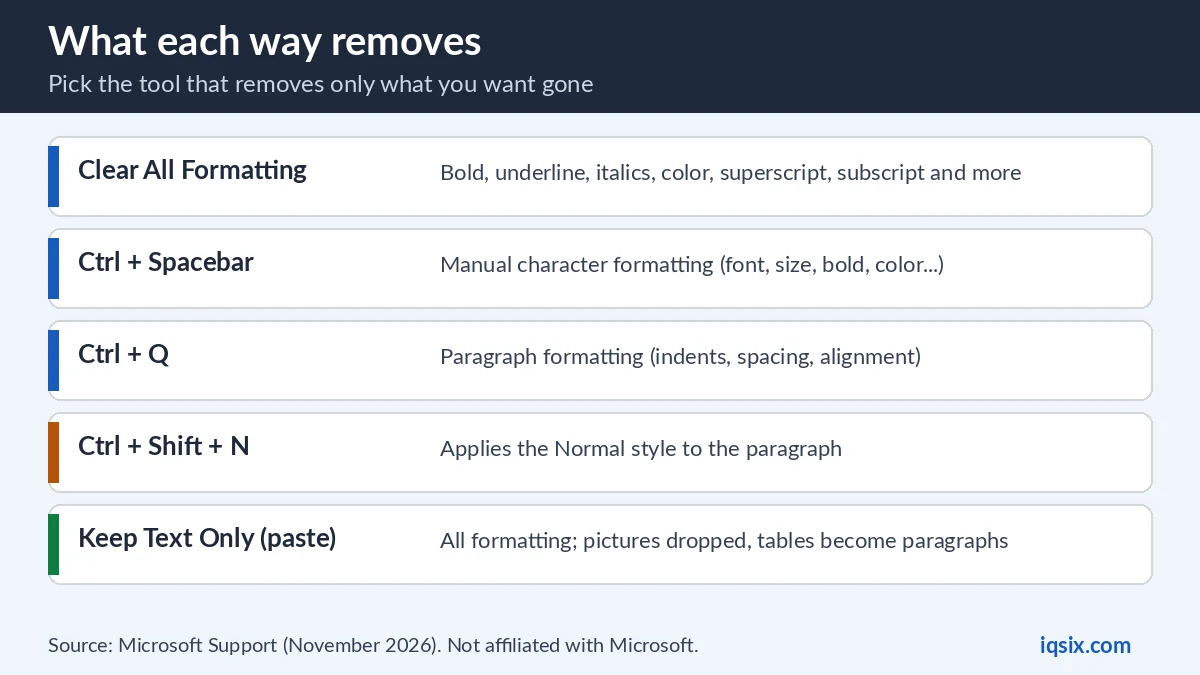
Microsoft: “You can easily clear all formatting (such as bold, underline, italics, color, superscript, subscript, and more) from your text and return your text to its default formatting styles” (Microsoft Support). It removes formatting, not your edits: to undo an action, use Undo (Ctrl + Z) instead.
Word has several tools for this, and each one removes something different:
| Way | What it removes | Use it when |
|---|---|---|
| Clear All Formatting | Bold, underline, italics, color, superscript, subscript and more; the text returns to its default style | The text looks messy and you want a clean start |
| Ctrl + Spacebar | Manual character formatting | You want to keep paragraph settings, such as indents |
| Ctrl + Q | Paragraph formatting | You want to keep bold, italics and colors |
| Ctrl + Shift + N | Applies the Normal style | A heading or a list should become normal text |
| Keep Text Only (paste) | All formatting and pictures; tables become paragraphs | You copy from a website or another document |
Way 1: Clear formatting in Word with the Clear All Formatting button
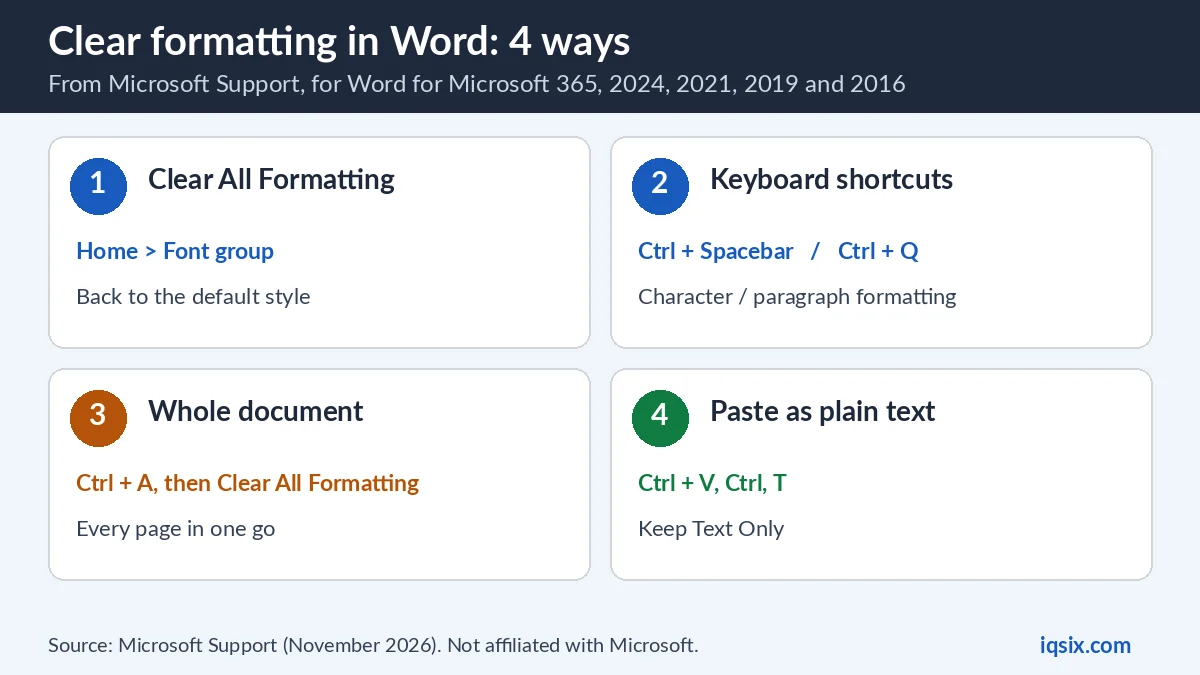
This is Microsoft’s main way, the same in Word for Windows and Word for Mac (Microsoft Support):
- Select the text that you want to return to its default formatting.
- On the Home tab, select Clear All Formatting in the Font group.
The text keeps its words and loses the extra formatting. Not what you wanted? Press Ctrl + Z to undo, and try one of the more precise shortcuts in Way 3.
Way 2: Clear formatting from the whole document
To clean up every page at once:
- Press Ctrl + A to select all document content (Command + A on a Mac).
- On the Home tab, select Clear All Formatting.
Check the document afterwards. Because Word returns the text to its default formatting styles, headings, lists and other styled text may need their styles again. To keep them, clear only the part of the document that looks wrong, or press Ctrl + Spacebar instead, which removes only manual character formatting.
Way 3: Remove formatting in Word with shortcuts
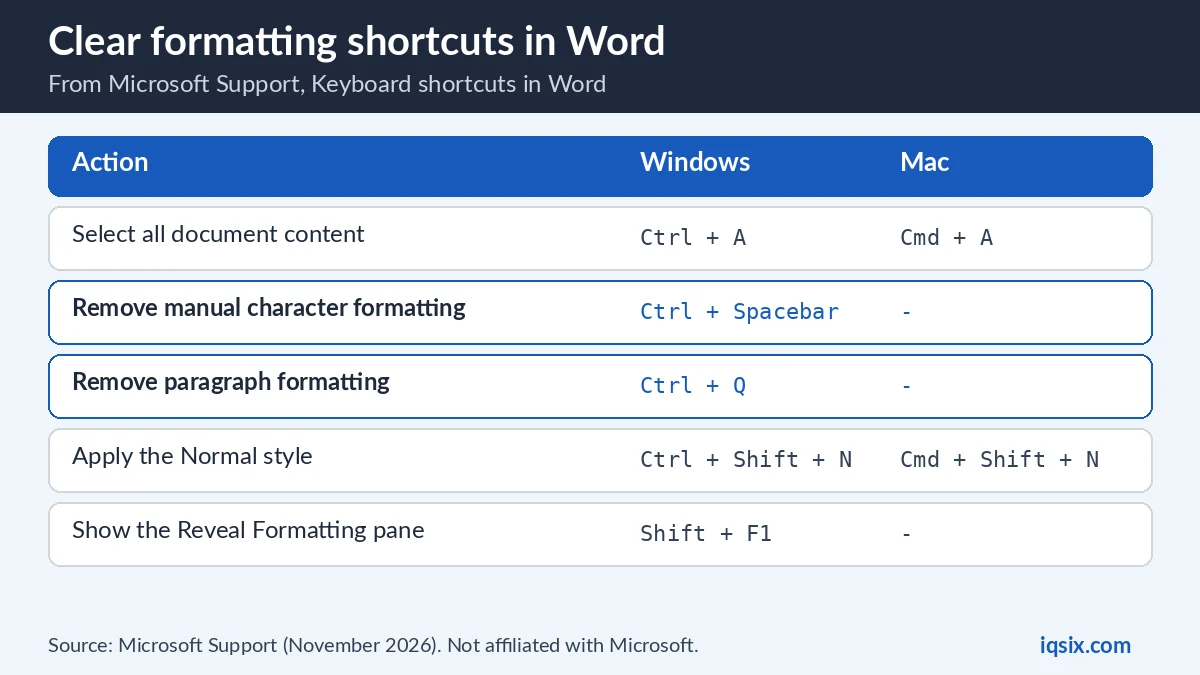
Microsoft lists these shortcuts (Keyboard shortcuts in Word):
| Action | Windows | Mac |
|---|---|---|
| Select all document content | Ctrl + A | Command + A |
| Remove manual character formatting | Ctrl + Spacebar | – |
| Remove paragraph formatting | Ctrl + Q | – |
| Apply the Normal style | Ctrl + Shift + N | Command + Shift + N |
| Display the Reveal Formatting pane | Shift + F1 | – |
Ctrl + Spacebar removes manual character formatting: what was added on top of the style, such as another font, size, bold or color. Ctrl + Q removes paragraph formatting set by hand, such as indents and spacing. Ctrl + Shift + N applies the Normal style. On a Mac, Microsoft’s list gives Command + Shift + N for the Normal style; for the rest, use Clear All Formatting on the Home tab.
Way 4: Paste text without its formatting

By default, Word keeps the original formatting when you paste with Ctrl + V, the Paste button or right-click Paste (Microsoft Support). To paste plain text instead:
- Select or tap where you want to paste the content.
- Press Ctrl + V, then select the Paste Options button or press Ctrl.
- Choose Keep Text Only (T).
Microsoft explains that Keep Text Only “discards all formatting and nontext elements such as pictures or tables”: graphics are dropped and tables become a series of paragraphs. The text takes on the style of the paragraph where you paste it, so it matches the rest of your document.
To make it the default for text from websites and other apps: go to File > Options > Advanced, and under Cut, copy, and paste set Pasting from other programs to Keep Text Only, then select OK. Don’t see the Paste Options button? It is on by default; turn it back on in the same place with Show Paste Options button when content is pasted.
Example: clean up text copied from a website
A typical case: you copy a few paragraphs from a web page, and in your document they arrive in another font, size and color, with their own spacing. You can fix it at two moments:
- While you paste: press Ctrl + V, then Ctrl, then T. The text arrives as plain text in the style of the paragraph where you paste it.
- After you paste: select the pasted paragraphs and select Clear All Formatting on the Home tab. The text goes back to your document’s default style.
Either way, the words stay exactly as they were; only the look changes. If you paste from the web every day, set Keep Text Only as the default for pasting from other programs, so you never have to clean up again.
How to remove formatting in Word for Mac
Word for Mac has the same button (Microsoft Support):
- Select the text that you want to return to its default formatting.
- On the Home tab, select Clear All Formatting in the Font group.
To clear the whole document, press Command + A first. Command + Shift + N applies the Normal style.
Clear formatting in Word for the web
In Word for the web, the button is called Clear Formatting (Microsoft Support):
- Select the text you want to clear formatting from.
- Select Clear Formatting on the Home tab of the ribbon.
Can’t see it? Microsoft’s tip: it appears just to the right of the font settings, such as font size and color, “but depending on your screen size and layout you may have to select More (…) to see the additional buttons”. Ctrl + A selects all document content in Word for the web too.
Find leftover formatting with Reveal Formatting
Some text still looks different after you cleared it? Press Shift + F1 to open the Reveal Formatting pane, which Microsoft lists among Word’s shortcuts. Select the text that looks wrong and the pane shows how it is formatted, so you can see what is left and clear just that.
Clear formatting in Word not working? Quick fixes
- Only part of the text changed: you selected only part of it. Press Ctrl + A to select everything, then clear again.
- Headings or lists changed too: Clear All Formatting returns text to its default styles. Press Ctrl + Z, then use Ctrl + Spacebar to remove character formatting only.
- Pasted text keeps its old look: paste with Keep Text Only, or make it the default (Way 4).
- No Paste Options button: turn it on in File > Options > Advanced.
- No button in Word for the web: select More (…) on the Home tab.
- Shortcut does nothing on a Mac: use Clear All Formatting on the Home tab, or Command + Shift + N for the Normal style.
Your reference list lost its indent? See how to do a hanging indent in Word. A line you can’t select or delete? It may be a border: see how to add or remove a line in Word. Need to change one font or color everywhere? The Format button in find and replace in Word does that. Word closed before you saved? See how to recover an unsaved Word document.
Get Microsoft 365 from IQSIX

Word comes with Microsoft 365. IQSIX sells a Microsoft 365 Personal 1-year key with Word, Excel, PowerPoint and Outlook: the Word for Microsoft 365 version this guide covers, on Windows and Mac.
- Redeem: enter the key at microsoft365.com/setup with your Microsoft account (see how to redeem a Microsoft 365 product key).
- Delivery: by email after your payment is confirmed (or on WhatsApp if you ask).
- Payment: crypto, card, or a Remitly bank or mobile money transfer at checkout.
- Questions first? Ask us on WhatsApp or through our contact page.
Working in Excel too? See how to strikethrough in Excel. Not sure which Office to pick? Read Microsoft 365 vs Office 2024, or see all our software keys.
Clear formatting in Word: FAQ
How do I clear formatting in Word?
Select the text, then on the Home tab select Clear All Formatting in the Font group. Press Ctrl + A first to clear the whole document.
What is the shortcut to clear formatting in Word?
Ctrl + Spacebar removes manual character formatting and Ctrl + Q removes paragraph formatting. Ctrl + Shift + N applies the Normal style.
How do I remove all formatting in Word at once?
Press Ctrl + A to select all document content, then select Clear All Formatting on the Home tab.
How do I paste without formatting in Word?
Press Ctrl + V, then press Ctrl to open Paste Options and choose Keep Text Only (T). You can make Keep Text Only the default in File > Options > Advanced.
How do I remove formatting in Word for Mac?
Select the text and choose Clear All Formatting in the Font group on the Home tab. Command + Shift + N applies the Normal style.
Does clearing formatting undo my changes?
No. It removes formatting, not your edits. To undo an action, use Undo (Ctrl + Z).
Sources, checked 1 November 2026: Microsoft Support – Clear all text formatting, Keyboard shortcuts in Word and Control the formatting when you paste text. IQSIX is not affiliated with Microsoft.