
Short answer: to find and replace in Word, press Ctrl + H. Type the word you want to change in Find what and the new word in Replace with, then select Replace All to change every match at once, or Find Next and Replace to go one by one. On a Mac, Control + H opens the Find and Replace pane; in Word for the web, Ctrl + H works in Editing view.
Every step comes from Microsoft Support, checked in November 2026, for Word for Microsoft 365, Word 2024, 2021, 2019 and 2016, plus Word for Mac and Word for the web.
- Open it: Ctrl + H (Control + H on a Mac)
- Change everything: Replace All
- Check each match: Find Next, then Replace
- Avoid partial matches: Find whole words only
- Only find, don’t replace: Ctrl + F
- Changed too much? Ctrl + Z undoes it
Table of Contents
How to find and replace in Word, step by step
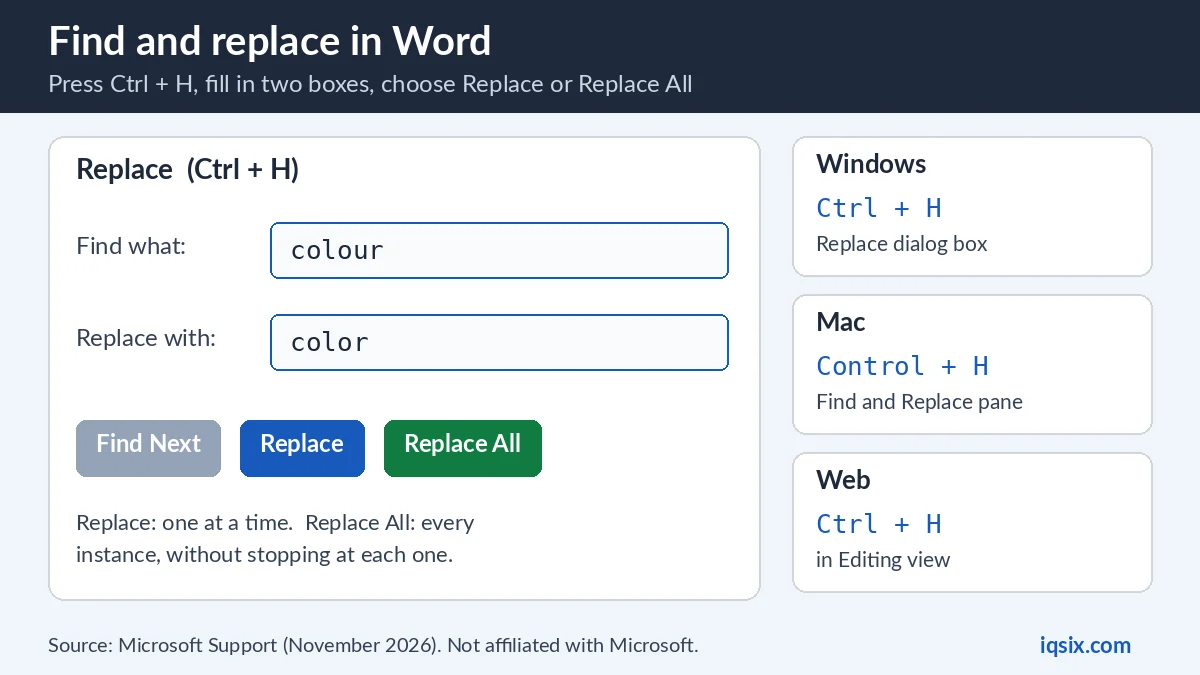
Press Ctrl + H to display the Replace dialog box. Microsoft describes it as the place “to find and replace text, specific formatting, or special items” (Keyboard shortcuts in Word). Then (Microsoft Support):
- In the Find what box, enter the word or phrase you want to locate.
- In the Replace with box, enter your new text.
- Select Find Next until you come to the instance you want to update.
- Choose Replace, or choose Replace All to update all instances without stopping at each one.
That’s all for a simple change. The search options below help when the word you’re replacing is also part of other words, or when you need to change formatting instead of text.
Replace or Replace All: which one to use
Replace All is the fastest way to replace in Word: every match in the document changes in one go. Use it when you’re sure the word only appears where you want the change, for example a person’s name or a product name.
Replace works one match at a time. Select Find Next to jump to each match, then Replace to change it, or Find Next again to skip it. Use it when the same word sometimes needs to stay, for example “color” in a quote you must keep as it is.
Replaced more than you meant to? Press Ctrl + Z to undo the previous action (Microsoft Support). On a Mac it’s Command + Z.
Find and replace in Word: the search options
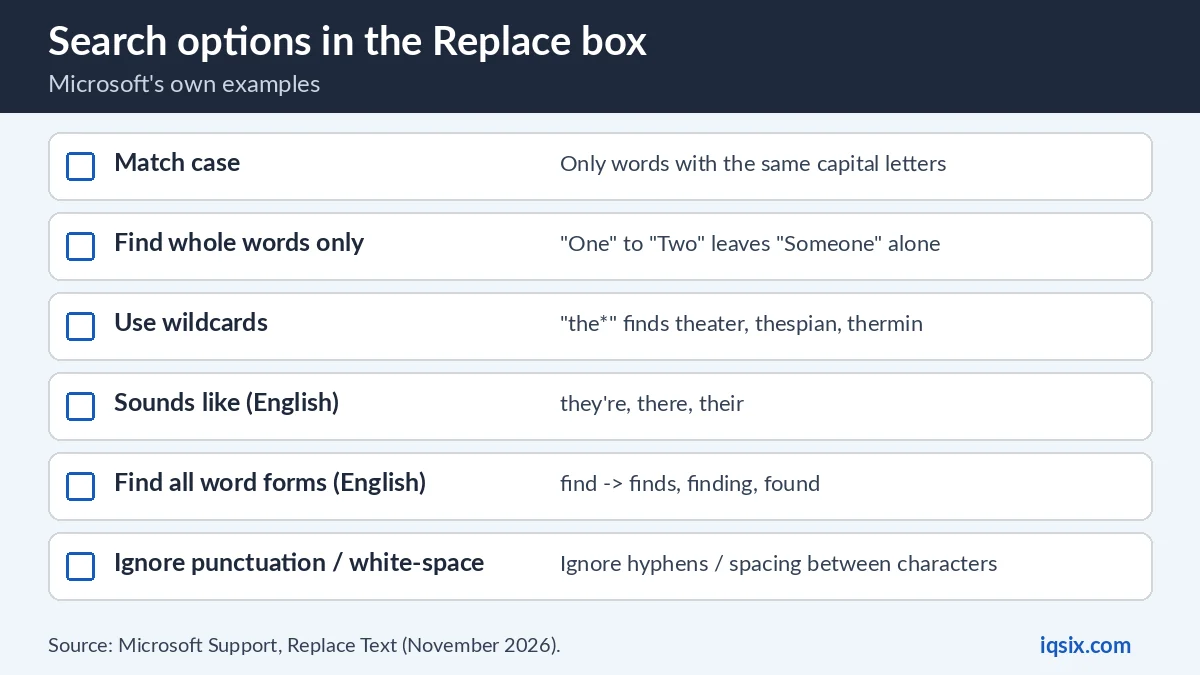
The Replace dialog box has search options that change what Word counts as a match. Microsoft lists them with examples (Microsoft Support):
| Option | What it does | Microsoft’s example |
|---|---|---|
| Search | Search the whole document, or from your cursor upwards or downwards | – |
| Match case | Finds only words with the same capitalization | – |
| Find whole words only | Avoids partial matches | Changing “One” to “Two” doesn’t turn “Someone” into “Sometwo” |
| Use wildcards | Gets partial matches | “the*” finds “theater”, “thespian” and “thermin” |
| Sounds like (English) | Finds words that sound like others | “they’re”, “there” and “their” |
| Find all word forms (English) | Finds all verb tenses | “find” returns “finds”, “finding” and “found” |
| Match prefix / Match suffix | Finds words with the same beginnings or endings, together with other settings | – |
| Ignore punctuation characters | Ignores differences in hyphenation | – |
| Ignore white-space characters | Ignores spacing between characters | – |
The two you’ll use most: Match case, so “Bill” the name changes but “bill” the invoice doesn’t, and Find whole words only, so short words don’t get replaced inside longer ones.
Example: fix a name everywhere in a document
Say you wrote “Jon” all through a report, and it should be “John”. Without options, Word would also change “Jonas” into “Johnas”. Here’s the safe way:
- Press Ctrl + H.
- Find what: Jon. Replace with: John.
- Turn on Match case and Find whole words only.
- Select Find Next once to check the first match, then select Replace All.
Word changes every “Jon” and leaves “Jonas” and “jonquil” alone. If anything looks wrong, press Ctrl + Z right away.
Replace in Word from a certain point only
You don’t always want to change the whole document. The Search option lets Word search the whole document, or only from your cursor upwards or downwards (Microsoft Support). For example, to replace a word only in the second half of a long report:
- Click where the second half starts, so your cursor is there.
- Press Ctrl + H and fill in Find what and Replace with.
- Set Search to Down, then select Replace All.
Everything above your cursor stays as it was. Set Search back to All afterwards, so your next find and replace in Word covers the whole document again.
Proofread with find and replace in Word: Sounds like
Find and replace in Word also helps you check your writing. Turn on Sounds like (English), type “there” in Find what, and Word also finds words that sound like it: Microsoft’s example is “they’re”, “there” and “their” (Microsoft Support).
Use Find Next here, not Replace All: go through each match, decide which spelling is right in that sentence, and fix only the wrong ones. The same works with Find all word forms (English): type “find” and Word returns “finds”, “finding” and “found”, so you can check every form of a word at once.
Replace formatting and special characters

Find and replace in Word isn’t only for words. Two buttons in the dialog box handle the rest (Microsoft Support):
- Format: find and replace formatting, such as font types or colors, paragraph formatting (left, right, center) or highlighted words.
- Special: find and replace page and character elements, such as em dashes, tabs or section breaks.
- No Formatting: turns your formatting selections off again.
Tip: if a search finds nothing, check whether a format is still selected under Find what from an earlier search, and select No Formatting. Want to remove all formatting instead of replacing it? See how to clear formatting in Word.
Just find a word in Word (Ctrl + F)
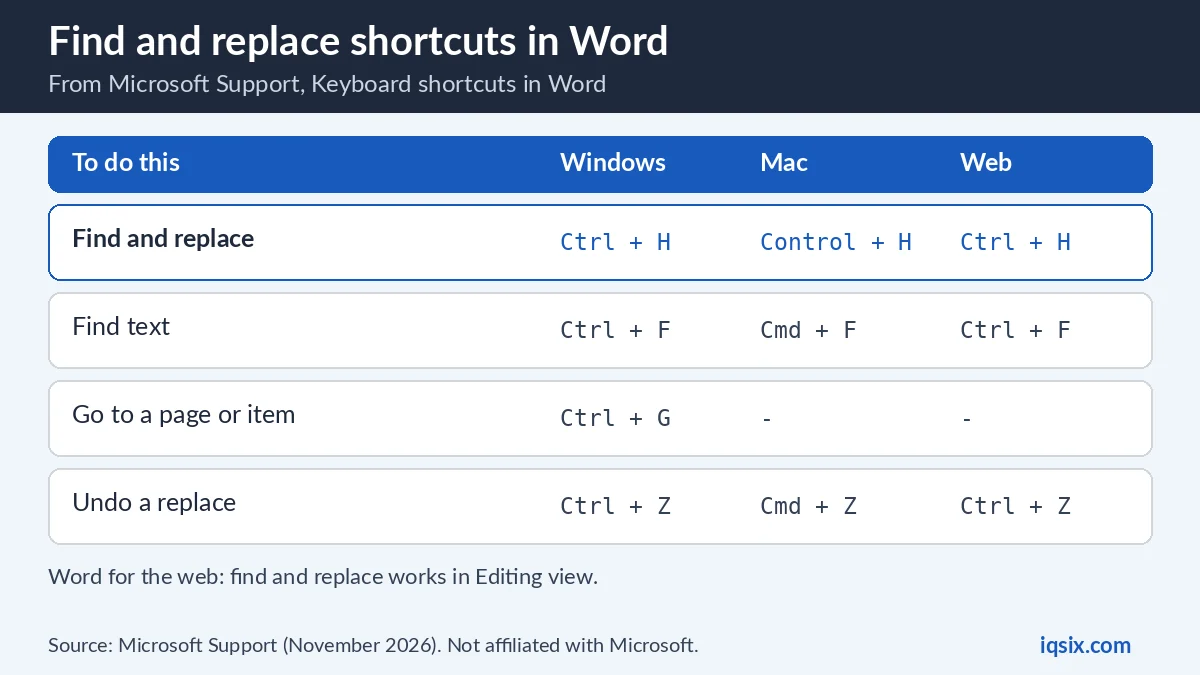
Only want to find something, not change it? Press Ctrl + F to display the Navigation task pane and search within the document content (Keyboard shortcuts in Word). To jump to a specific page, bookmark, footnote, table, comment or graphic, press Ctrl + G for the Go To dialog box.
| To do this | Windows | Mac | Word for the web |
|---|---|---|---|
| Find and replace | Ctrl + H | Control + H | Ctrl + H (Editing view) |
| Find text | Ctrl + F | Command + F | Ctrl + F |
| Undo | Ctrl + Z | Command + Z | Ctrl + Z |
Find and replace in Word for Mac
In Word for Mac, press Control + H to display the Find and Replace pane, and Command + F to find text (it moves the focus to the Search in Document box) (Keyboard shortcuts in Word). Note the key: it’s Control, not Command, for find and replace. Microsoft explains that many Ctrl shortcuts from Windows also work with the Control key in Word for Mac, but not all.
Find and replace in Word for the web
Word for the web uses the same shortcut: press Ctrl + H to find and replace text in Editing view (Keyboard shortcuts in Word). To only find text, press Ctrl + F (or Ctrl + G) in Editing view, or Ctrl + F (or F3) in Reading view.
Because Word for the web runs in your browser, Microsoft notes that its keyboard shortcuts are different from those in the desktop app. If Ctrl + H doesn’t open find and replace, switch the document to Editing view first.
Find and replace not working? Quick fixes
- Word finds nothing: check the spelling in Find what, turn off Match case and Find whole words only, and select No Formatting in case a format from an earlier search is still set.
- Parts of other words changed: undo with Ctrl + Z, then turn on Find whole words only.
- Wildcards give strange results: turn off Use wildcards unless you need partial matches.
- Only part of the document changed: check the Search option: it can search upwards or downwards from your cursor instead of the whole document.
- Control + H does nothing on a Mac: make sure you press Control, not Command.
Need a line between sections while you tidy up? See how to add a line in Word. Word closed before you saved? See how to recover an unsaved Word document.
Get Microsoft 365 from IQSIX

Word comes with Microsoft 365. IQSIX sells a Microsoft 365 Personal 1-year key with Word, Excel, PowerPoint and Outlook: the Word for Microsoft 365 version this guide covers, on Windows and Mac.
- Redeem: enter the key at microsoft365.com/setup with your Microsoft account (see how to redeem a Microsoft 365 product key).
- Delivery: by email after your payment is confirmed (or on WhatsApp if you ask).
- Payment: crypto, card, or a Remitly bank or mobile money transfer at checkout.
- Questions first? Ask us on WhatsApp or through our contact page.
Not sure which Office to pick? Read Microsoft 365 vs Office 2024, or see all our software keys.
Find and replace in Word: FAQ
How do I find and replace in Word?
Press Ctrl + H. Type the word in Find what and the new word in Replace with, then select Replace All, or Find Next and Replace to change matches one by one.
What is the shortcut for find and replace in Word?
Ctrl + H on Windows and in Word for the web (Editing view), and Control + H on a Mac. Ctrl + F only finds text.
How do I replace a word only when it is a whole word?
Turn on Find whole words only in the Replace dialog box. Microsoft’s example: changing “One” to “Two” then doesn’t turn “Someone” into “Sometwo”.
Can I find and replace formatting in Word?
Yes. Use the Format button for fonts, colors, paragraph formatting or highlighted words, and the Special button for items like em dashes, tabs and section breaks.
How do I undo Replace All in Word?
Press Ctrl + Z (Command + Z on a Mac) right after Replace All to undo it.
How do I find and replace in Word for Mac?
Press Control + H to open the Find and Replace pane. Command + F finds text without replacing it.
Sources, checked 2 November 2026: Microsoft Support – Replace Text and Keyboard shortcuts in Word. IQSIX is not affiliated with Microsoft.