
Short answer: to take a screenshot on Windows, press Windows logo key + Shift + S, then drag over the part of the screen you want. Windows copies it to the clipboard; paste it anywhere with Ctrl + V. To capture the whole screen and save it as a file straight away, press Windows logo key + PrtScn: Windows 11 saves it in the Screenshots folder inside Pictures.
Every shortcut and step here comes from Microsoft Support, checked in November 2026, for Windows 11 and Windows 10. No extra software needed: these tools come with Windows.
- Part of the screen: Windows + Shift + S
- Print Screen key: Windows 11 lets you select an area; Windows 10 copies the whole screen
- Whole screen saved as a file: Windows + PrtScn
- Only the active window: Alt + PrtScn
- More options: the Snipping Tool app (delay, pen, highlighter, copy text)
- A video of your screen: Windows + Shift + R
Table of Contents
Every way to screenshot on Windows
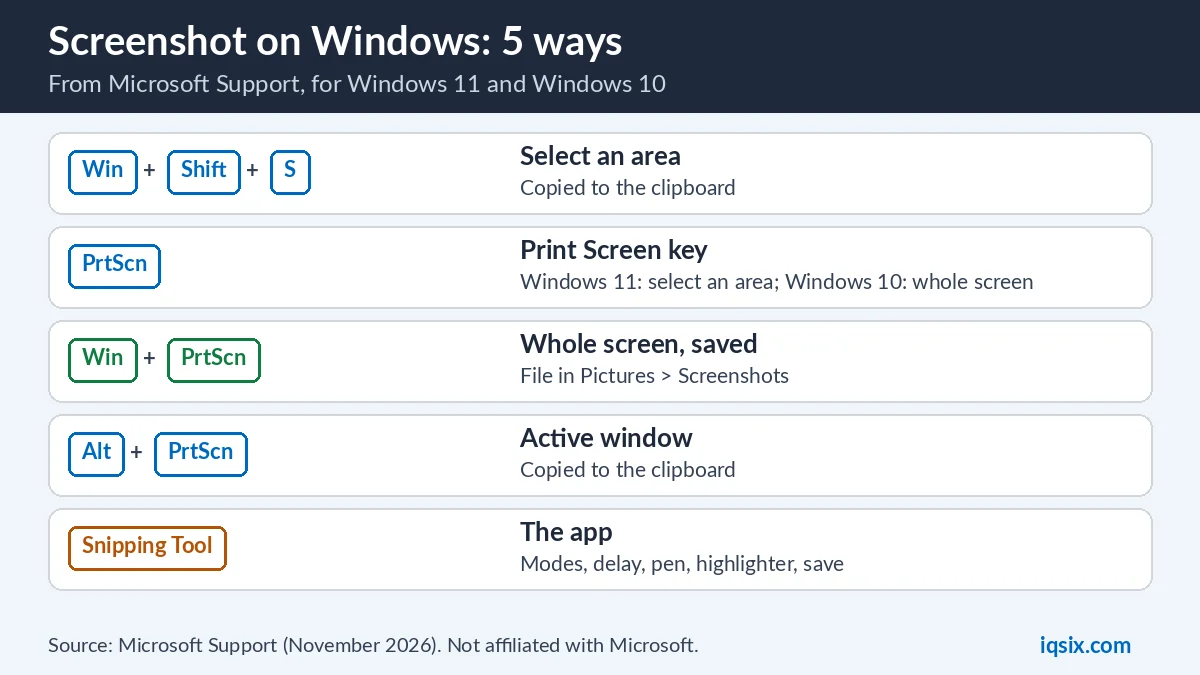
Microsoft lists these screenshot shortcuts for Windows 11 (Keyboard shortcuts in Windows):
| Press | What you capture | Where it goes |
|---|---|---|
| Windows + Shift + S | An area you select | Clipboard |
| PrtScn (Print Screen) | An area you select (Windows 11 default) | Clipboard |
| Windows + PrtScn | The full screen | A file in Pictures > Screenshots |
| Alt + PrtScn | The active window | Clipboard |
| Windows + Shift + R | A video of an area you select | An MP4 file in Videos > Screen Recordings |
After a shortcut that copies to the clipboard, you can open the Snipping Tool to share or mark up the image, or just paste it with Ctrl + V into an email, a chat or a document.
Way 1: Windows + Shift + S (select an area)
This is the quickest way to take a screenshot of part of the screen (Microsoft Support):
- Press Windows logo key + Shift + S. The Snipping Tool overlay opens.
- Drag the cursor around the area you want to capture.
- The screenshot is copied to the clipboard. Paste it with Ctrl + V, or open it in the Snipping Tool to mark it up and save it.
It works in Windows 10 too: Microsoft lists Windows logo key + Shift + S as one of the three ways to open the Snipping Tool there.
Way 2: the Print Screen key
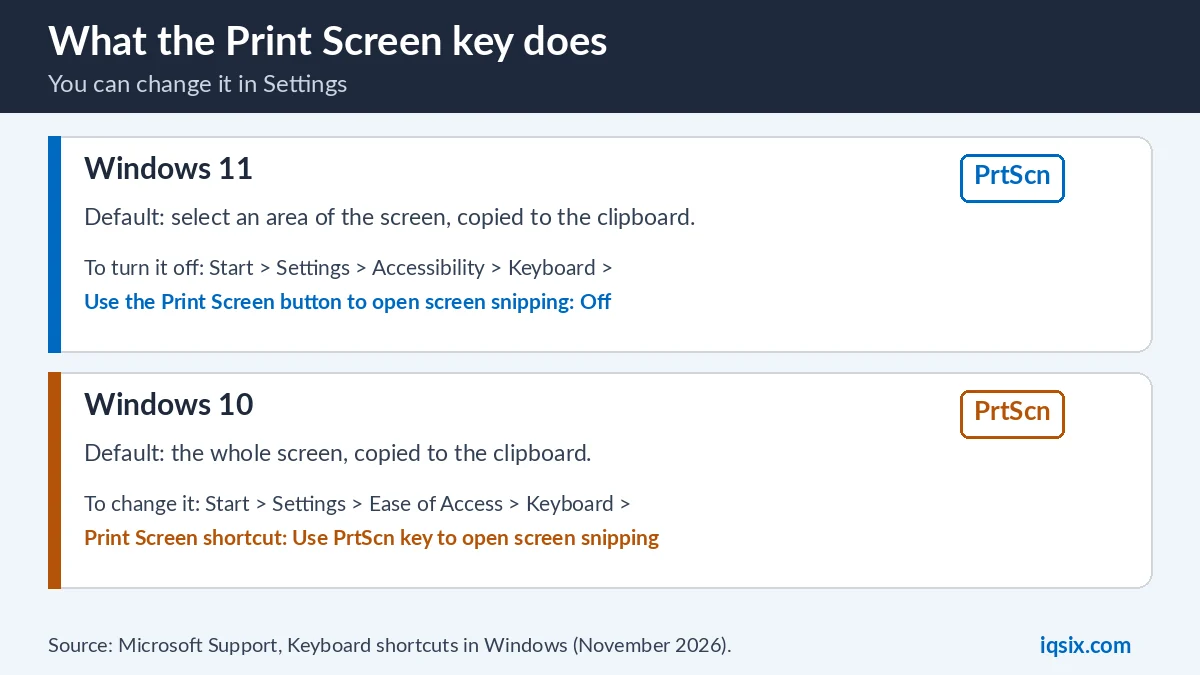
What PrtScn (Print Screen) does depends on your Windows version and one setting (Keyboard shortcuts in Windows):
- Windows 11: by default, PrtScn lets you select a region of the screen and copies the screenshot to the clipboard. To turn this off, select Start > Settings > Accessibility > Keyboard, and set Use the Print Screen button to open screen snipping to Off. Microsoft’s Snipping Tool page describes the other behavior: PrtSc takes a static snapshot of your entire screen and places it in your clipboard.
- Windows 10: PrtScn takes a screenshot of your whole screen and copies it to the clipboard. To make it open screen snipping instead, select Start > Settings > Ease of Access > Keyboard, and turn on the toggle under Print Screen shortcut, Use PrtScn key to open screen snipping.
Pressed PrtScn and nothing seemed to happen? The screenshot is waiting in the clipboard. Open Paint, Word or a chat and press Ctrl + V.
Way 3: Windows + PrtScn (save the whole screen as a file)
Want a file instead of a clipboard copy? Press Windows logo key + PrtScn. Windows captures a full-screen screenshot and saves it to a file in the Screenshots subfolder of your Pictures folder (Microsoft Support). No pasting needed: open File Explorer, go to Pictures > Screenshots, and the image is there.
This is the best way when you want to take several screenshots in a row, for example to show each step of an error to a support team.
Way 4: Alt + PrtScn (only the active window)
Press Alt + PrtScn to capture a screenshot of the active window, the one you are working in, and copy it to the clipboard (Microsoft Support). The taskbar and the other windows are left out, so you don’t need to crop. Paste it with Ctrl + V.
Way 5: the Snipping Tool app
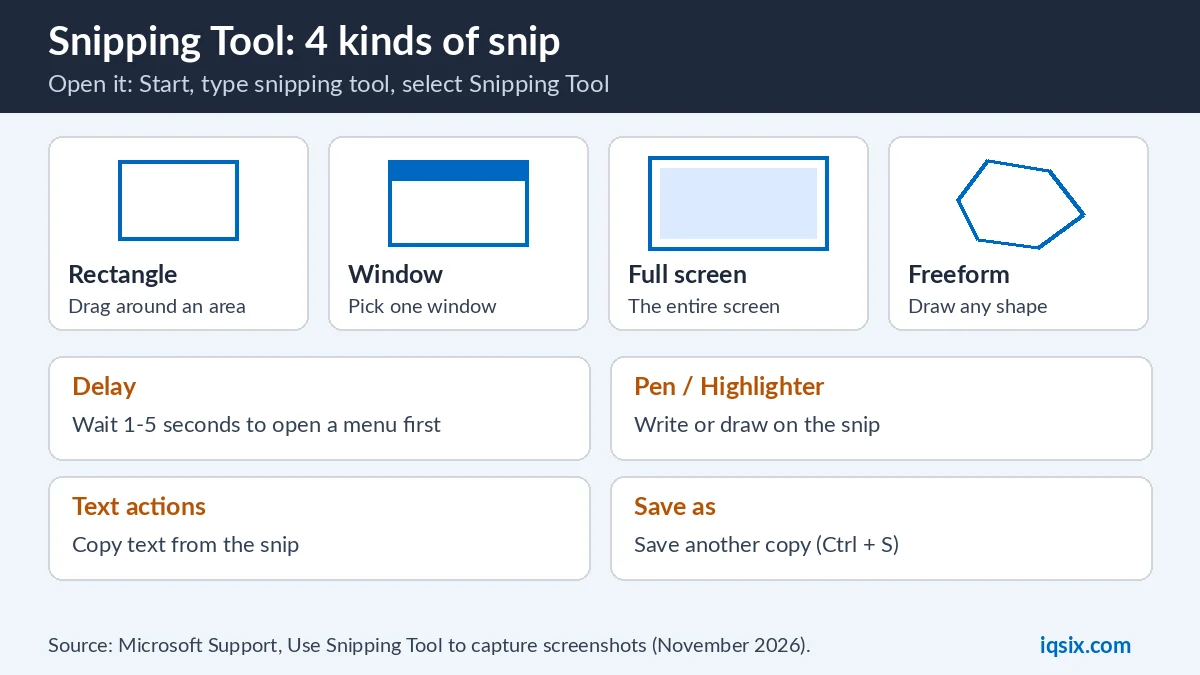
For more control, open the Snipping Tool: select Start, enter snipping tool, then select Snipping Tool from the results (Microsoft Support). Then:
- Select Snipping Mode and choose the kind of snip you want: Rectangle, Window, Full screen or Freeform (draw any shape).
- Select New. The screen turns slightly gray: you’re ready to capture.
- Select the area. The snip opens in the Snipping Tool window, where you can change it, save it and share it.
Once you have a snip, you can:
- Write or draw on it with the Pen or Highlighter, and add shapes or emojis with Shapes.
- Crop it with Image crop, or select Edit > Edit with Paint for more editing.
- Copy text from it with Text actions, which can also hide email addresses and phone numbers with Quick redact. Microsoft says the text recognition runs locally on your device.
- Share it: select See More, then Share.
Use the Snipping Tool often? Type snipping tool in the search box on the taskbar and select Pin to taskbar.
Where are screenshots saved on Windows?
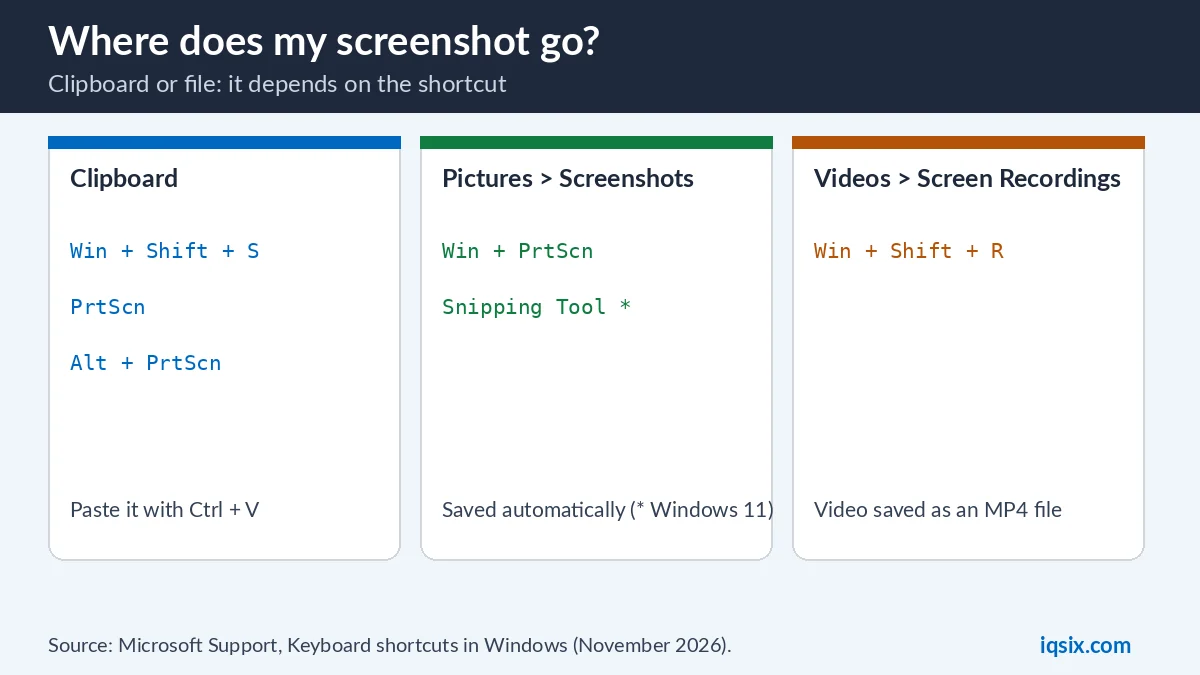
It depends on how you took the screenshot (Keyboard shortcuts in Windows, Snipping Tool):
- Windows + Shift + S, PrtScn and Alt + PrtScn: the clipboard. Paste with Ctrl + V, which pastes the last item from the clipboard.
- Windows + PrtScn: Pictures > Screenshots.
- Snipping Tool in Windows 11: each snip is automatically saved to your Screenshots folder. To change this or pick another folder, select See More, then Settings. Select Save as to save an extra copy where you want.
- Screen recordings (Windows + Shift + R): an MP4 file in Videos > Screen Recordings.
In Windows 10, you save a snip yourself: after you capture it, select the Save Snip button, then type a file name, location and type, and select Save.
Take a screenshot of a menu (delay)
Menus close as soon as you press a key. The fix is a delay (Microsoft Support):
- In the Snipping Tool, select Delay, for example 5 seconds (or press Alt + D).
- Select the Snipping Mode you want, then select New. The countdown starts.
- Within 5 seconds, open the menu you want to capture.
- When the screen turns gray, draw around the area you want.
In Windows 10, Microsoft gives another way: open the Snipping Tool, open the menu, then press Ctrl + PrtSc. The screen turns gray, including the open menu; select Mode and the kind of snip.
Record your screen as a video
Need to show something moving? Press Windows logo key + Shift + R, select the area of the screen you want to record, then select Start; select Stop when you’re done (Microsoft Support). The recording opens in the Snipping Tool, and by default it is saved as an MP4 file in the Screen Recordings subfolder of your Videos folder. You can also open the Snipping Tool, select Record, then New.
Snipping Tool keyboard shortcuts
Inside the Snipping Tool, these keys save time (Microsoft Support):
| Press | To do this |
|---|---|
| Alt + M | Choose a snipping mode |
| Alt + N | Create a new snip in the same mode as the last one |
| Alt + D | Delay the capture by 1–5 seconds |
| Shift + arrow keys | Move the cursor to select from different types of snips |
| Ctrl + C | Copy the snip to the clipboard |
| Ctrl + S | Save the snip |
Screenshot on Windows not working? Quick fixes
- Nothing happens after PrtScn: the screenshot is in the clipboard. Paste it with Ctrl + V.
- PrtScn opens screen snipping, but you want the whole screen: in Windows 11, turn off Use the Print Screen button to open screen snipping (Settings > Accessibility > Keyboard), or press Windows + PrtScn to save the full screen as a file.
- You can’t find the saved screenshot: look in Pictures > Screenshots. In the Snipping Tool, See More > Settings shows where snips are saved.
- The menu closes before you capture it: use Delay in the Snipping Tool.
- You need the text, not the picture: use Text actions in the Snipping Tool to copy the text.
Taking a screenshot of an error to get help? For activation problems, see Windows activation errors and fixes; for screen problems, see how to fix a display problem in Windows 10.
Get a Windows 11 Pro key from IQSIX

Still on an old PC or an unactivated copy? IQSIX sells a Windows 11 Pro product key for one PC, with the Snipping Tool and every shortcut in this guide built in.
- Delivery: by email after your payment is confirmed (or on WhatsApp if you ask).
- Activation: Settings > System > Activation > Change product key (see how to activate Windows 11 Pro).
- Payment: crypto, card, or a Remitly bank or mobile money transfer at checkout.
- Help: send us a screenshot on WhatsApp or through our contact page, and we’ll take a look.
Not sure which edition you need? Read Windows 11 Home vs Pro, or see all our software keys.
Screenshot on Windows: FAQ
How do I take a screenshot on Windows?
Press Windows logo key + Shift + S and drag over the area you want; the screenshot is copied to the clipboard. Press Windows logo key + PrtScn to save the whole screen as a file in Pictures > Screenshots.
Where do screenshots go on Windows?
Windows + PrtScn saves them in the Screenshots subfolder of Pictures. Windows + Shift + S, PrtScn and Alt + PrtScn copy them to the clipboard; paste with Ctrl + V.
How do I screenshot only one window?
Press Alt + PrtScn to capture the active window and copy it to the clipboard, or use the Window mode in the Snipping Tool.
Why does Print Screen open screen snipping in Windows 11?
That is the default in Windows 11. To turn it off, go to Start > Settings > Accessibility > Keyboard and set Use the Print Screen button to open screen snipping to Off.
How do I take a screenshot of a menu on Windows?
In the Snipping Tool, select Delay (for example 5 seconds), select New, open the menu within the countdown, then draw around it when the screen turns gray.
How do I record my screen on Windows?
Press Windows logo key + Shift + R, select an area, then select Start and Stop. The recording is saved as an MP4 file in Videos > Screen Recordings.
Sources, checked 2 November 2026: Microsoft Support – Use Snipping Tool to capture screenshots and Keyboard shortcuts in Windows. IQSIX is not affiliated with Microsoft.