
Short answer: to set an Xbox spending limit for your child, use Microsoft Family Safety. Add a fixed amount of money to your child’s Microsoft account – the account cannot be overdrawn – and turn on Require approval for every purchase if a credit card is saved. Your child always needs your approval to buy above their age limit or when their money runs out.
This guide shows how Xbox spending limits work in Microsoft Family Safety, how to add money, how purchase approvals work, and how Game Pass fits in for families. Everything comes from Microsoft Support and Xbox Support, checked in October 2026.
- Limit: the money you add – the child’s account cannot be overdrawn
- Approval: needed above the age limit or when the money runs out
- Credit card: turn on Require approval for every purchase
- Notifications: every request on your phone and in Family Safety
- Note: Xbox gift cards and in-game currency need no approval
Table of Contents
How Xbox spending limits work
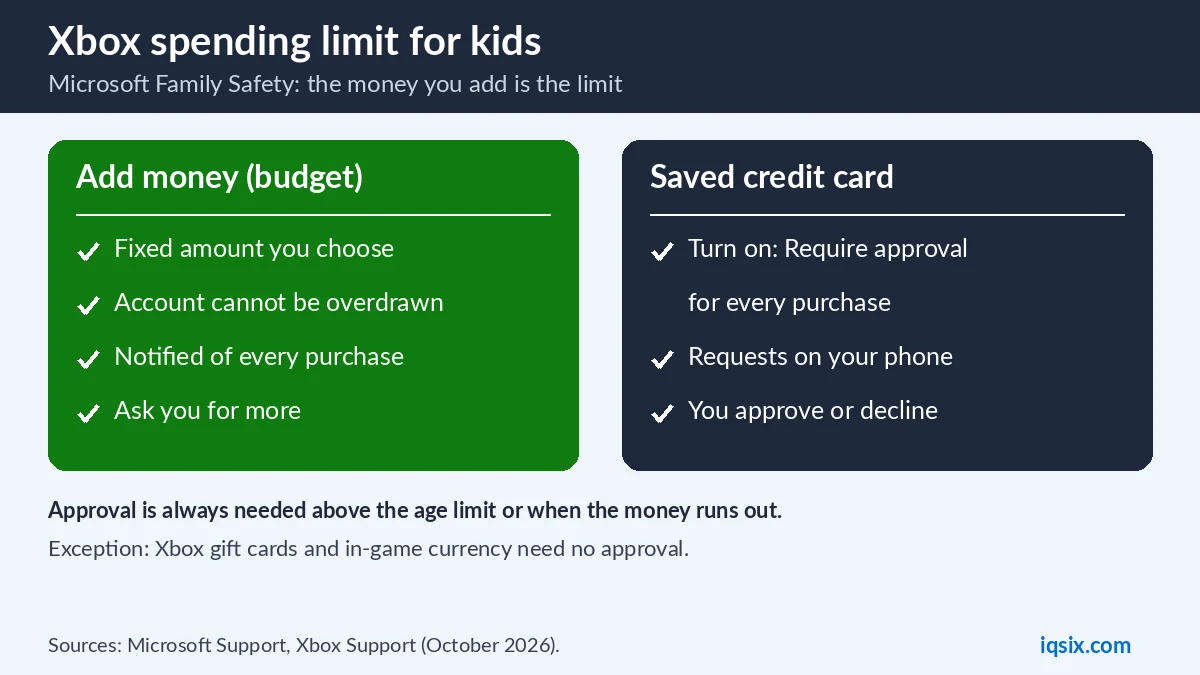
Microsoft’s approach is simple: you add money to your child’s Microsoft account, and they can make safe, age-appropriate purchases on their own up to that amount. Microsoft says their account cannot be overdrawn (Microsoft Support). The money can be used for games, movies, in-app purchases and more in the Microsoft Store and the Xbox store.
Your child always needs approval to buy something above their age limit or when they are out of money. You receive these purchase requests as a notification on your phone and in the Family Safety notification feed.
Before you start: Microsoft Family Safety
All of this is managed in Microsoft Family Safety, either in the Family Safety app on your phone or at family.microsoft.com. You need a family group with at least one family organizer (a parent) and your child’s own Microsoft account as a member. A family can have more than one organizer, for example both parents, and each organizer can add money and approve requests.
Your child should always sign in to the Xbox or PC with their own account, not yours. Only then do the spending settings, age limits and approvals apply to what they do.
How to add money to your child’s account
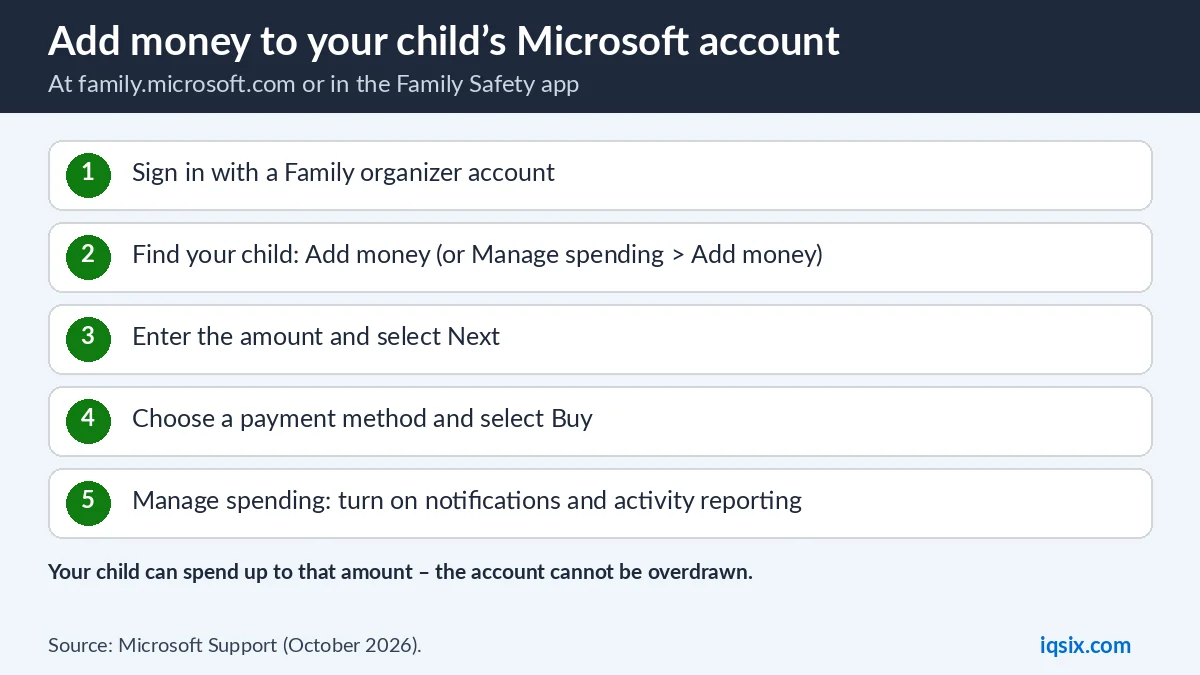
Microsoft’s steps (Microsoft Support):
- Using a Family organizer account, sign in at family.microsoft.com (or open the Family Safety app).
- Find your child and select Add money, or Manage spending > Add money. You see Add money when they have no funds.
- Enter the amount and select Next.
- Choose a payment method from the child’s payment methods and select Buy.
That amount is now your child’s budget. When it is spent, they need to ask you for more.
How to manage spending and get notified
- Open the Family Safety app or sign in at family.microsoft.com.
- In the app, tap your child’s name and scroll to the bottom of their details.
- Select Manage spending (it appears when your child has money in their account).
- Turn on Get notified about every purchase and Activity reporting.
With spending notifications on, Microsoft says you are told about purchases your child makes on their own in the Microsoft or Xbox stores, money added by other family organizers, and requests approved by other organizers. You can review everything in Spending activity.
If a credit card is saved on your child’s account
Some parents add a credit card to the child’s account for convenience. In that case, turn on approval so nothing is charged without you:
- Open Family Safety (app or account.microsoft.com/family) and sign in with your own account.
- Tap or select your child, then scroll to the bottom of their details.
- Select Manage spending and turn on Require approval for every purchase.
If you prefer a hard cap, skip the credit card and only add money. Microsoft says that without a card, your child can buy on their own only up to the amount you add.
Why add money instead of saving a card?
A saved credit card is convenient, but every purchase then needs your attention – either you approve each one or you risk surprises. Adding a fixed amount works like pocket money: your child can buy on their own, learns to compare prices, and cannot spend more than you gave them, because the account cannot be overdrawn. When they want more, they ask, and you decide.
The balance also works across the Microsoft Store on Windows and the Xbox store, so the same budget covers games, apps and movies on all the devices where your child signs in.
Spending limit not working? Check these
- No Manage spending link: Microsoft says you only see Manage spending when your child has money in their account. With no funds, you see Add money instead.
- Card not accepted: check all details. Microsoft suggests trying the postal code with and without spaces.
- No requests arriving: check that notifications are on in the Family Safety app on your phone.
- Another organizer: if there are several organizers in the family, one of them may have approved a request or added money – you are notified when spending notifications are on.
- Gift cards: remember that Xbox gift cards and in-game currency can be used without approval.
Talk about it with your child
Rules work better when children understand them. Explain that the money in their account is a budget, agree on what it is for (for example one game a month or a few add-ons), and show them how to send you a request when they want something more. Many families find that approving requests together is a good moment to talk about prices, age ratings and in-game purchases.
What does not need approval?
Xbox Support notes one important exception: approval is not needed for using in-game currency or Xbox gift cards (Xbox Support). So if your child receives a gift card code, they can use it without asking. Keep codes with you and decide together what to redeem, and teach your child that codes work like cash – see what is a gift card code.
Game Pass for the whole family
Game Pass is often cheaper than buying single games for children. If the family shares one console, the parent can redeem Game Pass on their own account and make that console their home Xbox, so every profile on it can play – no extra spending on the child’s account. See how to share Game Pass and which Game Pass plan to choose.
Example budgets
- Younger child: no money on the account, approval for every purchase. You buy games together.
- Pre-teen: $10 a month added in Family Safety, notifications on.
- Teen: $20 a month, notifications on, and Game Pass on the family console for the big games.
Agree on the amount with your child before you add it. A fixed balance teaches budgeting: when it is spent, it is spent. You can always add a little extra for a birthday or a holiday, and you can change the plan as your child gets older and shows they can manage their own money.
Same idea on PlayStation and Nintendo
Other consoles work differently. On PlayStation you set a monthly spending limit and purchases come from the family manager’s wallet (PS5 spending limit). On Nintendo you can block purchases completely or give a budget with an eShop card (Nintendo eShop spending limit).
Quick checklist for parents
- Set up Microsoft Family Safety and add your child.
- Add a fixed amount of money instead of saving a credit card, or
- If a card is saved, turn on Require approval for every purchase.
- Turn on purchase notifications and activity reporting.
- Keep gift card codes with you – they need no approval.
- Share Game Pass on your home Xbox instead of buying many single games.
Get Game Pass Ultimate from IQSIX

IQSIX sells a 3-month Xbox Game Pass Ultimate code for US Microsoft accounts. Redeem it on your own account and share it with the family on your home Xbox.
- Delivery: after your payment is confirmed, we send the code by email.
- Redeem: see how to redeem a Game Pass code.
- Payment: crypto, card, or a Remitly bank or mobile money transfer at checkout.
- Region: it is a USA code, so your Microsoft account region must be the United States.
Xbox spending limit FAQ
How do I set a spending limit on Xbox for my child?
In Microsoft Family Safety, add a fixed amount of money to your child’s account. They can only spend that amount, because the account cannot be overdrawn.
Can my child buy games without asking on Xbox?
Only within the money you added and their age limit. Above the age limit or when the money runs out, they need your approval.
How do I require approval for every Xbox purchase?
In Family Safety, select your child, then Manage spending, and turn on Require approval for every purchase. This matters if a credit card is saved on their account.
Do Xbox gift cards need parent approval?
No. Xbox Support says approval is not needed for using in-game currency or Xbox gift cards.
Where do I see what my child bought?
Turn on purchase notifications and activity reporting in Manage spending, and review Spending activity in Family Safety.
Is Game Pass a good option for kids?
Often yes: one Game Pass on the parent’s account can be shared with every profile on your home Xbox, instead of buying many single games.
Sources, checked 22 October 2026: Microsoft Support: spending limits in Family Safety, Add money to your family member’s account and Xbox Support: approve purchases and funds.