
Short answer: here is how to connect a PS4 controller (DUALSHOCK 4) to a PS4 or PS5: turn the console on, plug the controller in with a USB cable and press the PS button. The light bar blinks, the player indicator lights up, and you can unplug the cable and play wirelessly (PlayStation Support). For a phone, tablet or Mac, put the controller in pairing mode instead: hold SHARE, then press and hold the PS button until the light bar flashes, and select it in Bluetooth settings.
This guide shows how to connect a PS4 controller to every device, step by step: PS4, PS5, iPhone, iPad, Android, Mac and Windows PC. It also explains pairing mode, how to reconnect the controller to your console, and how to reset it when it will not connect. All steps come from PlayStation Support, checked in October 2026.
- PS4 or PS5: USB cable + PS button, then play wirelessly
- Pairing mode: hold SHARE + PS button until the light bar flashes
- Phones, tablets, Mac: Bluetooth (Android 10, iOS 13, macOS Catalina or later)
- Windows PC: micro USB cable or the DUALSHOCK 4 USB wireless adaptor
- Will not connect? Reset button on the back, held for 5 seconds
Table of Contents
Connect a PS4 controller to any device: overview
| Device | How to connect | Good to know |
|---|---|---|
| PS4 | USB cable + PS button | Pairs with one console at a time |
| PS5 | USB cable + PS button | Same steps as on a PS4 |
| iPhone / iPad | Bluetooth, pairing mode | iOS / iPadOS 13 or later |
| Android | Bluetooth, pairing mode | Android 10 or later |
| Mac | Bluetooth, pairing mode, or USB | macOS Catalina or later |
| Windows PC | Micro USB cable or DUALSHOCK 4 USB wireless adaptor | Adaptor: SHARE + PS for 3 seconds |
Which cable do you need?
The DUALSHOCK 4 charges and connects through a micro USB port. To connect a PS4 controller with a cable, use the cable that came with the controller or another compatible micro USB cable that carries data, not only power. A charge-only cable can charge the controller, but it cannot pair it.
How to connect a PS4 controller to a PS4
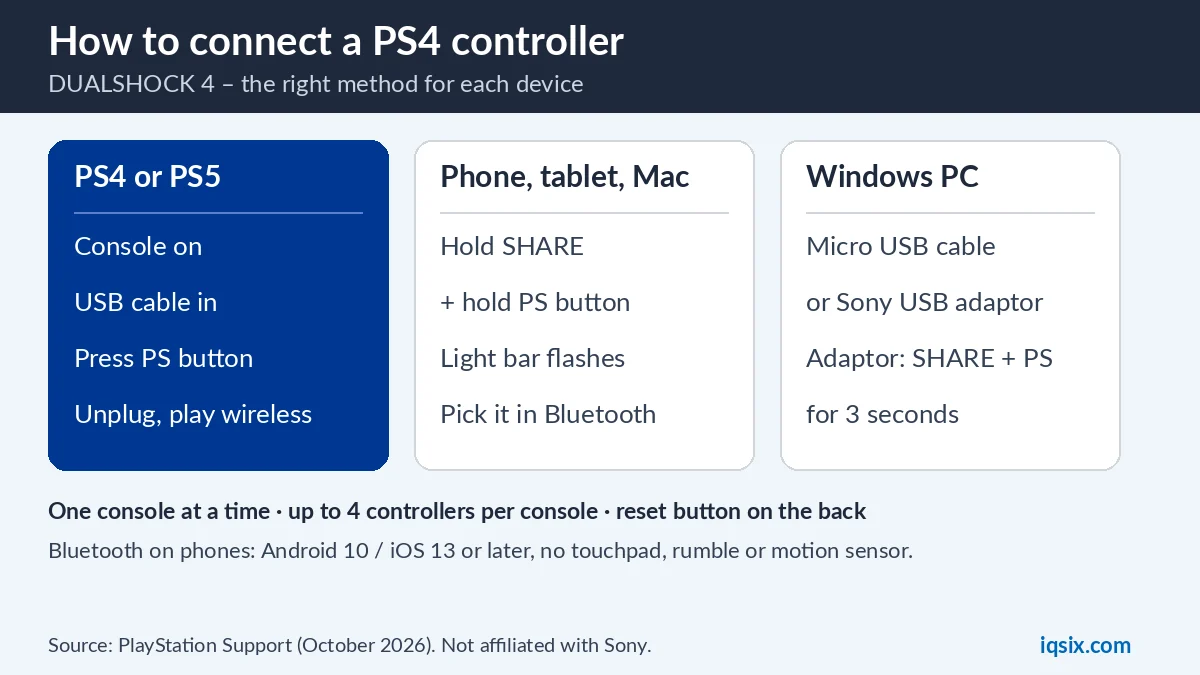
The first time you use a controller with a console, you pair it with a USB cable. PlayStation’s steps (PlayStation Support):
- Make sure your PS4 console is on.
- Connect the controller to the console with the USB cable that came with it.
- If the controller is turned off, press the PS button.
- Wait until the light bar blinks and the player indicator lights up.
- When the controller has enough battery, disconnect the USB cable and use it wirelessly.
Sony adds two rules worth knowing: a controller can pair with only one console at a time, so you pair it again when you want to use it on another console, and you can connect up to four controllers to one console.
Add a second PS4 controller
Pair each extra controller the same way: plug it into the console with a USB cable and press its PS button. Up to four controllers can be connected to one console, which is enough for local multiplayer with family or friends.
How to connect a PS4 controller to a PS5
PlayStation Support gives the same pairing steps for a PS5 console: with the console on, connect the DUALSHOCK 4 with a USB cable and press the PS button; after the light bar blinks, the player indicator lights up (PlayStation Support). Then you can remove the cable. Remember that the controller then stays paired with the PS5 until you pair it with another console.
How to put a PS4 controller in pairing mode
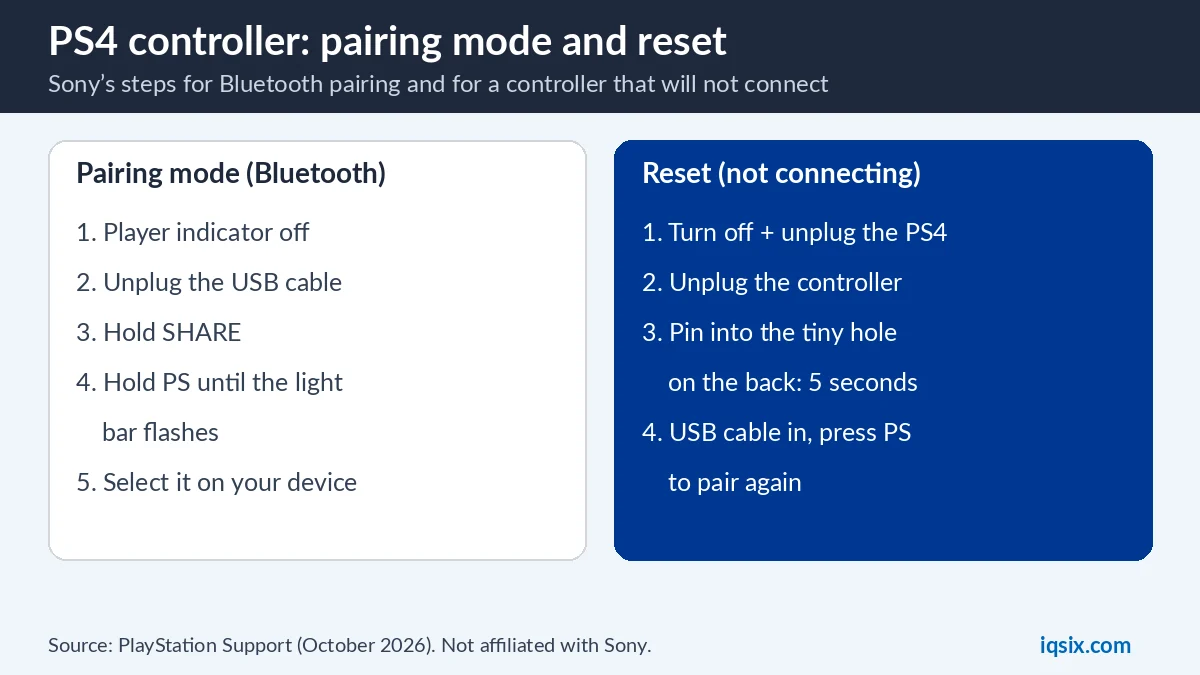
Pairing mode is how the controller connects to anything that is not a PlayStation console, over Bluetooth. Sony’s steps (PlayStation Support):
- Make sure the player indicator on the controller is off. If it is on, press and hold the PS button until it turns off.
- If a USB cable is connected to the controller, disconnect it.
- While pressing and holding the SHARE button, press and hold the PS button until the light bar flashes.
- Turn on Bluetooth on your device and select the controller in the list of Bluetooth devices.
- When pairing is complete, the light bar blinks and then the player indicator lights up.
Connect a PS4 controller to an iPhone, iPad, Android phone or Mac
Sony says devices with these operating systems or later support the DUALSHOCK 4 over Bluetooth and USB: Android 10, iOS 13, iPadOS 13, macOS Catalina and tvOS 13 (PlayStation Support). Put the controller in pairing mode (above), open the Bluetooth settings on your device and select the controller. On Android it may show up as “Wireless Controller”.
Over Bluetooth on devices other than Sony Xperia, some controller features do not work:
- the touchpad is not supported;
- the light bar color cannot be changed;
- rumble, the motion sensor and the headphone jack audio connection are not supported.
You can use the controller with games that support it, and with the PS Remote Play app to play games streamed from your PS5 or PS4 console on your phone, tablet or computer.
Connect a PS4 controller to a Windows PC
To connect a PS4 controller to a Windows PC, Sony lists two ways: a compatible micro USB cable, or the DUALSHOCK 4 USB wireless adaptor (PlayStation Support). With a cable, plug the controller into a USB port on the PC. With the adaptor, plug it into the PC and pair the controller: according to the adaptor’s manual, you press and hold the SHARE button and the PS button for at least 3 seconds, and the light bar flashes while it is in pairing mode (adaptor manual). The same manual notes that the adaptor cannot be used to connect the controller to a PS4 console.
Then use the controller with games that support it, or with PS Remote Play to stream your console games to the PC.
Reconnect the controller to your console after using it elsewhere
Used your PS4 controller with a phone or PC? To get it back on your console, Sony says to connect it with a compatible USB cable and press the PS button. You can then remove the cable and use the controller wirelessly again. The same trick works when the controller seems “stuck” on another device.
PS4 controller not connecting? Reset it
If you are having issues, Sony says the first troubleshooting step is often to reset the controller (PlayStation Support):
- Turn off and unplug your PS4 console.
- Disconnect the controller from the USB cable.
- On the back of the controller, find the tiny hole with the reset button inside.
- Press and hold the reset button with a small unfolded paper clip for at least five seconds.
- Connect the controller to the console with the USB cable and press the PS button to pair it again.
More things to check
- The cable: use the cable that came with the controller or another compatible USB cable; some cables only charge and do not carry data.
- The battery: plug the controller into the console for a while so it has enough charge before playing wirelessly.
- Another console: the controller pairs with one console at a time. If it was used on a friend’s console, pair it again with yours.
- Still not working? Sony suggests its PlayStation Repairs diagnostic tool.
Controller ready? Get PSN credit for your games
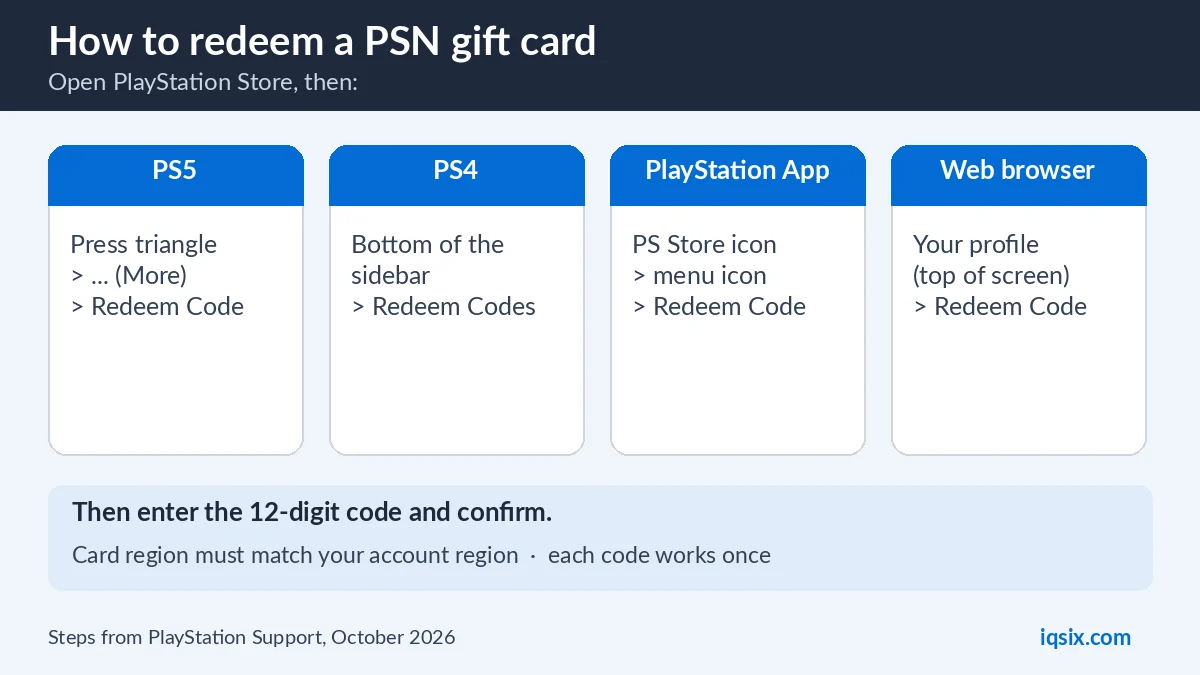
Once your controller is connected, the next thing most players need is credit in PlayStation Store. A PSN gift card adds money to your PlayStation wallet for games, add-ons and PlayStation Plus. Read how to redeem a PSN gift card, or how to buy a PSN gift card with crypto. Setting up a console for a child? See how to set a PS5 spending limit.

- Cards: $10, $20, $50 and $100 US PSN gift cards for accounts registered in the United States.
- Delivery: the 12-digit code by email after your payment is confirmed.
- Payment: crypto, card, or a Remitly bank or mobile money transfer at checkout.
- Help: ask us on WhatsApp or through our contact page.
How to connect a PS4 controller: FAQ
How do I connect my PS4 controller to my PS4?
Turn the console on, connect the controller with a USB cable and press the PS button. When the light bar blinks and the player indicator lights up, unplug the cable and play wirelessly.
How do I put a PS4 controller in pairing mode?
Make sure the player indicator is off and no USB cable is connected. Then hold the SHARE button and press and hold the PS button until the light bar flashes.
Why won’t my PS4 controller connect?
Try a different USB cable, charge the controller, and reset it: press the reset button in the tiny hole on the back for at least five seconds, then reconnect it with the USB cable and press the PS button.
Can a PS4 controller be paired with two consoles?
No. Sony says a controller can pair with only one console at a time. Pair it again with the USB cable when you switch consoles.
How many controllers can I connect to a PS4?
Up to four controllers can be connected to one console.
Can I use a PS4 controller on my phone?
Yes, on Android 10, iOS 13, iPadOS 13 or later, over Bluetooth. Some features such as the touchpad, rumble and the motion sensor do not work over Bluetooth on most phones.
Sources, checked 27 October 2026: PlayStation Support: DUALSHOCK 4 wireless controller support, Use DUALSHOCK 4 with PC, Mac, Android and iOS, Troubleshoot DUALSHOCK 4 issues and the DUALSHOCK 4 USB wireless adaptor manual. PlayStation, PS4, PS5 and DUALSHOCK are trademarks of Sony Interactive Entertainment; IQSIX is not affiliated with Sony.