
Short answer: when a Nintendo Switch won’t turn on, the battery is usually empty or the console is frozen with the screen off. Nintendo’s fix: unplug the AC adapter from both ends for 30 seconds, plug it into the console and straight into a wall outlet, let it charge for 15 to 30 minutes, then hold the POWER button to force a shutdown (30 seconds on a Switch or Switch OLED, 20 seconds on a Switch Lite or Switch 2) and press it again (Nintendo Support).
This guide walks you through every official step when your Switch won’t turn on: what the symptoms mean, the six fixes in the right order, the different steps for Nintendo Switch 2, and when it is time for a repair. All steps come from Nintendo Support, checked in October 2026.
- First: reset the AC adapter (unplugged at both ends for 30 seconds)
- Then: charge straight from a wall outlet for 15–30 minutes
- Forced shutdown: hold POWER for 30 s (Switch, OLED) or 20 s (Lite, Switch 2)
- Test: TV mode in the dock and a second AC adapter
- In the dock? If your Switch won’t turn on there, remember the screen switches off on purpose
- Still dead: Nintendo repair – send the console with its AC adapter
Table of Contents
Why won’t my Switch turn on?
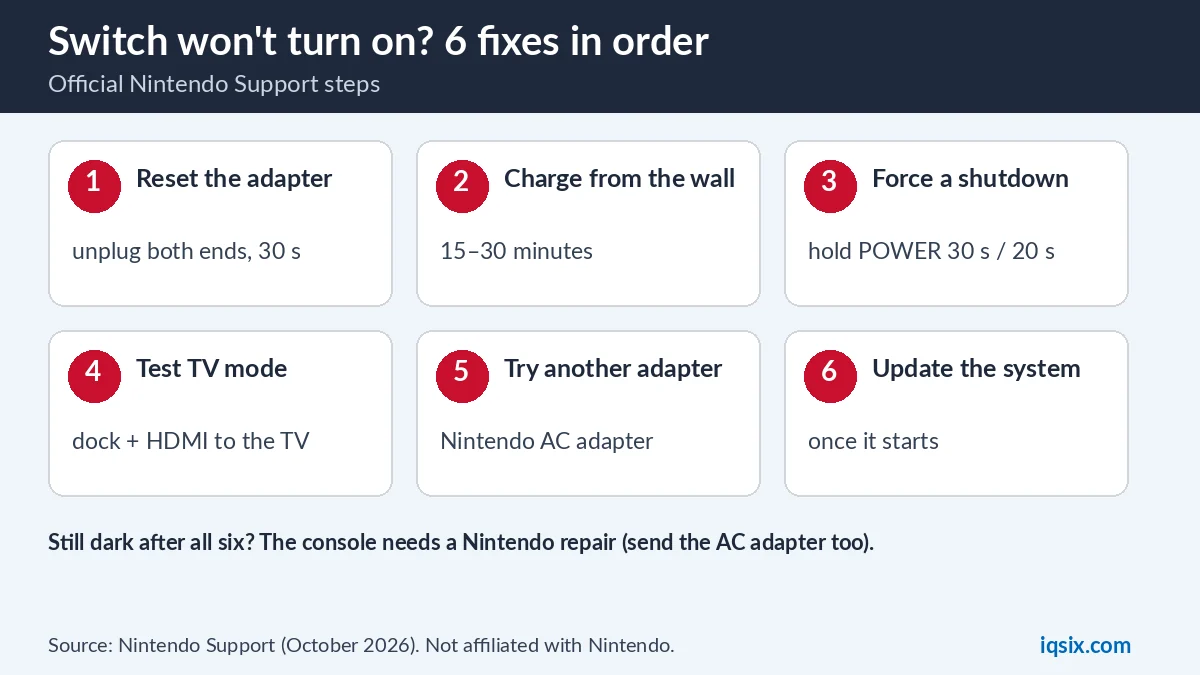
When a Switch won’t turn on, Nintendo describes the symptoms like this: the console will not power on or off, the screen stays blank (sometimes you can still hear sound from the speakers), or it does not wake up from sleep mode when you press the POWER or HOME button (Nintendo). The most common reasons:
- An empty battery. If the battery is nearly empty when you plug in the AC adapter, Nintendo says the screen stays off and a charging indicator only appears for a moment in the top-left corner.
- A frozen console. The system can hang in sleep mode with the screen off. A forced shutdown fixes this.
- The charger. A damaged cable or an AC adapter that does not meet the Switch’s requirements can stop it from charging.
- It is in the dock. In the dock, the console screen turns off on purpose, because the picture goes to the TV.
- A hardware fault. If nothing below helps, the console needs a repair.
Good to know: the Nintendo Switch has no power light, so a dark console does not always mean it is off.
Switch won’t turn on in the dock?
Remember that the console screen switches off in the dock on purpose. If the TV stays black too, check that the TV is on the right HDMI input, then take the console out of the dock: if it turns on in handheld mode, the problem is the dock, its cables or the TV, not the console. If your Switch won’t turn on in handheld mode either, start with the fixes below.
Fix 1: Reset the AC adapter
Take the console out of the dock and attach the Joy-Con controllers. Then unplug the AC adapter from both the wall and the console and leave it unplugged for at least 30 seconds. While you wait, check that you are using the Nintendo Switch AC adapter (model HAC-002) or another compatible adapter, and look for cuts, kinks or frayed cables. Nintendo says that replacing a damaged or wrong charger with the correct accessory may solve the problem. If your Switch won’t turn on yet, go on to Fix 2.
Fix 2: Charge straight from a wall outlet
When a Switch won’t turn on because the battery is empty, a direct connection to the wall is the fastest way back. Connect the AC adapter to the console and directly to a wall outlet, not through the dock or a power strip. Then look at the screen:
| What you see | What to do |
|---|---|
| The entrance (lock) screen | It works: let it charge and install the latest system update |
| Only a battery charge icon | Charge for at least 15 to 30 minutes, then press POWER |
| Nothing at all | Go to Fix 3: force a shutdown |
If the charging icon never appears, Nintendo’s charging guide suggests testing the AC adapter with another Nintendo device that charges over USB-C (Nintendo Support).
Fix 3: Force a shutdown with the POWER button
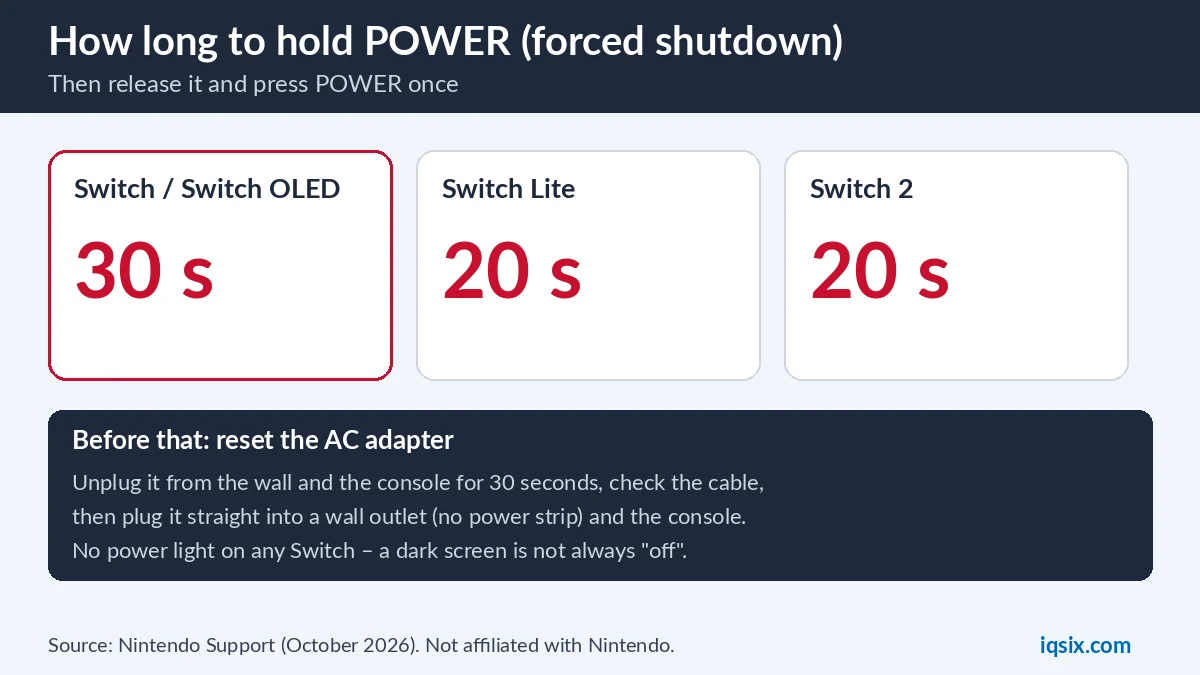
If your Switch won’t turn on even after charging, it may be frozen with the screen off. A forced shutdown restarts it. Hold the POWER button for the time that matches your model, release it, then press POWER once to turn the console on:
| Model | Hold POWER for |
|---|---|
| Nintendo Switch / Switch OLED | 30 seconds |
| Nintendo Switch Lite | 20 seconds |
| Nintendo Switch 2 | 20 seconds |
If the screen turns on, let the console charge for at least 30 minutes and install the latest system version.
Switch won’t turn on and won’t charge
Nintendo’s charging guide covers this case: if the battery charging icon is not displayed, or the battery does not reach 100% after several hours, there may be an issue with the AC adapter or the charging port. Unplug the adapter from the console and plug it into another Nintendo product that uses USB-C, such as a Pro Controller. If that device charges, the adapter works and the console needs a closer look; if it does not, replace the adapter (Nintendo Support).
Fix 4: Test TV mode in the dock
If your Switch won’t turn on in handheld mode, this test shows whether the console works but its screen does not (not possible on a Switch Lite, which has no TV mode). Nintendo’s steps: use the Nintendo Switch dock (HAC-007) or the dock with LAN port (HEG-007), connect the AC adapter to the dock and directly to a wall outlet, connect the HDMI cable from the dock directly to the TV, turn the TV on and put the console in the dock with its screen facing the same way as the front of the dock.
If the picture appears on the TV but not on the console screen, there could be an issue with the console screen, and Nintendo recommends a repair.
Fix 5: Try a second AC adapter
If you can, test the console with another Nintendo Switch AC adapter. If the console turns on with the second adapter, the first one needs to be replaced. If the Switch won’t turn on with either adapter, the console itself needs a repair.
Fix 6: Update the system once it starts
As soon as your Switch starts again, Nintendo recommends making sure the latest system version is installed. It is the last step of every fix above. While you are online, it is also a good moment to check your Nintendo Account settings, for example the eShop spending limit for kids.
Nintendo Switch 2 won’t turn on?
The Switch 2 steps are similar, with a few differences (Nintendo Support):
- Unplug the AC adapter from the wall and from the dock or console, and leave it unplugged for 30 seconds.
- Hold the POWER button for 20 seconds, then release it (forced shutdown).
- Plug the AC adapter into the wall, directly (not a power strip), then directly into the console, and press POWER once.
- If you see a battery charge icon on a blank screen: check that you use the Nintendo Switch 2 AC adapter or another compatible one, check it for damage, charge for 15 to 30 minutes, then press POWER and install the latest system update.
- If there is no charging icon: try the other USB-C port (the Switch 2 has one on the top and one on the bottom), and test the adapter with another Nintendo USB-C product such as the Pro Controller or the dock.
Like the original model, the Switch 2 has no power light, and its screen turns off in the dock while the picture is on the TV.
When to send your Switch for repair
If, after all six fixes, your Switch won’t turn on, or it only works on the TV, Nintendo says the console needs to come in for repair. Start the repair request on Nintendo’s support site for your country. For testing purposes, Nintendo asks you to include the AC adapter, and the dock if you tested TV mode.
Back up and running? Get a Nintendo eShop card
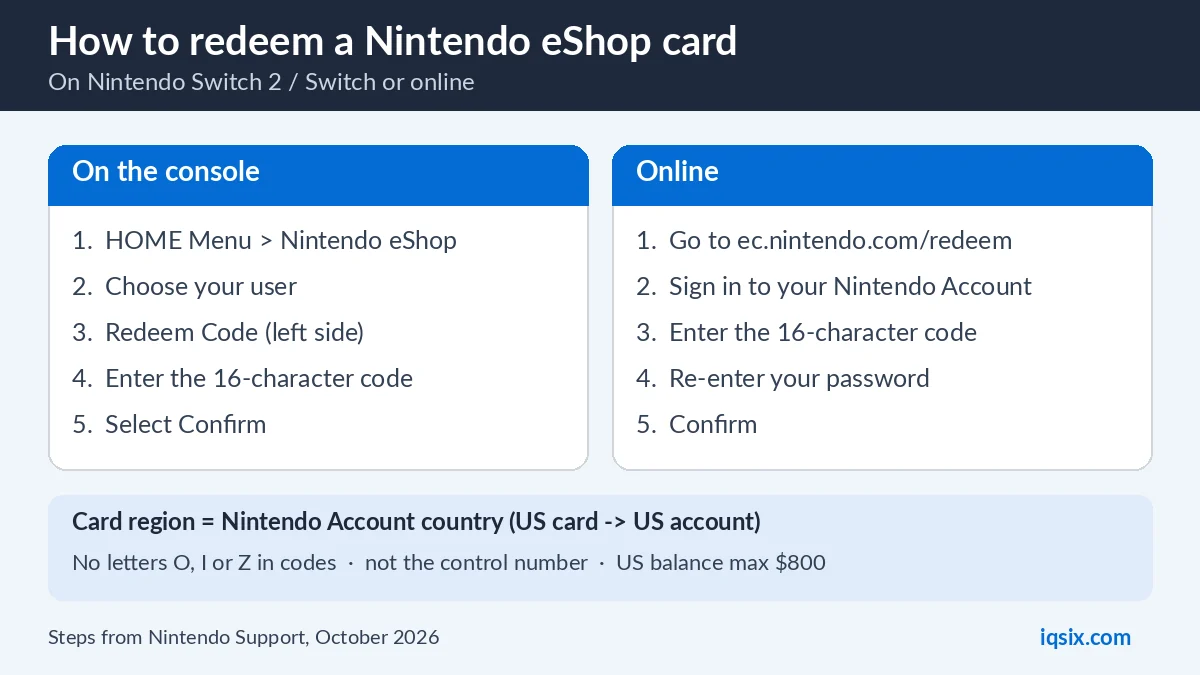
Once your console works again, you may want new games. A Nintendo eShop card adds funds to your Nintendo Account: see how to redeem a Nintendo eShop card and whether you can buy Nintendo Switch Online with an eShop card.

- Card: Nintendo eShop $10 (USA), for Nintendo Accounts set to the United States.
- Delivery: the code by email after your payment is confirmed.
- Payment: crypto, card, or a Remitly bank or mobile money transfer at checkout.
- Help: ask us on WhatsApp or through our contact page.
More gaming cards: our games category.
Switch won’t turn on: FAQ
Why won’t my Switch turn on even when charging?
Reset the AC adapter (unplugged at both ends for 30 seconds), plug it straight into a wall outlet and the console, and charge for 15 to 30 minutes. If nothing changes, hold POWER for 30 seconds (20 on a Switch Lite) to force a shutdown, then press it again.
How do I force restart a Nintendo Switch?
Hold the POWER button for 30 seconds on a Switch or Switch OLED, or 20 seconds on a Switch Lite or Switch 2, release it, then press POWER once to turn the console on.
My Switch screen is black but I hear sound. What should I do?
Nintendo lists this as one of the symptoms. Force a shutdown with the POWER button, charge the console, and test TV mode in the dock to see if only the screen has a problem.
How long should I charge a dead Switch?
At least 15 to 30 minutes before you press POWER. When the battery is almost empty, the screen stays off and only a charging icon appears for a moment.
Does the Nintendo Switch have a power light?
No. The Switch has no power light, and in the dock the console screen turns off because the picture goes to the TV.
Can I use any USB-C charger?
Nintendo recommends the Nintendo Switch AC adapter (HAC-002) or another adapter that meets the requirements in the Important Information leaflet. A wrong or damaged charger can stop the console from charging.
Sources, checked 28 October 2026: Nintendo Support: no power, blank screen or won’t wake up, Nintendo Support: Nintendo Switch 2 has no power and Nintendo Support: system cannot be charged. Nintendo Switch is a trademark of Nintendo; IQSIX is not affiliated with Nintendo.