
Short answer: to add a line in Word, put the cursor on an empty line, type three hyphens (—) and press Enter. Word draws a horizontal line across the page. Type three underlines, equal signs, asterisks, number signs or tildes instead for a thick, double, dotted, triple or wavy line. For a line in any direction, such as a vertical or diagonal line, select Insert > Shapes, pick a line and drag; hold Shift to keep it perfectly straight.
Every step comes from Microsoft Support, checked in November 2026, for Word for Microsoft 365, Word 2024 and Word 2021 on Windows, plus Word for Mac and Word for the web where Microsoft gives the steps.
- Fastest: type — and press Enter
- Other styles: ___ thick, === double, *** dotted, ### triple, ~~~ wavy
- Any direction: Insert > Shapes > Line, hold Shift
- Vertical line between columns: Layout > Columns > More Columns > Line between
- Remove a line you can’t select: Home > Borders > No Border
Table of Contents
Which way to add a line in Word should you use?
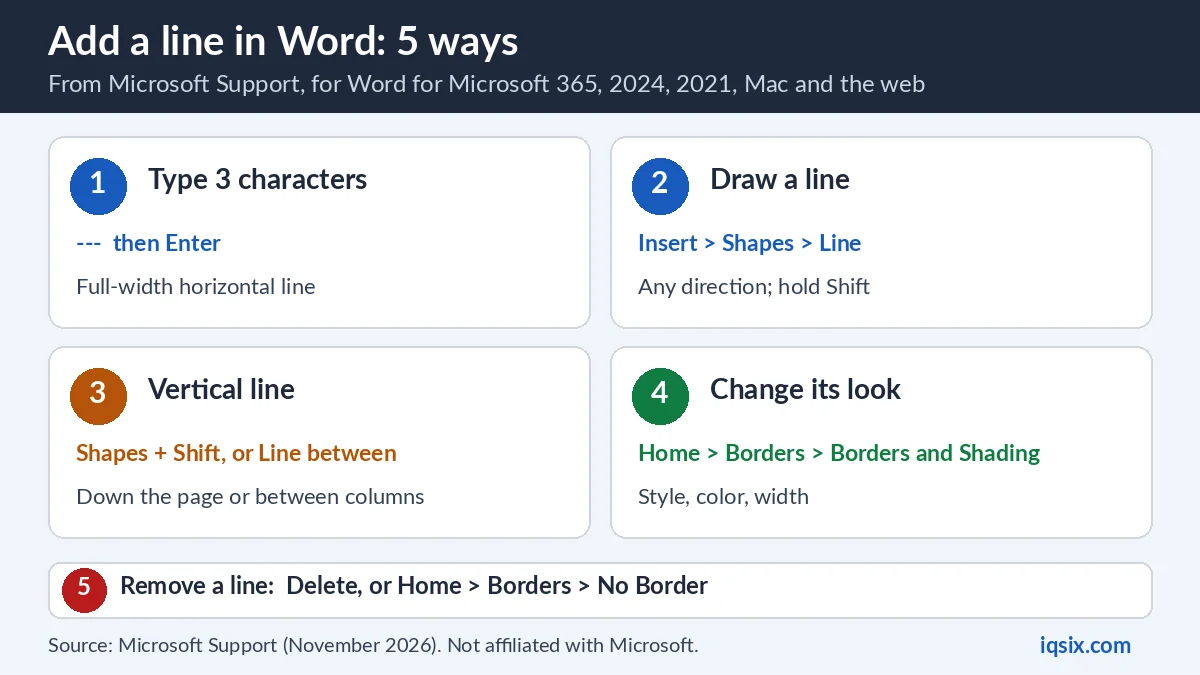
Word has several kinds of lines, and each way makes a different one. Pick the one that fits what you need:
| Way | Best for | Works in |
|---|---|---|
| Type 3 characters + Enter | A quick full-width line between parts of a document | Windows and Mac; Word for the web with – = _ * only |
| Borders and Shading | Changing the style, color or width of that line | Word for Windows (Microsoft’s steps) |
| Insert > Shapes > Line | A line in any direction or spot, with arrows or dashes | Word for Microsoft 365, 2024, 2021, 2019, 2016 |
| Line between (Columns) | A vertical line between newsletter-style columns | Word desktop app (not Word for the web) |
| Shift + Enter | A new line of text in the same paragraph, not a drawn line | Windows, Mac (Shift + Return) and the web |
Way 1: Add a horizontal line in Word by typing three characters
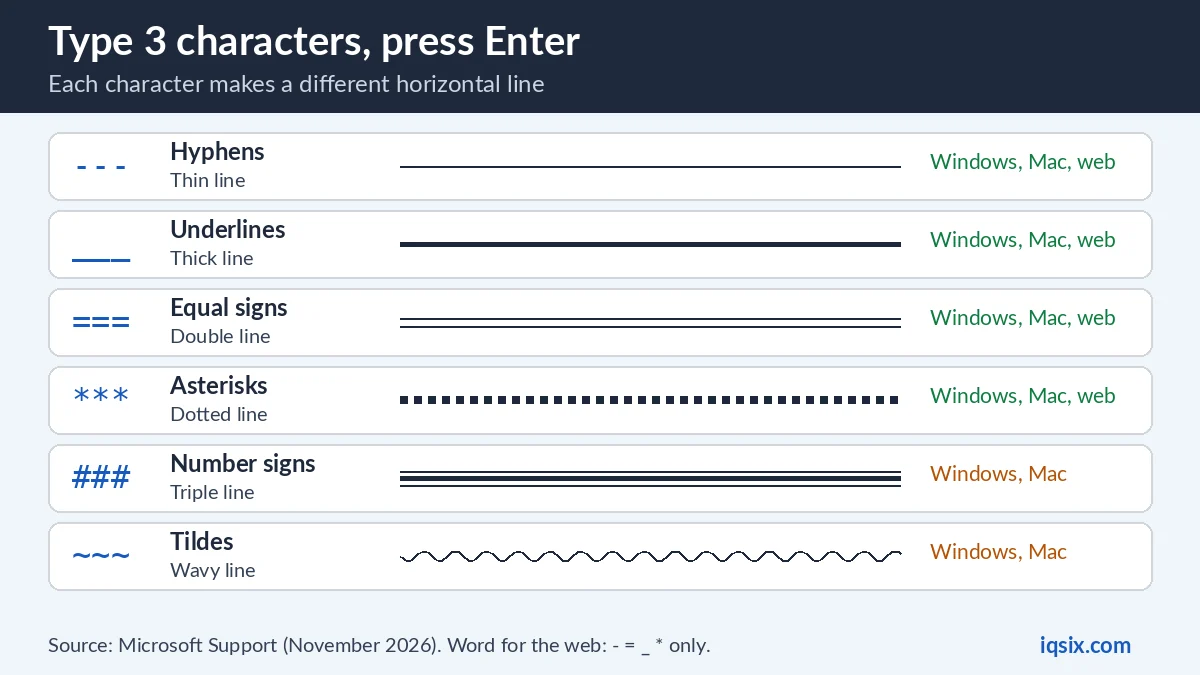
Microsoft calls this a three-character shortcut: it “inserts a full-width horizontal rule in your document”, and the look of the line depends on the character you type (Microsoft Support):
- Place the cursor where you want to insert the horizontal line.
- On a line by itself, type three of the characters below.
- Press Enter.
| Type | Characters | Line you get |
|---|---|---|
| — | Hyphens | Thin single line |
| ___ | Underlines | Thick single line |
| === | Equal signs | Double line |
| *** | Asterisks | Dotted line |
| ### | Number signs | Triple line, thicker in the middle |
| ~~~ | Tildes | Wavy line |
The line runs across the available width of the document. In a multi-column layout, it may match the width of the column instead. To add text above the line, put your cursor where you want the text and begin typing.
Changed your mind? Press Backspace immediately after Word creates the line. Microsoft’s tip: this cancels the horizontal line and keeps the three characters you typed.
Change the line’s style, color or width
The line you get from the shortcut is not a picture: Microsoft explains that it “creates an empty paragraph with a bottom border” (Microsoft Support). So you change it with the Borders options:
- On the Home tab, in the Paragraph group, select the arrow next to Borders.
- Select Borders and Shading at the bottom of the menu.
- In the dialog, change the line’s style, color or width, then select OK.
- To apply your changes, select the Borders button again.
Because the line is really a paragraph border, you can also turn it into a box: select All Borders or Outside Borders in the same menu.
Way 2: Draw a line in Word with Shapes
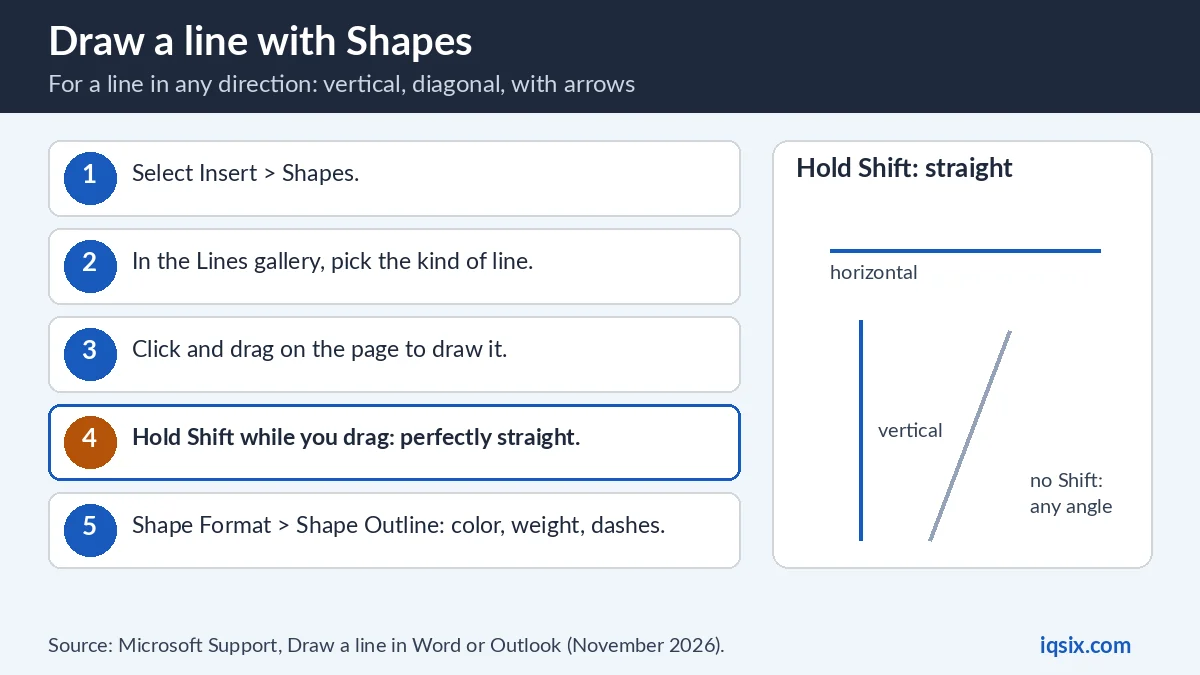 Draw a line with Shapes for any direction; hold Shift to keep it straight.
For a line that doesn’t run across the whole page, such as a short line, a diagonal line or an arrow, draw it as a shape (Microsoft Support):
- On the ribbon, select Insert > Shapes.
- From the Lines gallery, select the kind of line you want to draw.
- On the page, click and drag your mouse to draw the line.
- With the line still selected, on the Shape Format tab, select Shape Outline to choose a color, a weight (line thickness) and line styling, such as dashes or arrowheads.
To draw a perfectly horizontal or vertical line, press and hold the Shift key while you draw. The same steps work when you write an email in Outlook; if you don’t see the Insert tab there, select Pop Out to open the message in its own window.
How to add a vertical line in Word
Word has two ways to put a vertical line on the page.
Draw it. Select Insert > Shapes, pick a line from the Lines gallery, then hold Shift and drag straight down. Shift keeps the line perfectly vertical (Microsoft Support). You can drag it anywhere, for example next to a paragraph you want to highlight.
Between columns. If your text is in newsletter-style columns, Word can draw the line for you (Microsoft Support):
- On the Layout tab (called Page Layout in some versions), select Columns.
- At the bottom of the list, choose More Columns.
- In the Columns dialog box, select the Line between check box, then select OK.
The same dialog box lets you adjust the column width and the spacing between columns. Columns are a desktop feature: Microsoft notes that Word for the web shows newsletter-style columns, but you can’t create or resize them there.
Example: a line under your name on a letter
A common use: a simple letterhead with a line under your name and contact details.
- Type your name, address and phone number at the top of the page.
- Press Enter to start a new, empty line.
- Type three underlines (___) on that line by itself and press Enter. Word adds a thick line across the page.
- Want it in your brand color? Put the cursor immediately above the line, then go to Home > Borders > Borders and Shading, pick a color and select OK.
Prefer a thinner line? Type three hyphens instead. Two lines? Use equal signs. The rest of the letter starts below the line as usual.
Insert a line in Word for Mac
The same shortcut works in Word for Microsoft 365 for Mac: type three hyphens, equal signs, underlines, asterisks, number signs or tildes and press Enter to get a full-width horizontal line. If you prefer, you can also draw a line (Microsoft Support).
Need a new line of text without a new paragraph? On a Mac, press Shift + Return (Keyboard shortcuts in Word).
Insert a line in Word for the web
Word for the web supports fewer characters: type three hyphens, equal signs, underlines or asterisks and press Enter (Microsoft Support). Number signs and tildes don’t make a line there.
For the other line styles, you can draw a line, or open the document in the Word desktop app: at the top of the ribbon, select Editing > Open in Desktop. A new line of text in Word for the web is Shift + Enter, the same as on Windows.
How to remove a line in Word
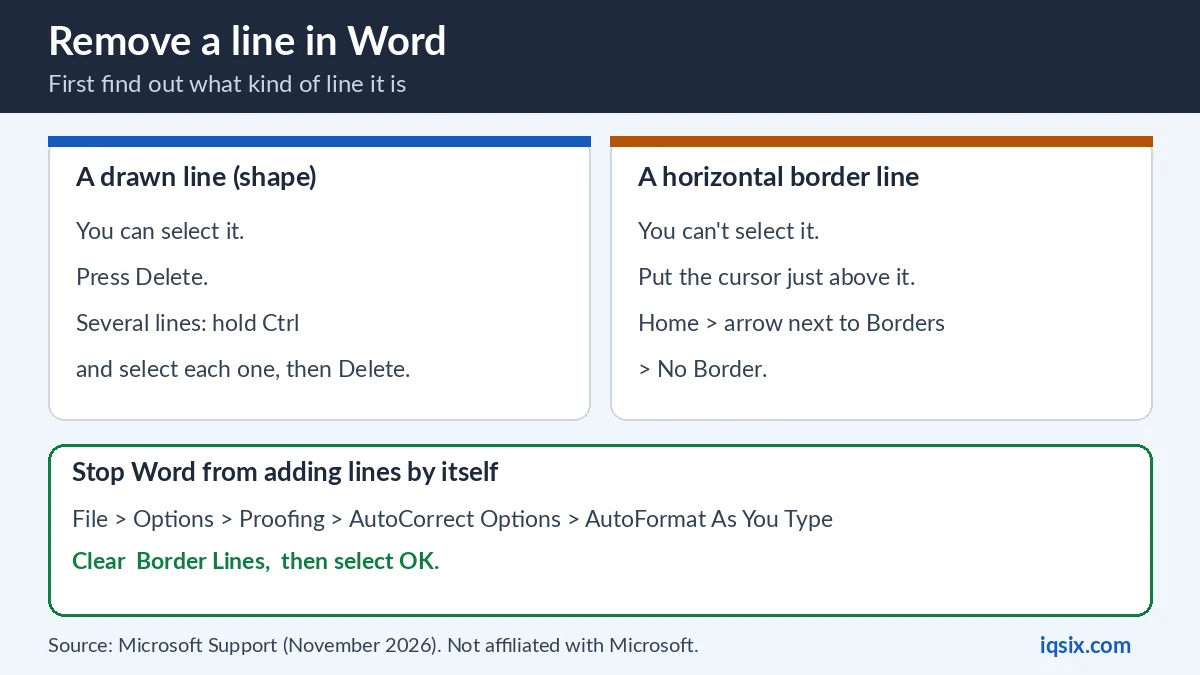
How you remove a line depends on what kind of line it is (Microsoft Support):
- A drawn line or shape: select it and press Delete. To delete several, select the first line, press and hold Ctrl while you select the others, then press Delete.
- A line you can’t select: it is probably a horizontal border line, made by the three-character shortcut. Place the cursor immediately above the line. On the Home tab, select the arrow next to the Borders and Shading button, then select No Border.
Stop Word from adding lines automatically
If Word keeps turning your hyphens into a line, turn off the automatic line feature (Microsoft Support):
- On the File tab, select Options.
- On the Proofing tab, select AutoCorrect Options and choose AutoFormat As You Type.
- Clear the Border Lines option.
- Select OK.
Only need it once? Press Backspace right after the line appears instead. Word cancels the line and keeps your three characters.
Line in Word not working? Quick fixes
- Typing — does nothing: type the characters on a line by itself, then press Enter. If it still doesn’t work, Border Lines may be off in AutoFormat As You Type: turn it back on (see above).
- ### or ~~~ doesn’t work in Word for the web: only hyphens, equal signs, underlines and asterisks work there. Use the desktop app for the other styles.
- You can’t select or delete the line: it’s a border, not a shape. Put the cursor just above it and choose No Border.
- The line is only as wide as a column: in a multi-column layout, the line may match the column width.
- Your drawn line isn’t straight: hold Shift while you drag.
- No Line between option on the web: columns can’t be created in Word for the web; open the document in the desktop app.
Text pasted from a website brought its own lines and styles? See how to clear formatting in Word. Setting up a reference list? See how to do a hanging indent in Word. Need to change a word everywhere? See how to find and replace in Word.
Get Microsoft 365 from IQSIX

Word comes with Microsoft 365. IQSIX sells a Microsoft 365 Personal 1-year key with Word, Excel, PowerPoint and Outlook: the Word for Microsoft 365 version this guide covers, on Windows and Mac.
- Redeem: enter the key at microsoft365.com/setup with your Microsoft account (see how to redeem a Microsoft 365 product key).
- Delivery: by email after your payment is confirmed (or on WhatsApp if you ask).
- Payment: crypto, card, or a Remitly bank or mobile money transfer at checkout.
- Questions first? Ask us on WhatsApp or through our contact page.
Word closed before you saved? See how to recover an unsaved Word document. Not sure which Office to pick? Read Microsoft 365 vs Office 2024, or see all our software keys.
Add a line in Word: FAQ
How do I add a line in Word?
Put the cursor on an empty line, type three hyphens (—) and press Enter. Word draws a full-width horizontal line. For a line in any direction, select Insert > Shapes and pick a line from the Lines gallery.
How do I insert a horizontal line in Word with different styles?
Type three characters on a line by itself and press Enter: hyphens for a thin line, underlines for a thick line, equal signs for a double line, asterisks for a dotted line, number signs for a triple line and tildes for a wavy line.
How do I add a vertical line in Word?
Select Insert > Shapes, pick a line, then hold Shift and drag straight down. For a line between columns, go to Layout > Columns > More Columns and select Line between.
How do I remove a line in Word that I can’t select?
It is probably a horizontal border line. Place the cursor immediately above it, then on the Home tab select the arrow next to the Borders and Shading button and choose No Border.
How do I stop Word from adding lines automatically?
Go to File > Options > Proofing > AutoCorrect Options > AutoFormat As You Type, clear Border Lines and select OK. To cancel one line, press Backspace right after it appears.
How do I start a new line in Word without a new paragraph?
Press Shift + Enter to insert a line break (Shift + Return on a Mac). Ctrl + Enter inserts a page break.
Sources, checked 2 November 2026: Microsoft Support – Insert a horizontal line in Word, Create a horizontal line, Draw a line in Word or Outlook, Remove a line in Word, Adjust column widths on a page and Keyboard shortcuts in Word. IQSIX is not affiliated with Microsoft.