
Short answer: to switch out of S mode in Windows 11, open Settings > System > Activation, find Switch to Windows 11 Pro, select Go to the Store, then select Get on the “Switch out of S mode” page. It is free, but it is one-way: you cannot turn S mode back on. Afterwards you can install apps from outside the Microsoft Store.
This guide explains what S mode is, when you should switch out of S mode, the exact steps for Windows 11 and Windows 10, the mistake to avoid, and what changes afterwards. Everything comes from Microsoft Support and Microsoft’s S mode FAQ, checked in October 2026.
- Cost: free – there is no charge to switch out of S mode
- One-way: you cannot go back to S mode on that PC
- Where: Settings > System > Activation > Go to the Store
- Avoid: the “Upgrade your edition of Windows” link keeps you in S mode
- After: install any app, not only Microsoft Store apps
Table of Contents
What is S mode?
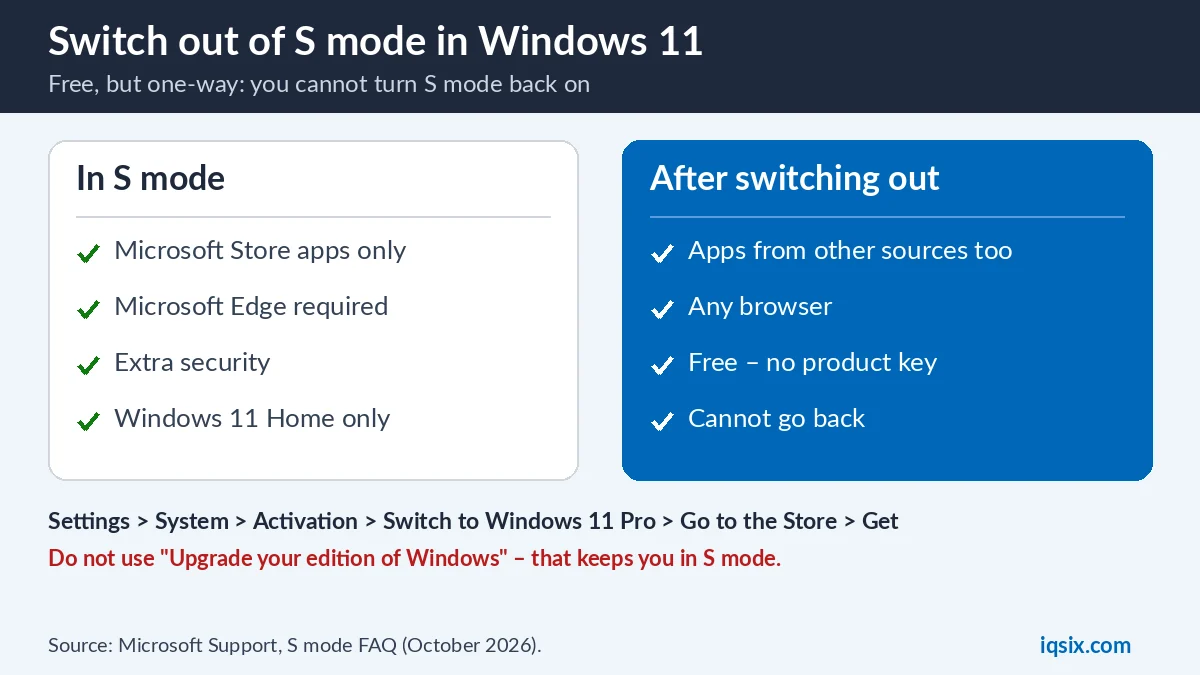
Microsoft describes Windows 11 in S mode as a version of Windows 11 streamlined for security and performance. It only lets you install apps from the Microsoft Store and requires Microsoft Edge for browsing (Microsoft). Many low-cost laptops come with Windows 11 Home in S mode from the factory.
Windows 11 in S mode is only available in the Windows 11 Home edition. That is why Windows 10 Pro, Enterprise or Education in S mode cannot move to Windows 11 without switching out of S mode first.
How to check if your PC is in S mode
Open Settings > System > Activation. If your PC is in S mode, you will see your edition shown as “in S mode” and a Switch to Windows 11 Pro section with a Go to the Store link. You may also notice it when you try to install a program from a website and Windows tells you that only Microsoft Store apps are allowed.
Should you switch out of S mode?
S mode is fine if every app you need is in the Microsoft Store. You should switch out of S mode if:
- You need a program that is not in the Microsoft Store, for example some games, school or work software, printers’ tools or a different browser.
- You want the Xbox app to play PC games: Xbox says playing games in the Xbox app may require switching out of S mode (see Game Pass on PC).
- You have Windows 10 Pro, Enterprise or Education in S mode and want to upgrade to Windows 11.
- Your school or work tells you to install software that is only available outside the Store.
If none of these apply to you, you can keep S mode and decide later: the option to switch stays available in Settings for as long as the PC is in S mode.
Microsoft is clear about the trade-off: switching out lets you install apps from other sources, but you lose the security and performance benefits that come with S mode. So only install software from sources you trust.
Reasons to stay in S mode
Microsoft designed S mode for security and performance. Because only Microsoft Store apps can be installed, it is much harder to install harmful software by mistake. That makes S mode a good fit for children, older relatives or anyone who only needs a browser, email, Office and Store apps. If that describes you, there is no need to switch out of S mode.
How to switch out of S mode in Windows 11
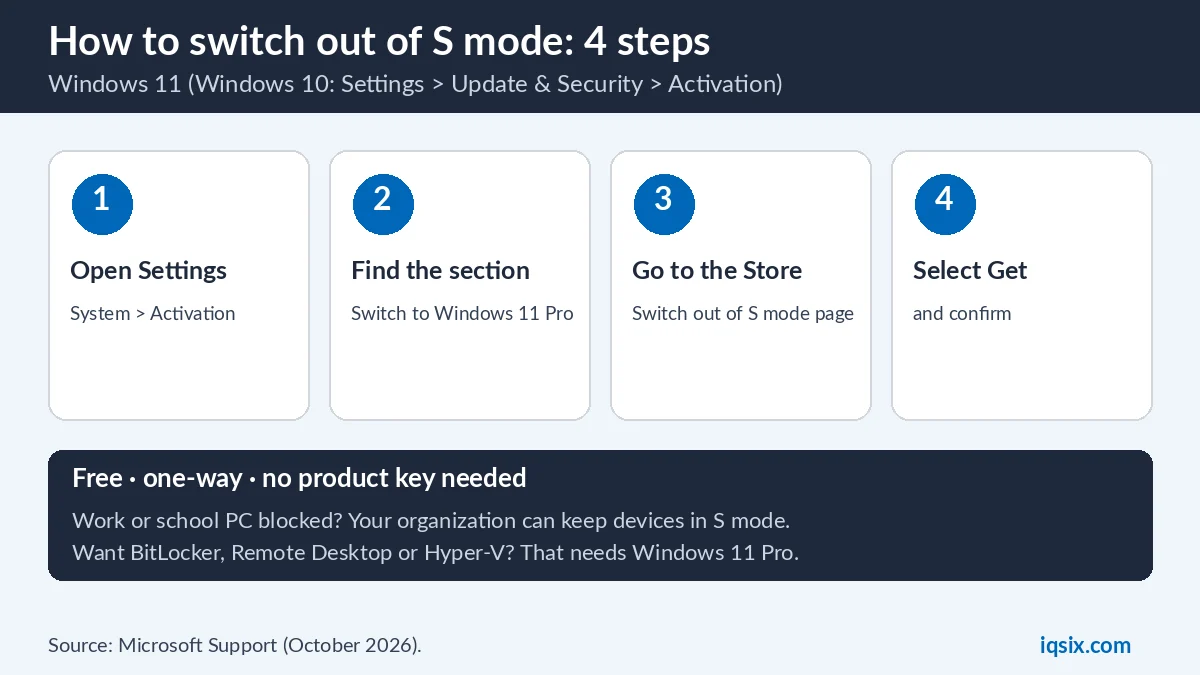
Microsoft’s steps (Microsoft Support):
- On your PC running Windows 11 in S mode, open Settings > System > Activation.
- Find the Switch to Windows 11 Pro section and select Go to the Store.
- In the Microsoft Store, on the Switch out of S mode page (or a similar page), select Get.
- Confirm. When you see the confirmation message, you can install apps from outside the Microsoft Store.
Important: do not select the link under Upgrade your edition of Windows. Microsoft says that is a different process that keeps you in S mode.
How to switch out of S mode in Windows 10
- Open Settings > Update & Security > Activation.
- Find Switch to Windows 10 Home or Switch to Windows 10 Pro and select Go to the Store.
- On the Switch out of S mode page in the Microsoft Store, select Get and confirm.
Windows 10 support ended on 14 October 2025, so after switching out it is a good moment to upgrade Windows 10 to Windows 11 if your PC is eligible. Windows 10 Home in S mode can get a free upgrade to Windows 11 Home in S mode through Windows Update.
Example situations
- A student laptop needs a school exam program that is only on the school’s website: switch out of S mode, then install it.
- A gamer wants to play PC Game Pass games in the Xbox app: switching out of S mode may be required.
- A parent only uses the browser, Office and Store apps: S mode can stay on for extra safety.
- An office PC with Windows 10 Pro in S mode must switch out before it can move to Windows 11.
Which processors run S mode?
Microsoft says Windows 11 in S mode can come on PCs with Intel, AMD or Qualcomm Snapdragon processors. To check yours, open Start > Settings > System > About and look next to Processor. This matters for some programs: check that the app you want supports your processor type before you switch.
What about apps you already bought?
Apps you bought in the Microsoft Store are linked to your Microsoft account, so you can install them again on another Windows 11 PC that uses the same account. Leaving S mode does not change this.
Is switching out of S mode free?
Yes. Microsoft says there is no charge to switch out of S mode. You do not need a product key for it. What you cannot do is undo it: Microsoft says switching out of S mode is one-way, and you then keep using the standard version of Windows 11.
What changes after you switch out
| In S mode | After switching out | |
|---|---|---|
| Apps | Microsoft Store only | Store + other sources |
| Browser | Microsoft Edge required | Any browser |
| Go back | – | Not possible |
| Cost | – | Free |
Switching does not reinstall Windows: it removes the app restriction. Microsoft notes that after switching out you can install x86 Windows apps that are not available in the Microsoft Store.
Can’t switch out of S mode?
- Work or school PC: Microsoft says organizations can choose to keep devices in S mode. If you are blocked, ask your administrator.
- Wrong link: make sure you used Go to the Store under Switch to Windows 11 Pro, not Upgrade your edition of Windows.
- Microsoft Store problems: sign in to the Store with your Microsoft account and try again.
S mode, Home and Pro: what is the difference?
Switching out of S mode removes the app restriction; it is not the same as buying Windows 11 Pro. If you want Pro features such as full BitLocker, Remote Desktop hosting or Hyper-V, you upgrade Windows 11 Home to Pro with a product key in Settings > System > Activation > Change product key (Microsoft). See Windows 11 Home vs Pro to decide.
Tips after switching out of S mode
- Download software only from official websites or the Microsoft Store.
- Keep Windows Security on and Windows updated.
- Be careful with “free” cracked programs: they are a common way to get malware.
- Back up your files to OneDrive or an external drive.
Get a Windows 11 Pro key from IQSIX

Want more than leaving S mode? IQSIX sells a Windows 11 Pro product key for one PC, to upgrade Windows 11 Home to Pro with BitLocker, Remote Desktop and Hyper-V.
- Delivery: after your payment is confirmed, we send the key by email.
- Activation: Settings > System > Activation > Change product key.
- Payment: crypto, card, or a Remitly bank or mobile money transfer at checkout.
- Help: not sure if you need Pro? Ask us on WhatsApp before you buy.
Switch out of S mode FAQ
How do I switch out of S mode in Windows 11?
Open Settings > System > Activation, find Switch to Windows 11 Pro, select Go to the Store, then select Get on the Switch out of S mode page and confirm.
Is it free to switch out of S mode?
Yes. Microsoft says there is no charge to switch out of S mode, and you do not need a product key.
Can I go back to S mode?
No. Switching out of S mode is one-way. After you switch, you keep using the standard version of Windows 11.
What can I install after leaving S mode?
Apps from outside the Microsoft Store as well, including x86 Windows apps that are not available in the Store. Install them only from sources you trust.
Why can I not switch out of S mode?
If the PC belongs to a school or company, your organization may keep it in S mode – ask your administrator. Also make sure you used Go to the Store, not Upgrade your edition of Windows.
Does leaving S mode give me Windows 11 Pro?
No. It removes the app restriction. For Pro features like BitLocker, Remote Desktop and Hyper-V, upgrade Home to Pro with a product key.
Sources, checked 22 October 2026: Microsoft Support: Switching out of S mode, Windows 10 and Windows 11 in S mode FAQ and Upgrade Windows Home to Windows Pro.